Using Outputs
ATEM Constellation HD switchers have an abundance of general purpose outputs that can have
various inputs and internal sources routedto them. They are very similar to router outputs and
all video inputs, color generators, media players, program, preview and even color bars can
be output.
If you need an extra program output these are ideal, or if you need a clean feed before all
of the down stream keyers, then you can even select this to the output. This will give you a
program feed without a logo or bug, so you can capture this as abroadcast master for later post
production or transmission.
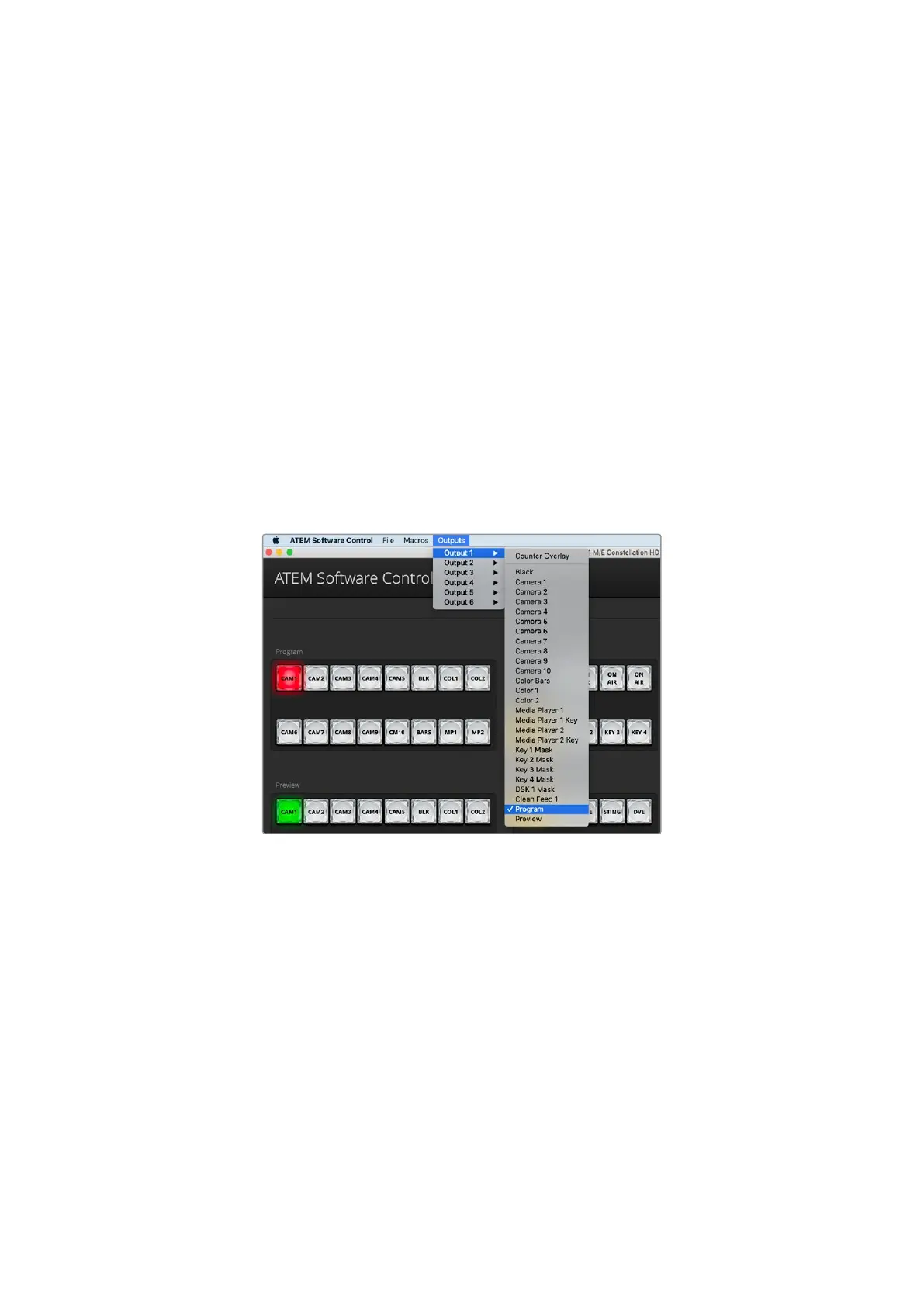
The outputs are extremely powerful and can be routed on the software control panel, as well
asthe hardware based advanced panel. The outputs menu available in the menu bar atthe top
of the software control panel regardless of the window currently selected so they arealways
available. The ‘outputs’ menu in the software control panel has flexible routing options for all
HD outputs. For more information, see the ‘Routing Outputs’ section.
The switcher will always perform a clean switch when an auxiliary output changes sources so
this means you can use the switcher to cut between sources on the auxiliary output cleanly
andwithout glitches.
ATEM Software Control menus for routing outputs for ATEM Constellation
Routing the Output using an ATEM Hardware Panel
On ATEM hardware panels, you can route the auxiliary output using the auxiliary settings in
thesystem control menu. To do this:
1 Press the ‘aux’ button in the system control ‘home’ menu to open the outputs menu.
2 In the outputs menu, select output 1.
3 Press a source button on the corresponding M/E’s source select row or rotate the
corresponding knob to select from the complete list. Depending on the panel you are
using, you may need to hold the shift button down to access your desired source.
4 Press the ‘home’ system control button to return to the home menu.
57Using Outputs



 To Next Page