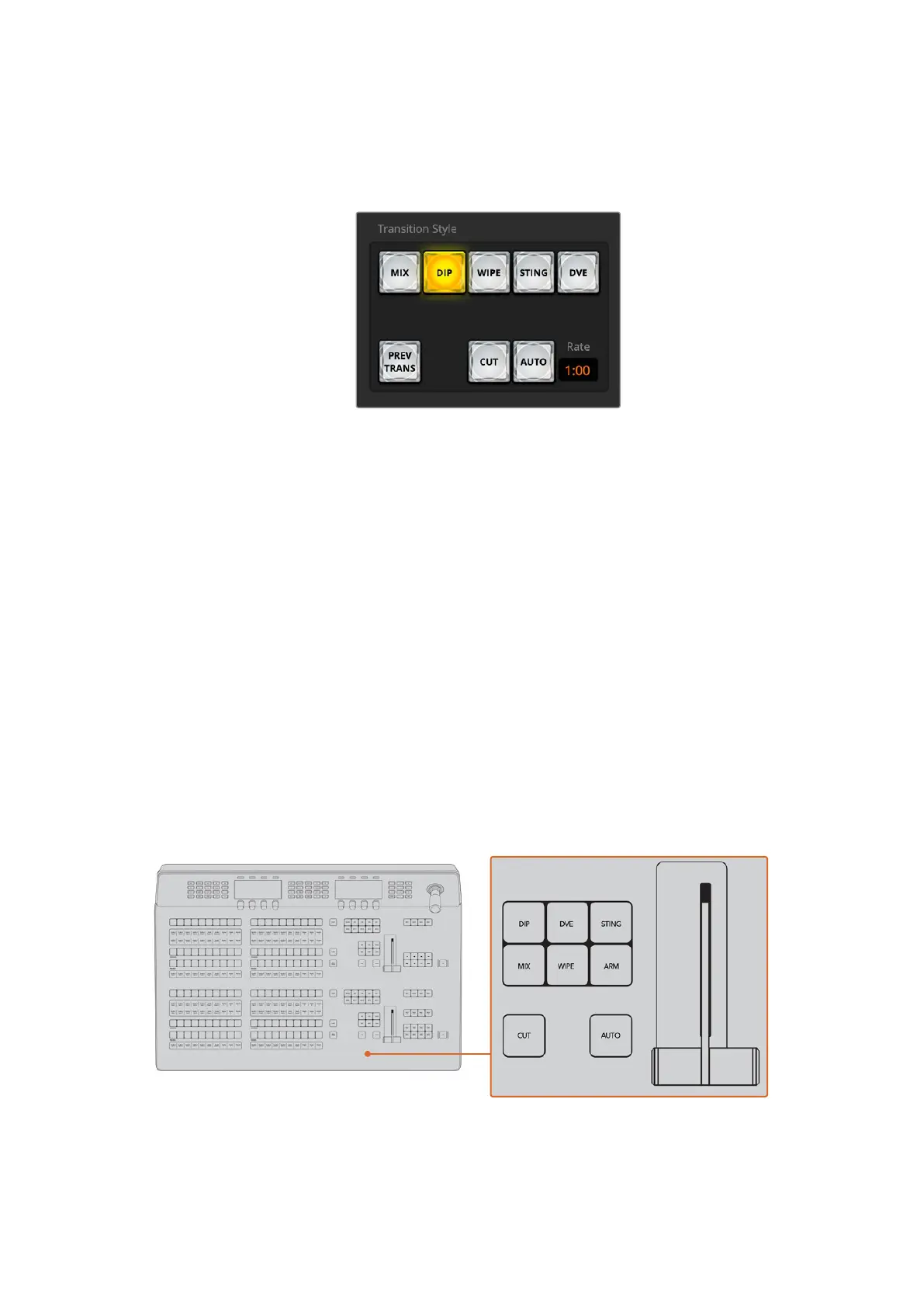
2 In the transition control block, press the CUT button. The sources selected on the program
and preview buses are exchanged to indicate that the video source that was on preview is
now on program and vice versa.
The Cut transition button is part of the
Transitions Style group
To perform a cut transition on the software control panel using a keyboard:
1 Ensure that <caps lock> is off.
2 Press the number key on the keyboard corresponding to the video source that you want on
the program output. The source will be selected on preview and the program output will
remain unchanged.
3 Press <spacebar>. The sources selected on the program and preview buses are exchanged
to indicate that the video source that was on preview is now on program and vice versa.
To perform a cut transition using the CUT button on an ATEM advanced panel:
1 On the preview bus, select the video source that you want on the program output.
Theprogram output will remain unchanged.
2 In the transition control block, press the CUT button. The sources selected on the program
and preview buses are exchanged to indicate that the video source that was on preview is
now on program and vice versa.
It’s recommended to use the transition control block to perform transitions because it
provides the opportunity to verify the video content on the preview output before sending
it to the program output, for example to verify that a camera is in focus.
89Operating your ATEM Switcher



 To Next Page