Stinger Transitions
On ATEM Constellation HD switchers, the stinger transition uses a clip from the media player to
perform a transition. The clip is normally a graphic animation that is keyed over the background.
As the animation plays, when it is full screen, a cut or mix of the background is performed under
the animation. For example, this type of transition is very popular in sports productions for
transitioning in and out of instant replays. The stinger transition takes advantage of a special
keyer that is built into the transition block, leaving all of the upstream and downstream keyers
available for compositing your output. The following section explains how to build and perform
stinger transitions.
Performing a Stinger Transition
To perform a stinger transition on the software control panel:
1 Select the STING transition style button in the transition control block.
2 If the transition is on the PGM M/E, the corresponding transition tab will appear in the
transition palette. For ME 2, ME 3 or ME 4, select the stinger transition tab.
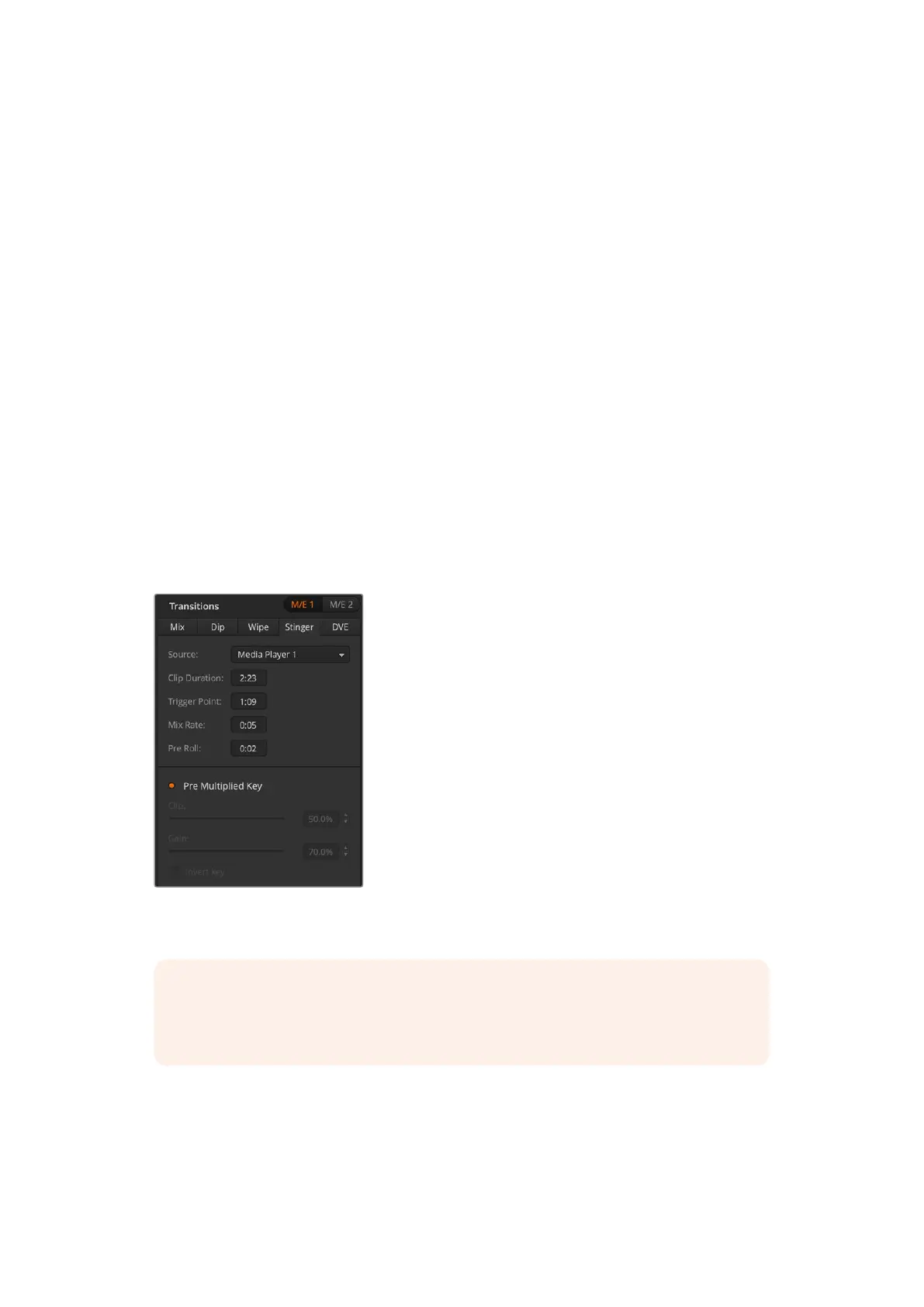
3 From the source menu select the media player for the transition. Make sure the media
player source has the clip you plan to use.
4 Adjust the clip duration, trigger point, mix rate and pre roll parameters if required.
5 Perform the transition as an auto transition from the transition control block.
You cannot perform a manual stinger transition using the fader bar.
Stinger Transition Settings
NOTE You can also use a HyperDeck as a source for the stinger if you have a
HyperDeck connected to your switcher and configured correctly. Refer to the
‘HyperDeck control’ section of the manual for more information.
5 Perform the transition as an auto transition from the transition control block.
To perform a stinger transition on an ATEM
advanced panel:
1 Press the ‘sting’ transition type button in transition
control block.
2 Rotate the LCD menu soft control knob labeled ‘source’
to select the desired media player. Use the arrow
buttons to reveal the additional settings to adjust the
preroll, trigger, mix and duration times as needed.
3 Now that you have set the stinger transition to use the
correct media player, press the ‘media players’ button
in the system control menu buttons next to the LCD to
configure the media player.
4 In the media players menu, select the still or clip you
want to use from the media pool by rotating the ‘media’
soft control knob. If required, set which frame you want
to start the clip from using the corresponding ‘frame’
soft control knob.
96Operating your ATEM Switcher


 To Next Page
 Loading...
