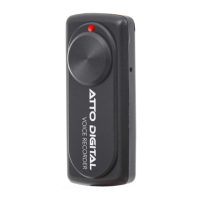
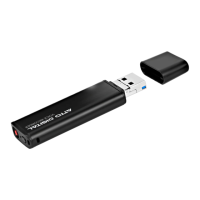
Blue LED: Device is recording.
Green LED: If the device's storage is full, the green LED indicator will flash rapidly for 10
seconds before the device automatically shuts off. Rest assured, the audio file being
recorded will be automatically saved before the device turns off. You will need to free up
some storage space on the recorder. You can do this by either deleting older or
unnecessary files, or transferring them to a different folder on your computer.
Red LED: Battery is low, needs charging. Rest assured, the audio file being recorded will
be automatically saved before the device turns off.
Understanding LED signals
Playback recorded audio
1. Playing Back Recordings on Your Computer
For Windows: Open 'My Computer' or 'This PC' and locate the new drive that
represents the TileRec device.
For Mac: Open 'Finder' and look for the TileRec device under the 'Devices' section.
Connect the TileRec device to your computer using the provided USB-C cable. Insert the
USB-C end into the TileRec and the other end into an available USB port on your
computer.
Navigate to the folder labeled 'RECORD' within the TileRec device storage. This folder
contains all your audio recordings. Double-click on the audio file you wish to play. Your
computer’s default audio player should open and start playing the MP3 file.
2. Playing Back Recordings on Your Android phone
Connect the TileRec device to your Android phone using the provided USB-C cable. A
notification may pop up on your Android device asking for permission to access the
TileRec. Grant permission.
Open your file manager app and navigate to the 'RECORD' folder on the TileRec device
storage. Tap on the audio file you want to play. It should open in your phone's default
audio player and start playing.
3. Playing Back Recordings using Headphones
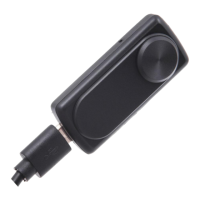
Insert the USB-C connector of your earphones into the
USB-C port on the TileRec Mini Voice Recorder.
Slide the power button to the ON position on the TileRec
device in order to be able to playback your audio files.


 To Next Page