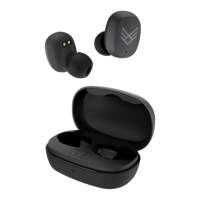
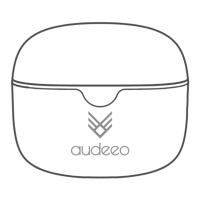
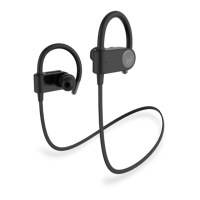
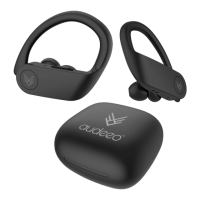
The Audeeo Freedom True Wireless Earphones (Item: AOFREE) are designed for an immersive audio experience with the convenience of wireless technology. These earphones come with a charging case station, a Type-C cable for charging, and a guide booklet.
Function Description:
The Audeeo Freedom earphones are true wireless earbuds that offer a range of functionalities for music playback, call management, and voice assistant activation. They are designed for hands-free operation and provide enhanced acoustics with good treble and bass. The earphones can be used in stereo mode or single earphone mode, offering flexibility in usage.
Important Technical Specifications:
- Bluetooth Version: 5.0
- Frequency Response: 2.4GHz - 2.48GHz
- Driver Unit: 10mm
- Operation Range: 10m
- Earphones Batteries: 35mAh Lithium Ion Each
- Charging Case Station Battery: 300mAh Lithium Ion
- Play Time: Up to 3 hours
- Charging Case Station Supply Power for Earphones: Up to 12 hours
- Earphones Charging Time: About 1 hour
- Charging Case Station Charge Time: About 1.5 hours
Usage Features:
Getting Started:
- Charging:
- Connect the provided Type-C cable to a USB port (computer or wall charger) and the Type-C charging port (C) on the left side of the Charging Case Station.
- The 4 LED indicator lights (D) on the charging case will blink green until fully charged, then remain solid green.
- Place the earphones in their designated notches in the charging case. The LED lights on the earphones will illuminate red while charging and turn off when fully charged.
- Powering ON/OFF:
- Option 1 (Manual):
- To turn ON: With earphones off, touch and hold the Multi-Function button (A) for 2-3 seconds.
- To turn OFF: With earphones on, touch and hold the Multi-Function button (A) for 5 seconds.
- Option 2 (Automatic):
- Removing earphones from the charging case station will automatically turn them ON.
- Placing them back in the charging station and closing the lid will automatically turn them OFF and begin charging.
Bluetooth Pairing:
- Method 1 (Manual Pairing):
- Ensure earphones are off. Touch and hold the Multi-Function button (A) for 2-3 seconds to turn them ON. They will enter Bluetooth pairing mode, and the LED indicator light (B) will flash green and red.
- Enable Bluetooth on your smartphone or music device.
- Select "audeeo Free" from the list of available Bluetooth devices. The LED lights on the earphones will stop flashing, and you will hear "Connected."
- Method 2 (Automatic Pairing from Case):
- Pick up both earphones from the Charging Case Station. They will automatically enter pairing mode and pair with each other. The LEFT earphone will flash green and red steadily, indicating it's ready to pair with a device.
- Enable Bluetooth on your smartphone, tablet, computer, or music device.
- Select "audeeo Free" from the list of available Bluetooth devices and connect.
Single Earphone Mode:
- Remove either the RIGHT or LEFT earphone from the Charging Case Station, or turn only one earphone ON.
- Turn ON the earphone by touching and holding the Multi-Function button (A) until you hear a prompt. After a few seconds, the earphone will enter pairing mode (flashing green & red).
- Open your device's Bluetooth settings and pair with "audeeo Free."
- Note: Last track, volume up/down functions will not work in single earphone mode.
- Power ON/OFF: Touch and hold for 2-3 seconds (ON) or 5 seconds (OFF).
- Pause & Play Music: Touch once on either LEFT or RIGHT earphone.
- Answer & Hang Up Calls: Touch once on either LEFT or RIGHT earphone during an incoming call to answer, touch once again to hang up.
- Reject Calls: Touch and hold for 2-3 seconds on either LEFT or RIGHT earphone during an incoming call.
- Next Track: Double touch on the RIGHT earphone.
- Previous Track: Double touch on the LEFT earphone.
- Increase Volume: Triple touch on the RIGHT earphone.
- Decrease Volume: Triple touch on the LEFT earphone.
- Voice Assistant (Google Assistant™ / Siri®): Hold for 1-2 seconds on either LEFT or RIGHT earphone until you hear a "beep" prompt.
Item Features:
- Touch Button (A): Simple touch controls for pause/play, call management (answer/hang up/reject).
- Charging Contacts (B): Small metal pieces on earphones and in the charging case for power transfer.
- Earphones Status Light (B): Indicates on/off, pairing, or charging status (red when charging in case).
- Micro USB Charging Port (C): For charging the Charging Case Station.
- Charging Case Status Light (D): 4 lights illuminate green, blinking during charge and solid when full.
Multi-Device Compatibility:
Works with any Bluetooth® device including mobile phones, computers, and tablets.
Built-in Mic:
Enables hands-free talking with volume control.
Voice Assistant Activated & Ready:
Works with your phone's digital assistant.
Maintenance Features:
Care & Maintenance:
- DO NOT expose to liquid, moisture, or humidity.
- DO NOT use abrasive cleaning solvents.
- DO NOT expose to extremely high or low temperatures.
- DO NOT dispose of in fire.
- DO NOT use sharp objects on earphones.
- DO NOT attempt to disassemble the unit. Return to the store if it malfunctions.
- Lithium-Ion Battery Disposal: Do not dispose with general waste. Return to a battery recycling collection point.
Troubleshooting:
- No Power: Recharge earphones using the charging case and Type-C cable.
- Music Not Playing Over Bluetooth: Ensure your Bluetooth device has A2DP profile, both devices are paired and connected. Restart earphones to reconnect.
- Bluetooth Device Will Not Reconnect: Navigate to Bluetooth settings, "Forget" "audeeo Free," then re-pair.
- Buttons Not Working: Turn earphones OFF, reconnect after a few seconds. Ensure Bluetooth function is activated on your device.
- Poor Sound Reception/Quality: Ensure earphones are charged and within 10m of your device.
- One Earphone Not Connected to Other: Power off both earphones (2-3s hold on Multi-Function button), then power both on (2-3s hold). They should connect automatically.
- Earphones Not Charging: Ensure headphones are properly placed in the Charging Case Station. Ensure the Charging Case Station battery is fully charged. Check for dirt or debris on charging conductors.
Warranty & Legal:
- Supplier's warranty is non-transferable and limited to the original purchaser with a dated receipt.
- Warranty is not applicable for physical abuse, improper installation, modification, or unauthorized repair.
- Responsibility is limited to repair or replacement.
- Exempts limited-life consumable components (batteries, decorates, accessories).
- No responsibility for failure due to accident, abuse, misuse, or unauthorized repair/modification.
- Modification and repair should be done by authorized personnel or manufacturer.
- Provides specific legal rights, which may vary by local laws.
- Bluetooth® is a registered trademark of Bluetooth SIG, Inc.
- Appliance should be disposed of at a central point for recycling of electric and electronic domestic appliances.
- Siri® is a trademark of Apple Inc.
- Google Assistant is a trademark of Google Inc.

 Need help?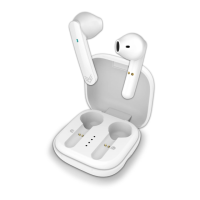

 To Next Page
 General