6
Mobius User Manual Rev. 1, Date: 2018-0525 Ampacs Corporation Confidential
WIRED CONNECTION – USB
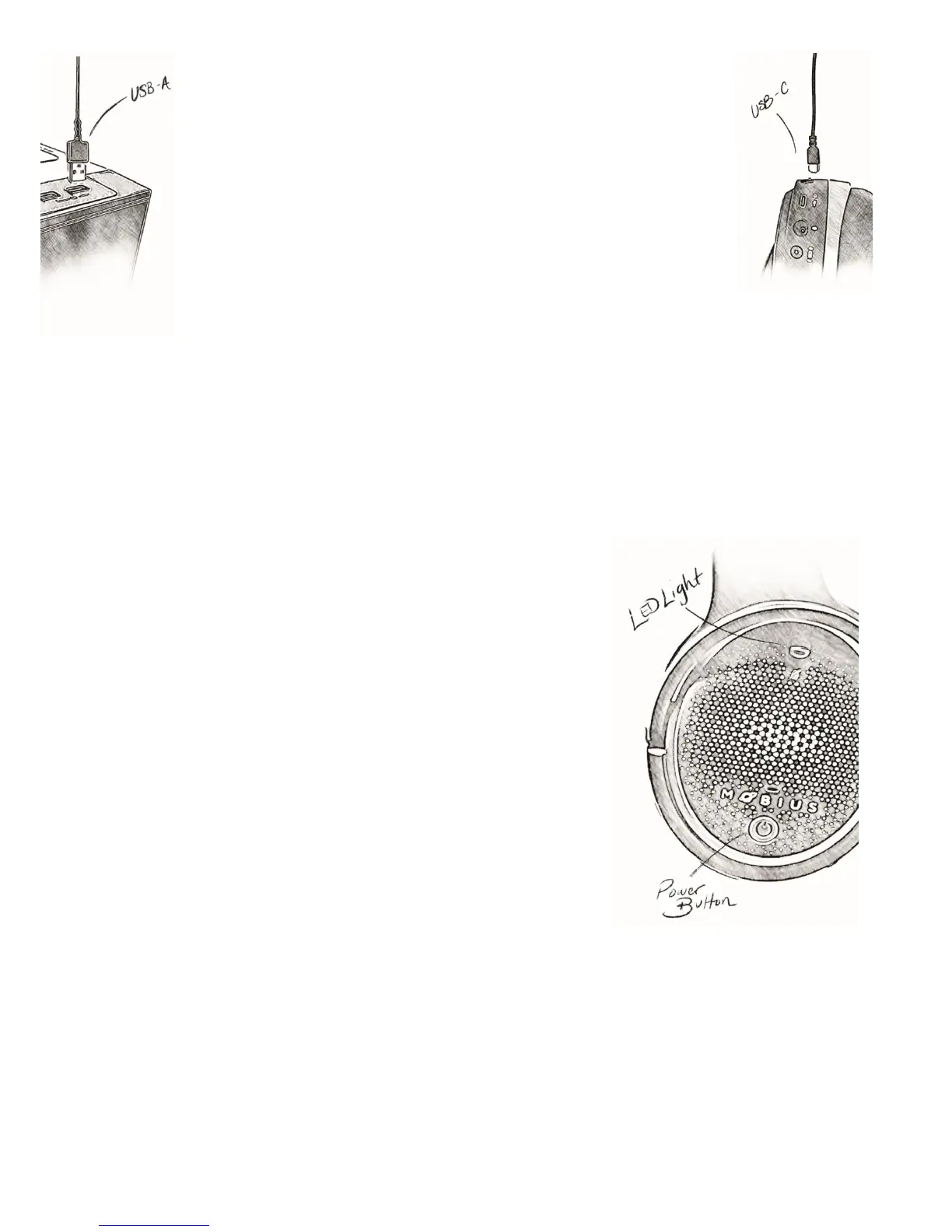
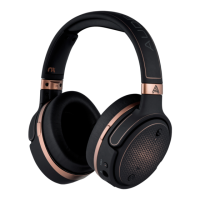
Let’s begin: Mobius can be used with a wired (USB and AUX) or wireless
(Bluetooth) connection. We’ll begin with a wired USB connection as your
likely primary connection. From your inventory of goodies, identify your
USB-A to USB-C Cable to connect your Mobius to your PC (or PS4 or any
appropriate USB enabled device). Mobius’ USB-C input is on the bottom
side of the left ear-cup. Additionally, make sure Mobius is set as the
input/output device accordingly and lower your volume as a responsible precaution. Orient
yourself to a desired listening positon and press the 3D button located on the bottom, front side of
the left ear-cup and listen for the “Centered” confirmation prompt. Wait… you didn’t hear the
prompt? Oh, we forgot to turn Mobius on… You’ll however notice that the LED on the left ear-
cup of Mobius is illuminated red to signify that even though Mobius is off, it is receiving charge. We
totally meant to do that…
P O W E R I N G U P/ D O W N /A U T O
We should probably turn Mobius on… The power button is located
on the outer face of the left ear-cup of Mobius along with all other
controls we have and will mention. Press and hold the power
button for 3 seconds so that the Mobius narrator can cheerfully
confirm “Power On.” To give your Mobius some rest, press and hold
the power button for 5 seconds to power down and Mobius’ narrator
will confirm “Power Off.” Additionally, if no cables or Bluetooth
sources are connected, Mobius will efficiently power itself off after 3
minutes to conserve battery.


 To Next Page