EasyManua.ls Logo

Audi A4 2023 - Page 22

Audi A4 2023
310 pages
Print Icon
To Next Page IconTo Next Page
To Previous Page IconTo Previous Page
Loading...
Touch
display
Menus
and
symbols
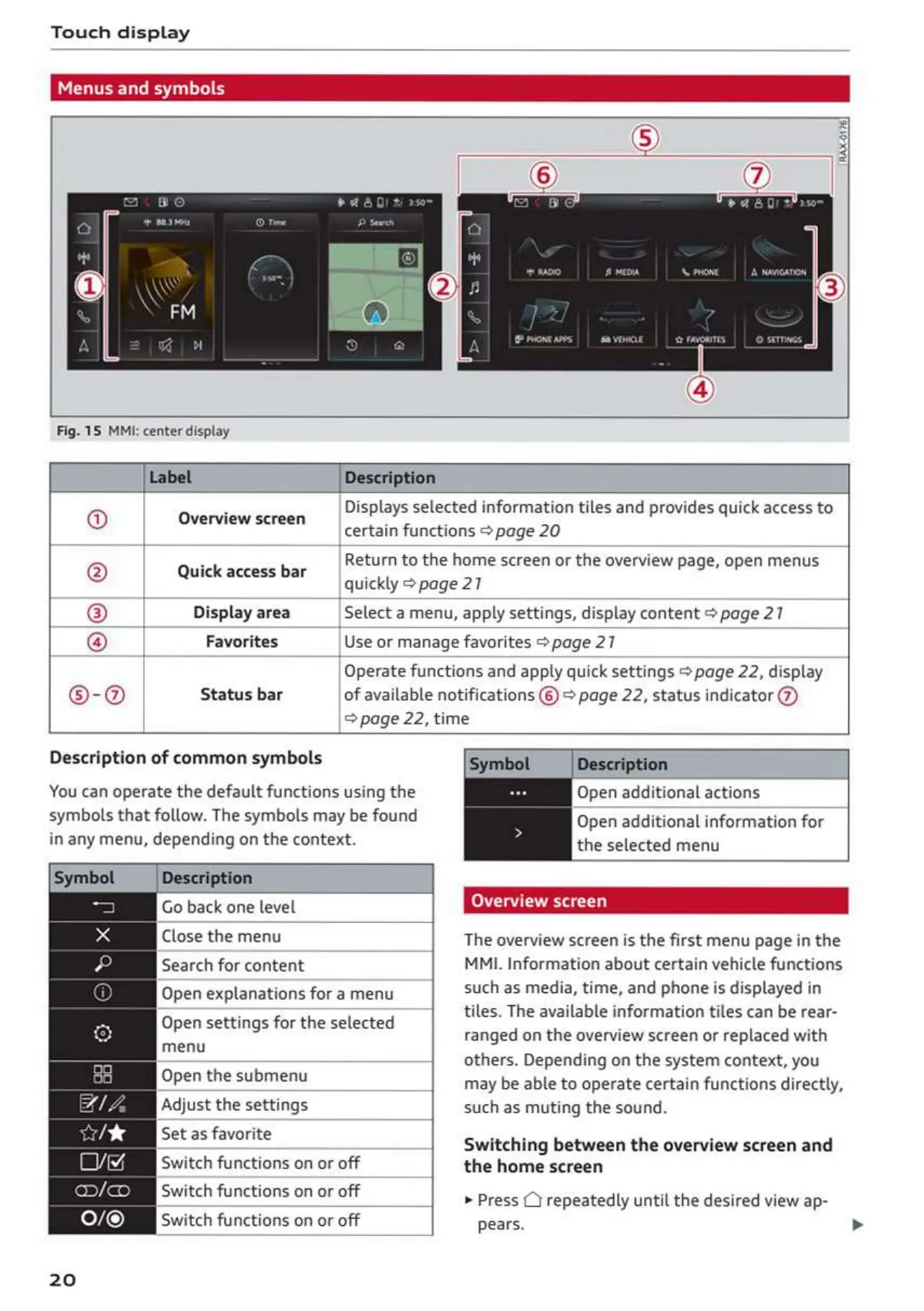
Fig.
15 MMI:
center
display
Label
Description
Overview
screen
Quick
access
bar
Display
area
Favorites
(OOM
RS)
®-@
Status
bar
Displays
selected
information
tiles
and
provides
quick
access
to
certain
functions
>
page
20
Return
to
the
home
screen
or
the
overview
page,
open
menus
quickly
>
page
27
Select
a
menu,
apply
settings,
display
content
2
page
27
Use
or
manage
favorites
>
page
27
Operate
functions
and
apply
quick
settings
>
page
22,
display
of
available
notifications
©)
page
22,
status
indicator
@)
>
page
22,
time
Description
of
common
symbols
You
can
operate
the
default
functions
using
the
symbols
that
follow.
The
symbols may
be
found
in
any
menu,
depending
on
the
context.
Symbol
|Description
Go
back
one
level
Close
the
menu
Search
for
content
Open
explanations
for
a
menu
Open
settings
for
the
selected
menu
Open
the
submenu
Adjust
the
settings
Set
as
favorite
Oo
Switch
functions
on
or
off
Switch
functions
on
or
off
0/®
‘Switch
functions
on
or
off
20
‘Symbol
Description
Open
additional
actions
Open
additional
information
for
the
selected
menu
Overview
screen
The
overview
screen
is
the
first
menu
page
in
the
MMI.
Information
about
certain
vehicle
functions
such
as
media,
time,
and
phone
is
displayed
in
tiles.
The
available
information
tiles
can
be
rear-
ranged
on
the
overview
screen
or
replaced
with
others.
Depending
on
the
system
context,
you
may
be
able
to
operate
certain
functions
directly,
such
as
muting
the
sound
Switching
between
the
overview
screen
and
the
home
screen
»
Press
Q)
repeatedly
until
the
desired
view
ap-
pears.
>

Table of Contents