10
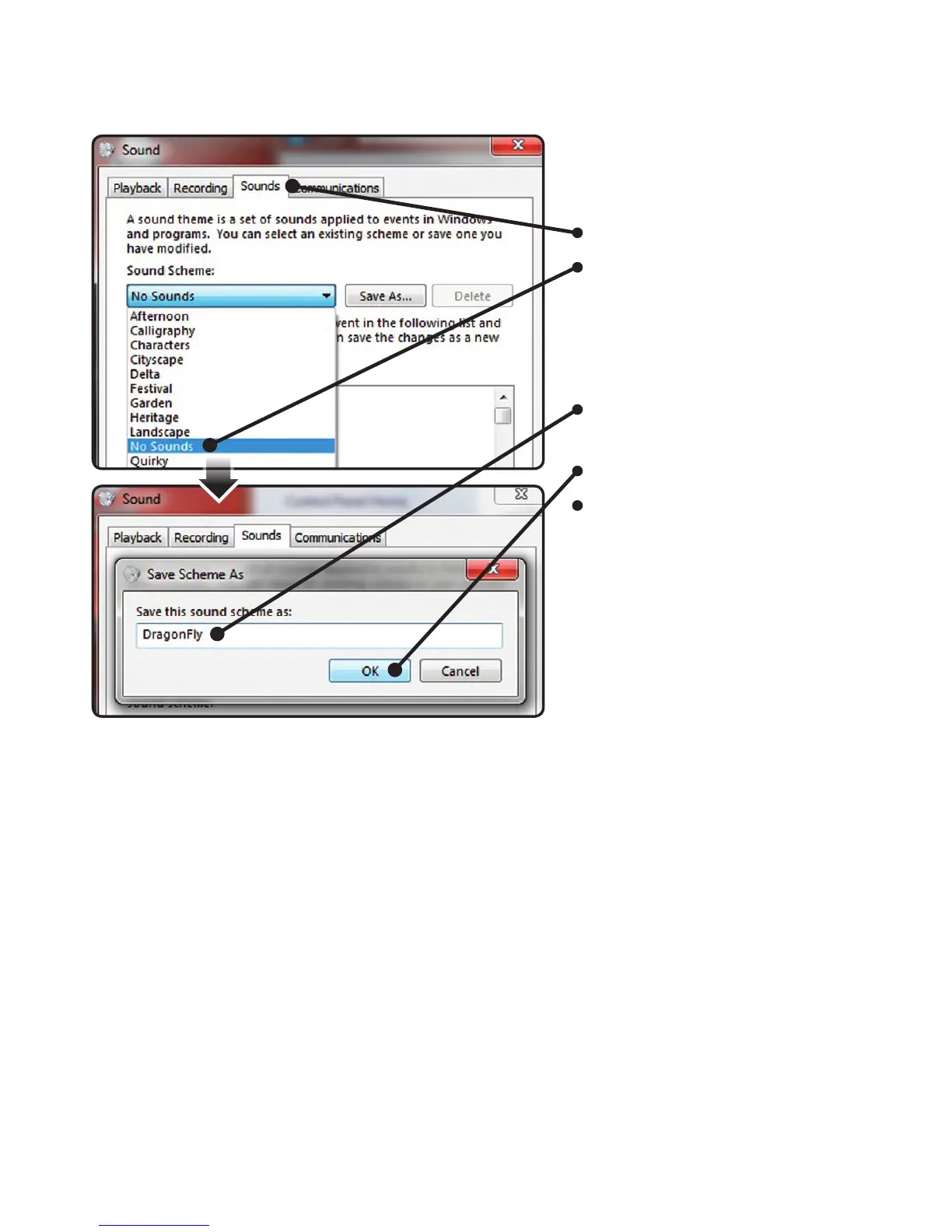
Setting chimes and alerts to
play through the computer’s
speakers and not DragonFly.
Click “Sounds” tab.
For “Sounds Scheme” select
“No Sounds.” This prevents
chimes and computer alerts
from playing back through
DragonFly.
Enter “DragonFly” as sound
scheme (optional).
Click “OK.”
Close window.
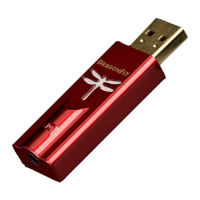
Plug in earbuds, headphones, or a cable to your powered speakers or amplier,
and you are ready to listen!
Visit www.audioquest.com/DragonFly/Advanced for advanced computer audio
setup guides which include tips, tweaks and techniques for getting the best computer
audio-based sound from iTunes, as well as information and links to alternative
music player applications such as JRiver, foobar2000, Pure Music, Decibel, and
Amarra. You’ll also nd a listing of which electronics and devices are and are not
compatible with DragonFly.


 To Next Page