4
Mac OS X
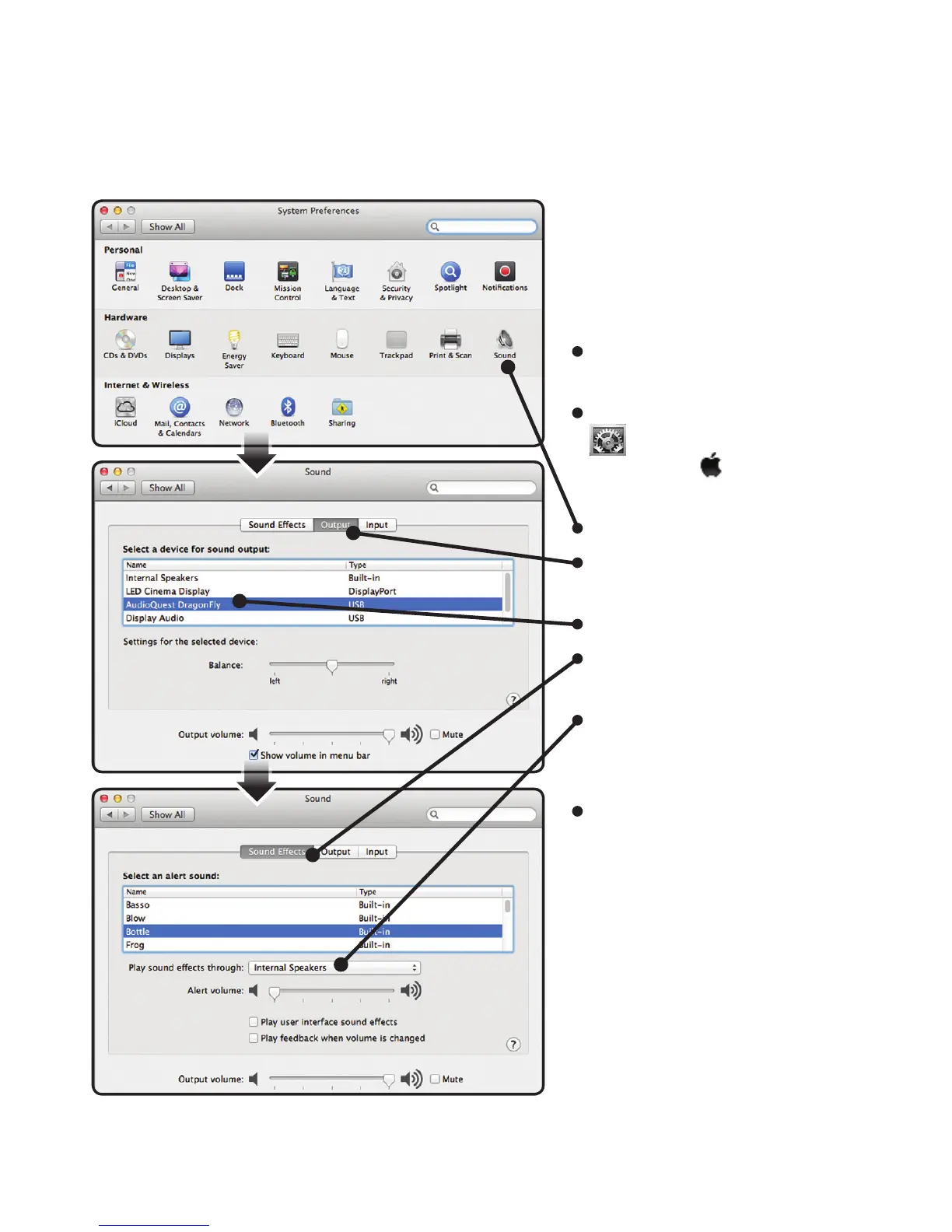
Using “System Preferences”
to send audio to DragonFly,
while keeping alerts and
sound eects on the
computer’s speakers.
Insert DragonFly into your
computer’s USB port.
Open “System Preferences”
from the Dock or from
the Apple® drop-down
menu top left.
Click on the “Sound” icon.
In the Sound panel, click on
the “Output” tab.
Select “AudioQuest DragonFly.”
Click on the Sound panel’s
“Sound Eects” tab.
In the “Play sound eects
through” menu, choose
“Internal Speakers.”
Close the window.


 To Next Page