5
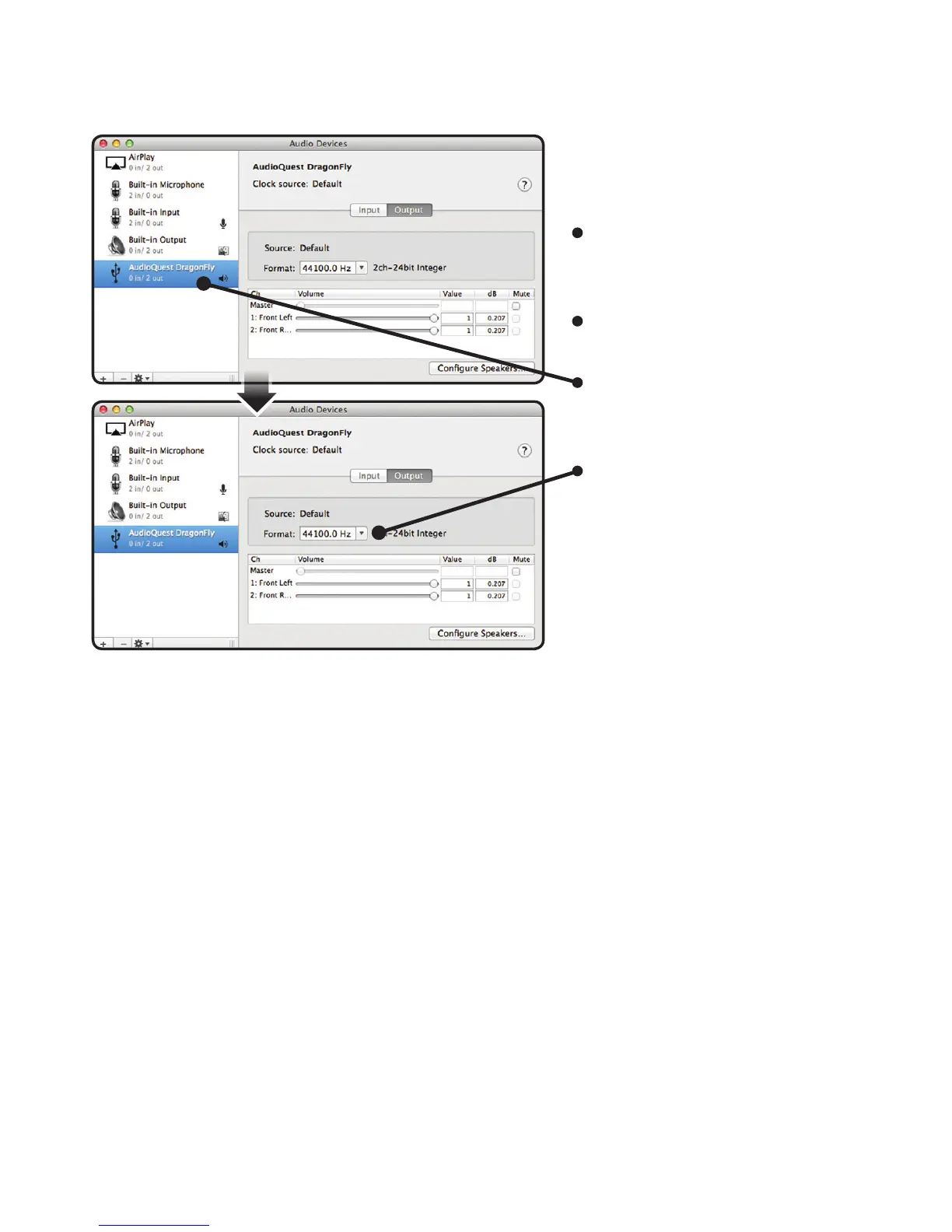
Setting up the “Audio MIDI
Setup” so computer audio
plays through DragonFly.
Open the “Applications”
folder, and then the
“Utilities” folder.
Within Utilities, double-click
to open “Audio MIDI Setup.”
Within the “Audio Devices”
panel, click on “AudioQuest
DragonFly.”
Use the “Format” drop-down
menu to choose a sample
rate … most likely 44100.0 Hz;
please read the following
explanation.
Why is “Format” important?
CD’s are 44100.0 Hz.
Compressed MP3 and AAC music les and
audio streams are typically encoded at
three dierent quality levels - 128kbps,
256kbps (iTunes Plus) and 320kbps - and
most often reconstructed as 44100.0 Hz les.
Many music downloads and CDs ripped
as Apple Lossless or FLAC files are
reconstructed to 44100.0 Hz.
If you have higher resolution les, it is
important to choose the correct higher
sample rate in order to maximize the
benet of those les, and to direct the
information to whichever of DragonFly’s
two dedicated “clocks” is optimized for
that sample rate.
Some programs (such as NPR) use
48000.0 Hz. These 24-bit/48000.0 Hz les
can sound amazingly close to higher
sample rate les.
Some “high-res” files use 88200.0 Hz
because it is a multiple of the CD standard
sample rate.
Some “high-res” files use 96000.0 Hz
because it is a multiple of the sample
rates used on DVDs, Blu-rays and in the
computer world.
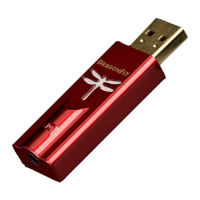
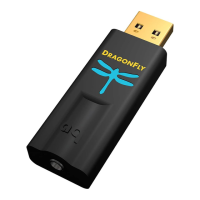
DragonFly’s illuminated dragony lights
up in dierent colors to indicate status or
sample rate:
Red: Standby Green: 44100.0 Hz
Blue: 48000.0 Hz Amber: 88200.0 Hz
Magenta: 96000.0 Hz


 To Next Page