6
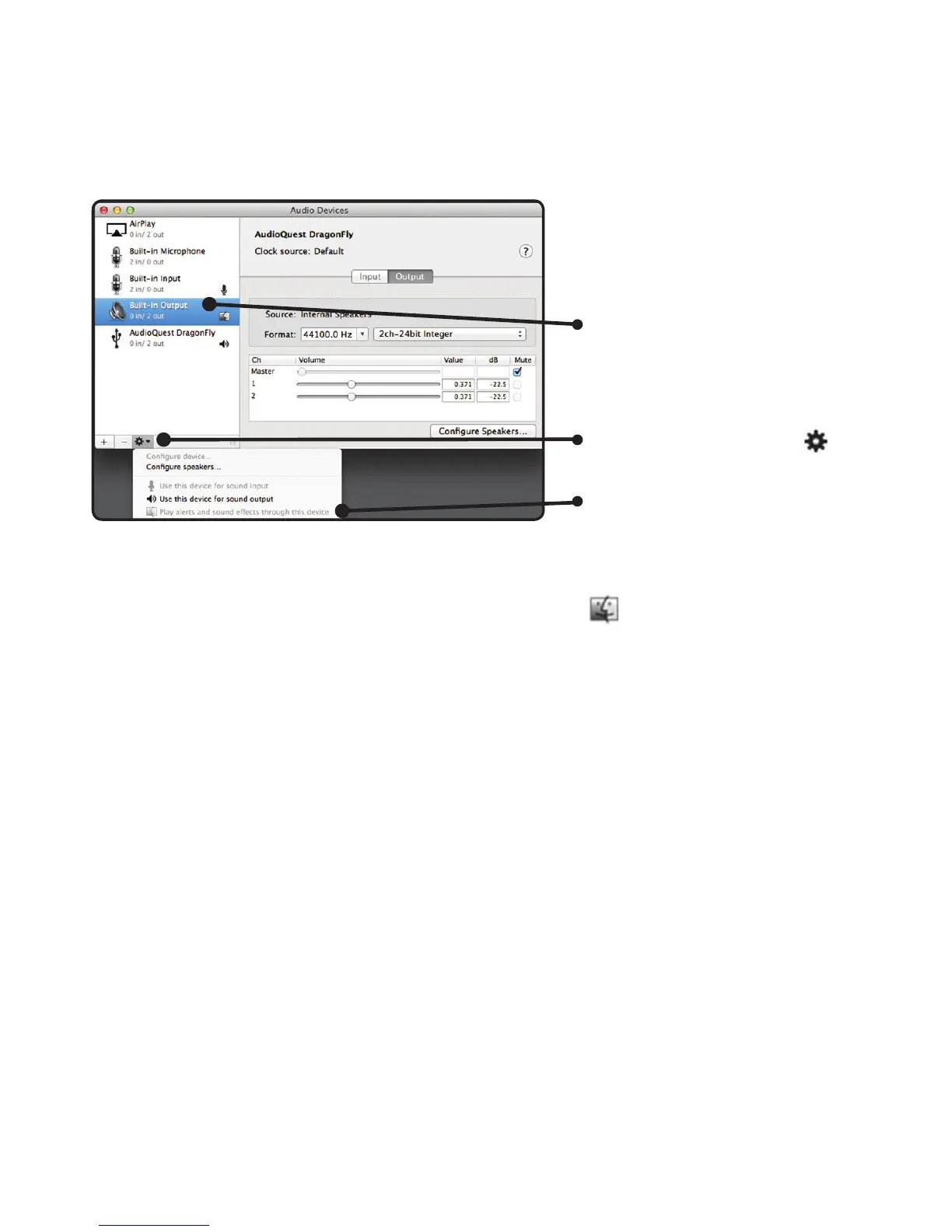
Making certain that sound
eects are routed to the
computer’s speakers and not
to DragonFly.
In the already open “Audio
Devices” window, click
rst to highlight “Built-In
Output.”
Click on the gear icon
drop-down menu.
Check that “Play alerts and
sound eects through this
device” is grayed out. If it is
not, click to select it so the
now appears next to
“Built-In Output.”
Plug in earbuds, headphones, or a cable to your powered speakers or amplier,
and you are ready to listen!
Visit www.audioquest.com/DragonFly/Advanced for advanced computer audio
setup guides which include tips, tweaks and techniques for getting the best computer
audio-based sound from iTunes, as well as information and links to alternative
music player applications such as JRiver, foobar2000, Pure Music, Decibel, and
Amarra. You’ll also nd a listing of which electronics and devices are and are not
compatible with DragonFly.
Mac OS X - continued


 To Next Page