-5--4-
6. Unit Operation
6.1 Live TV
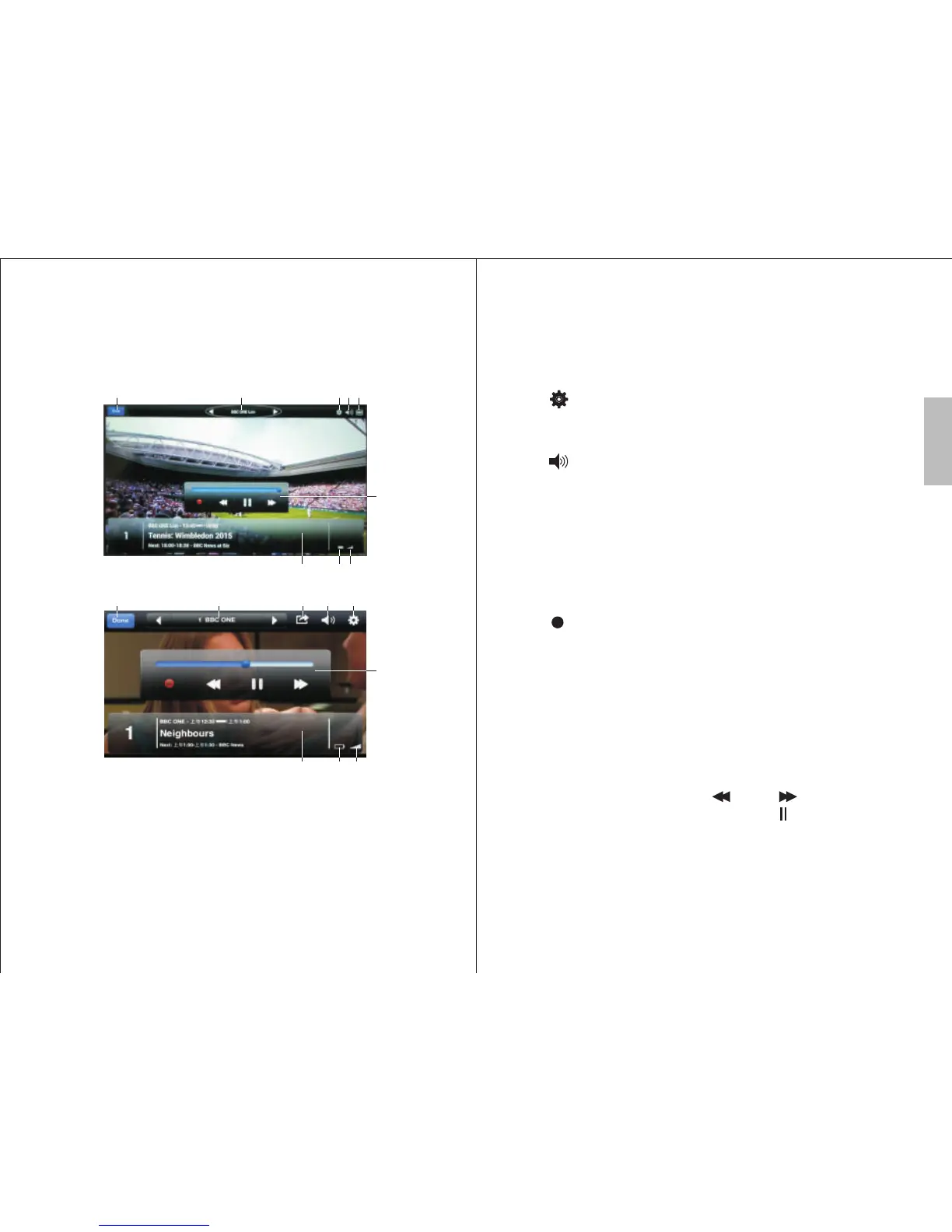
Tap the screen whilst watching Live TV to bring up the
program information and control bars.
1. Close Live TV
2. Channel controls
3. Settings Wheel
4. Volume
5. Display Settings
6.1.1 Close Live TV
Tap “Done” to close live TV and return to the channel list.
6.1.2 Channel Control
Tap<◄> or <►> to move down or up one channel in the
stored list. Tap the current channel name to access the quick
channel list.
6.1.3 Settings Wheel
Tap < > to choose from a list of available audio
languages, as well as Display Settings on Apple devices.
6.1.4 Volume Control
Tap < >to access the volume control. Use the slider to
control the volume.
6.1.5 Display Settings
Tap the currently used display settings icon to access and
change the current display setting.
Note: Display Settings can be accessed from the Settings
Wheel on Apple Devices
6.1.6 Recording
Tap < >to start recording the playing TV program, tap again
to stop recording. Recordings are saved to iTunes on Apple
devices and to internal storage on Android devices and can be
played back through the recordings option in the main menu
(see 6.2).
6.1.7 Timeshifting
Timeshifting allows you to rewind, fast forward and pause
Live TV by temporarily recording the broadcast to your
Smartphone or Tablet.
The blue slider shows which part of the timeshift is being
played. You can slide it or tap < >and< >to move back
and forwards through the timeshift. Tap < > to pause the
current program and <►>to resume playback.
Note:To adjust the length of the available timeshift, see 6.3.5
Timeshift Buffer for further information.
6.1.8 Channel and Status Information
The channel information and status bar displays information
about the currently playing channel and program.
English
8 9
1 2 3 4 5
6
7
Screen on Android Device
Screen on Apple Device
1 2 10 4 3
8 9
7
6
7. Status and information bar
8. DVB-T405 Battery Icon
9. TV Signal Strength Icon
10. Share
6. Recording and Timeshift control



 To Next Page