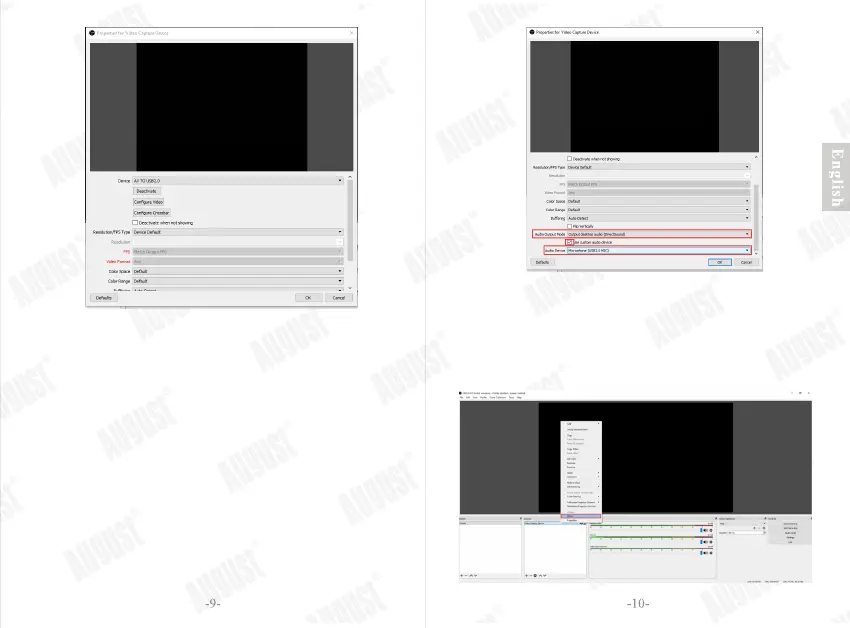
Step 5: Select ‘AV TO USB2.0’ in the ‘Device’. You
can set input resolution manually if you Select
‘Custom’ in the ‘Resolution/ FPS Type’.
Note: If select ‘YUY2’ in the ‘Video Format’, the
resolution should be set to 480x320. If set any other
resolution, please select ‘MJPEG’ or ‘ANY’ in the
‘Video Format’.
Step 6: Select ‘Output desktop audio (DirectSound)’ in the
‘Audio Output Mode’, then tick ‘Use custom audio
device’. Select ‘Microphone (USB 2.0 MIC)’ in the
‘Audio Device’, then click on ‘OK’ to continue.
Step 7: In order to synchronize the audio and video,
you need to set the video delay. Right click on
"Video Capture Device" and select "Filter". In
the pop-up window, click "+" and select "Video
Delay (Async)". Type the name of your filter in
the new pop-up window, then click on ‘OK’.


 To Next Page