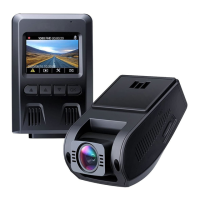
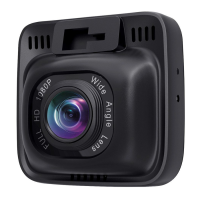
To power on, insert the car charger into your car’s 12V socket, then connect the included cable to the car charger and to the
Mini USB port of the DR01. Insert a Micro SD Card into the Micro SD card slot and format it using the ‘Format’ option in Dash
Camera ‘Setup.’ After powering on each time, the system will start recording automatically. To power off, disconnect the Mini
USB cable.
Video Recording
Loop Recording: Recording will begin automatically after powering on with a Micro SD Card in the device. Each
recorded file is up to ten minutes long, with old footage being replaced when Micro SD Card storage is full.
Motion Detection Recording: Switch on motion detection in ‘Setup.’ This function will start recording video when the
dash camera detects motion in front and stop recording when motion is no longer detected.
Time-Lapse Recording: Switch on time-lapse recording in ‘Setup.’ This function will capture a picture per second to
make a video played at 30fps.
Emergency Recording
Manual File Backup
Press to back up the current file so that it will not be overwritten. A icon will appear in the top left of the LCD
screen to indicate a protected emergency recording is in progress.
Auto File Backup
Once the G-sensor is activated by a sudden impact, the device will automatically make a recording and protect it from
being overwritten. Adjust G-sensor sensitivity in the ‘Setup’ menu.
Snapshot
Hold down for 3 seconds to take a snapshot while in recording mode
The snapshot files are located in the \AUKEY\PHOTO folder on the Micro SD Card
The icon will be shown after you take a snapshot. This will not interrupt the video recording
Audio Recording
Turn on/off audio recording by long-pressing when in recording mode (or by adjusting in ‘Setup’ menu). When audio
recording is on, in-car audio will be recorded during video recording. Voicing details of possible hazards that may develop,
especially when off camera, may provide useful information. You can even use it to record car license plate numbers that may
not be captured on the video.
USB File Transfer
1. Connect the Dash Cam (with card inside) to your computer using your own USB mini-B data cable (the included cable is
for power only). It should be recognized as a removable device (with a USB connector image displayed on-screen).
2. Find the video recording files located in the \AUKEY\MOVIE folder (or \AUKEY\PHOTO for snapshots).
3. Copy the files to your computer.
Micro SD Card File Transfer
1. Shut down the device (by disconnecting the power cable) and eject the Micro SD Card.
2. Insert the Micro SD Card into a computer Micro SD card slot or reader and your computer will automatically detect the
Micro SD Card.
3. Find the video recording files located in the \AUKEY\MOVIE folder (or \AUKEY\PHOTO for snapshots).
4. Copy the files to your computer.
Viewing Photos and Videos
1. Press to enter the playlist.
2. View photos or videos by choosing either ‘Photo File’ or ‘Video File’.
3. Select the file you want to view and press .


 To Next Page