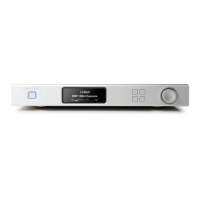
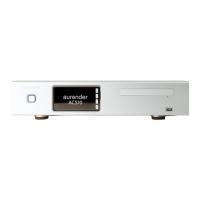
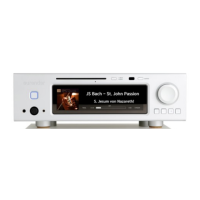
Front Panel
1. On/O or Standby Mode
In default mode, the power button will turn the Aurender on and o completely. The
button light will stop blinking when fully turned on or o. In standby mode, the
Aurender will go into standby (sleep) mode and turn on instantly. To switch to
Standby mode, go to the Server tab in Settings of the iPad application. Scroll down
to the bottom and turn on the “Use Standby” button.
2. Display Menu
Press to cycle through 4 display options: Song Information, Blue Level Meter, Brown
Level Meter, and Playlist Menu. Songs from playlists may be selected using the four
buttons on the right side of the front panel display. Use buttons 4 and 5 to scroll
between playlists and button 2 to select a playlist. After the playlist is selected, press
button 2 again to start playback. Once the playlist is selected, buttons 4 and 5
buttons can be used to select songs within the selected playlist. To see the Device
Information Display, please keep the button depressed for about three seconds
until the display blinks, release the button and wait. The Device Information Display
with details about Server name, LAN/Wi-Fi status, IP address, and other details will
appear. To return to the normal display, press the button again. During power on
and o, “Aurender” and the model number “W20” will be displayed.
3. Play/Pause
Press to start or stop playback for songs in Queue.
4. Play Next
Press once to skip to the next track.
5. Play Previous


 To Next Page
 Loading...