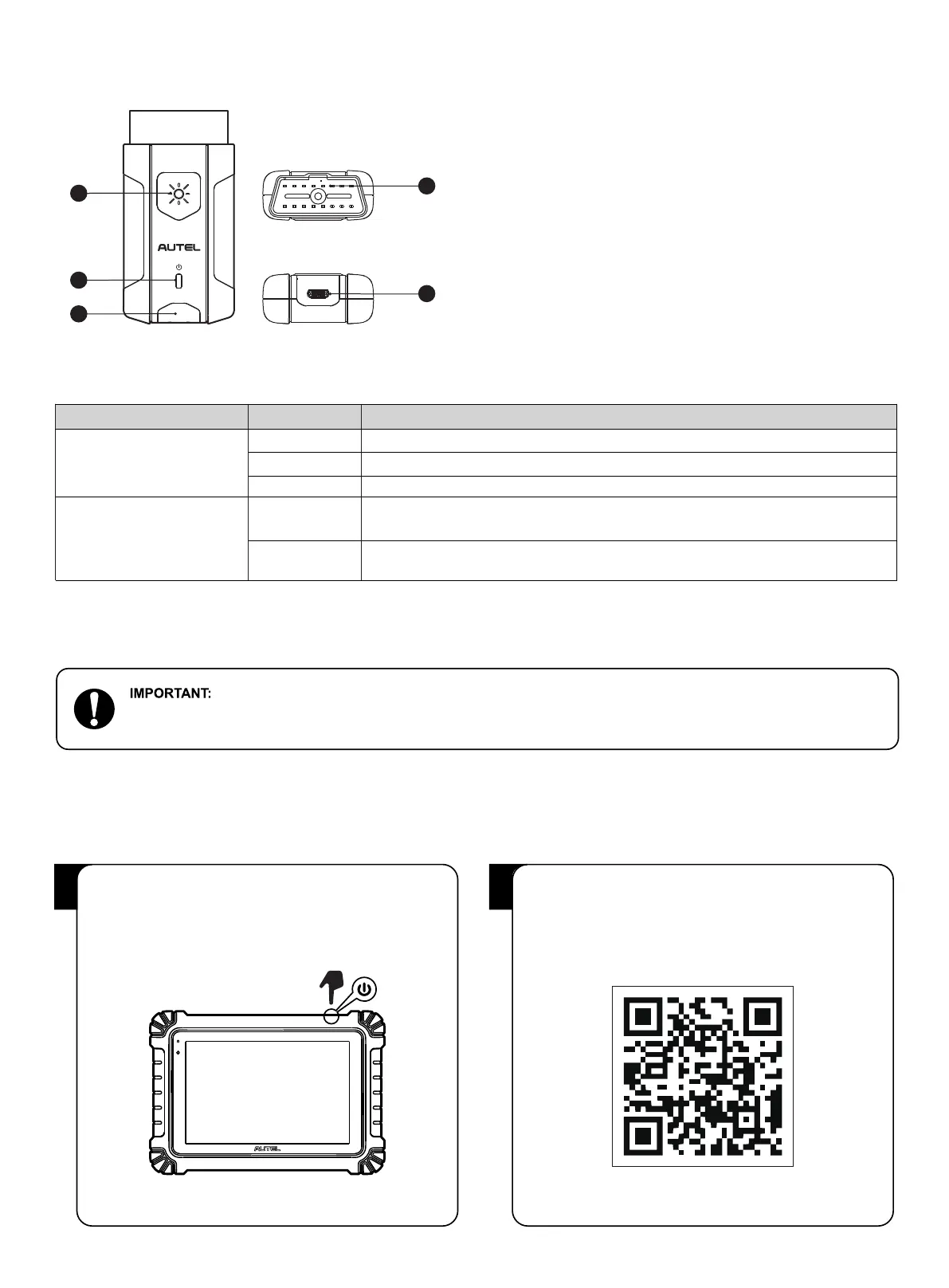
Vehicle Communication Interface — MaxiVCI V200
1
4
5
2
3
• Press and hold the Power/Lock button to turn on the tablet.
Ensure the tablet has a charged battery or is connected to
power supply using the supplied power adapter.
• Scan the QR code below to visit our website at
pro.autel.com.
• Create an Autel ID and register the product with its serial
number and password.
1 2
1. Flashlight Power Button
2. Power LED — refer to VCI LED Description for details.
3. Vehicle/Connection LED — refer to VCI LED Description
for details.
4. Vehicle Data Connector (16-pin)
5. USB Port
VCI LED Description
LED
Power LED
Vehicle/
Connection LED
Color Description
Yellow
Green
Green
Flashing Red
Blue
The VCI is powered on and performing self-check.
The VCI is ready for use.
The firmware is updating.
• Solid Green: The VCI is connected via USB cable.
• Flashing Green: The VCI is communicating via USB cable.
• Solid Blue: The VCI is connected via Bluetooth.
• Flashing Blue: The VCI is communicating via Bluetooth.
Before operating or maintaining this unit, please read these instructions carefully, paying extra attention to the
safety warnings and precautions. Failure to use this product properly may cause damage and/or personal injury and will void
the product warranty.
Getting Started







 To Next Page