Last updated: 21/01/2022 MOLECULAR BIOLOGY LT1 Page 1 of 9
CLASSROOM INFORMATION: MOLECULAR BIOLOGY LT 1
EQUIPMENT
Sta card access-controlled safe
• 2 data projectors
• 2 screens for
projector output
• Classroom PC with mouse, keyboard and opcal drive
• Crestron control panel
• Laptop and HDMI input panel
• Audio volume control dials
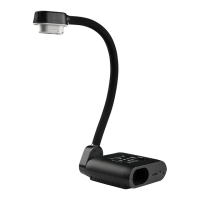
• Document camera
• Pull-out trays on sides of the lectern
• 1 lapel mic with rechargeable
body pack
• VGA cable
• HDMI cable
• Audio cable
• Network cable
LIGHTING
Use the light switches near the entrance to adjust the lighng as needed.
LECTERN HEIGHT
To adjust the lectern height as needed, hold down the ꓥ or ꓦ buon on the le-hand side of the lectern.
DATA PROJECTOR
Projector posions are indicated as if you're facing the teaching wall.
1. SETTING UP THE SCREENS
Use the Screen Le and Screen Right dials near the entrance to set the screens at the required height.
2. OPERATING THE PROJECTORS
• Le projector: On the lectern Crestron control panel, press the top row POWER buon to turn the projector
on/o.
• Right projector: On the lectern Crestron control panel, press the boom row POWER buon to turn the
projector on/o.
Note: Projectors may take a minute to warm up before you can use them. If they've recently been
switched o, wait a few minutes before switching them on.
3. SELECTING INPUTS
Use the lectern Crestron control panel to select inputs for the le and right projectors:
• Le projector: Press the top row PC buon.
• Right projector: Press the boom row PC buon.
• Le projector: Connect your laptop to the lectern's input panel (instrucons
below), then press the top row LAPTOP buon.
• Right projector: Connect your laptop to the lectern's input panel (instrucons
below), then press the boom row LAPTOP buon.
• Le projector: Open the document camera (instrucons below) then press the top
row DOC CAMERA buon.
• Right projector: Open the document camera (instrucons below), then press the
boom row DOC CAMERA buon.
• Le projector: Connect your laptop / HDMI device to the lectern's input panel
(instrucons below), then press the top row HDMI buon.
• Right projector: Connect your laptop / HDMI device to the lectern's input panel
(instrucons below), then press the boom row HDMI buon.

 Need help?
 General

 To Next Page