Last updated: 21/01/2022 MOLECULAR BIOLOGY LT1 Page 2 of 9
4. USING THE CLASSROOM PC
The classroom PC is built into the lectern and is accessible by using the classroom PC control panel on the right-hand
side of the lectern. Press the ꓥ buon to open the screen, keyboard and mouse. When you're done, press the ꓦ buon
to close these items. In case of emergency, press the X buon to stop the movement.
5. CONNECTING YOUR LAPTOP TO THE DATA PROJECTORS
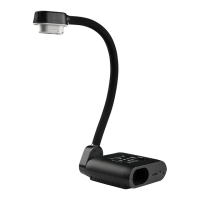
6. USING THE DOCUMENT CAMERA
The document camera acts as a wring surface – similar to wring on an overhead projector slide – and can project
exisng documents, images, and objects. Basic instrucons for these features are provided below. Advanced
funconality includes freezing an image, hiding or emphasising parts of your images, recording video and saving these
captures to external storage. Consult the informaon later in this instrucon set to learn how to use the advanced
funconality.
1. Set the switch on the right-hand side of the document camera to RGB.
2. Turn the document camera on by pressing the buon on the document camera control panel. The power light
turns solid blue.
3. Place your display item (document or object) on the document camera display surface.
4. Adjust the document camera as required:
• Move the camera head as needed.
• To brighten your display item, press the LAMP buon on the document camera control panel. Adjust the
brightness using the and buons.
• To adjust image quality or size, either press the AF buon once, or use the and buons on the
document camera control panel to zoom.
5. When you've nished using the document camera, switch the light o then press the buon to turn the
document camera o. Leave the camera head as is.
The classroom PC is already connected to the UCT network, which allows you to access the
internet and your network drives (e.g. G: drive).
1. At the login screen, log in using your UCT username and password.
2. When you've nished using the PC, click the Start buon > Log o. This will log you out
so that others can't access your UCT network account.
You can play CDs or DVDs using the classroom PC's built-in opcal drive. The drive is located
on the right-hand side of the lectern – next to the keyboard.
To access content from your own USB ash drive, plug your ash drive into one of the USB
ports on the right-hand side of the lectern.
Cauon: Do not save any les onto the classroom PC because your data will be lost when the PC reboots. Save all les
to your own USB ash drive, cloud storage, or a network drive.
HDMI-enabled laptops:
Connect the HDMI cable from the lectern to your laptop’s HDMI port.
Non-HDMI-enabled laptops:
1. Connect the VGA cable from the lectern to your laptop’s VGA port.
2. If you want your laptop’s sound to be projected, connect the audio cable from the
lectern to your laptop’s audio socket.
If the projecon screen doesn't display your laptop screen output:
1. Look for a Funcon / Fn (F1, F2, etc.) key on your laptop keyboard that represents
the monitor display.
2. Hold the Fn key and press the relevant monitor display key.
Internet / network
access
To use the wired network, connect the network cable from your laptop LAN socket to the
NETWORK port on the right-hand side of the lectern.
To use the wireless network, connect your laptop to UCT's eduroam WiFi service*.
* Visit www.icts.uct.ac.za/wireless-at-UCT for instrucons.



 To Next Page