Last updated: 21/01/2022 MOLECULAR BIOLOGY LT1 Page 3 of 9
MICROPHONE
This classroom is equipped with a hearing loop – which enhances audio quality for hearing-impaired audience members. To
ensure that the hearing loop funcons correctly, please use a microphone when conducng your lecture.
1. Take the lapel mic with its body pack out of the safe.
2. Clip the lapel mic onto your clothing at chest level.
3. Put the body pack into your pocket or clip onto your belt.
4. Switch the mic on using the On/O switch on the body pack.
Note: When you switch the mic on, if the light on the body pack is red or amber, the baery is low or in error. In this case, use
the phone on the teaching wall to request classroom support.
AUDIO LEVELS
Use the PC dial on the lectern to adjust the audio level of the classroom PC or the laptop / other device you have connected.
Use the MIC1 dial to adjust the audio level of the lapel mic.
RECORDING THE LECTURE (OPTIONAL)
Ensure you schedule your lecture recordings through your Vula site. For more informaon on this process, please visit
hp://www.cilt.uct.ac.za/cilt/lecture-recording. For your lecture in this classroom:
• To record your voice clearly, use the lapel mic.
• Any media projected through the classroom data projectors will be recorded. If you're using a blackboard or
whiteboard, please keep within the camera's eld of view. See the eld of view at
hps://ictsapps.uct.ac.za/classroom – MBLT1.
PACKING UP
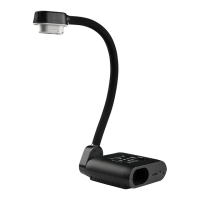
1. If your class is the last before Meridian or at the end of the day, turn o the data projectors and the document
camera. Also close the classroom PC screen, keyboard, and mouse.
2. If you've used the classroom PC, log out by clicking the Start buon > Log o.
3. Remove all devices you've plugged into the lectern, such as your ash drive or laptop.
4. Check the lapel mic body pack light. If it's red or green, plug the body pack in to charge in the safe. If it's amber, use
the classroom phone to report a baery error.
5. Put the lapel mic, body pack, and cables back into the safe and lock the safe.
6. Store the chalk and the chalk duster in the holder on the wall (i.e. not the lectern).
7. Roll up the projector screens.
NEED HELP? ( T e l e p h o n i c s u p p o rt h o u r s : 7 . 3 0 A M t o 6PM, M o n d ay t o F r i d a y )
Send an email to icts-css@uct.ac.za or for immediate assistance, use the phone on the teaching wall:
1. Pick up the handset.
• Press 1 if you have an emergency
• Press 2 for classroom support
• Press 3 for maintenance issues (Properes & Services)
• Press 4 for Campus Protecon Services
2. To dial, press the √ symbol on the keypad.
3. Hang up the phone to end the call.



 To Next Page