Wireless LAN Connections
You can establish wireless LAN connections in two simple ways.
AVM Stick&Surf (page 5)
Stick&Surf is especially simple and secure. With Stick&Surf the
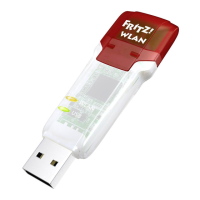
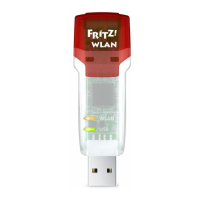
FRITZ!WLANStickN adopts the security settings of a FRITZ!Box and automati-
cally establishes a secure wireless LAN connection.
or
WPS Quick Connection and Manual Connection (page 6)
The FRITZ!WLANStickN can be connected with the wireless access point
via WPS. WPS (Wi-Fi Protected Setup) is a fast and simple way to establish a
secure connection between wireless LAN devices. WPS is supported by all cur-
rent FRITZ!Box models with wireless LAN and by many wireless LAN access
points from other manufacturers. See the documentation for your wireless
access point.
Establishing a Wireless Connection with Stick&Surf
With Stick&Surf you can establish a secure wireless connection to your FRITZ!Box
automatically using the USB port.
Establishing a Connection
1. Insert the FRITZ!WLAN StickN in
the FRITZ!Box.
2. The “Info” LED on the FRITZ!Box
fl ashes. Wait until the “Info” LED
stops fl ashing and remains lit up.
3. Remove the FRITZ!WLAN StickN.
4. Insert the FRITZ!WLANStickN in
your booted computer.
5. The device driver installation
starts.
6. Click “AVM FRITZ!WLANUSB
StickN v2 Installation” and con-
fi rm the subsequent queries. The
FRITZ!WLANStickN is installed.
7. The Stick&Surf logo appears and
the connection to your
FRITZ!Box is established automat-
ically. Please note the information
on the FRITZ!WLAN software on
page 8.
fl ashes briefl y,
then remains lit
54


 To Next Page
 Loading...