Establishing a Connection
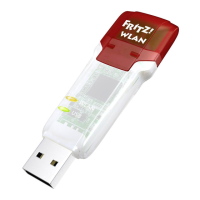
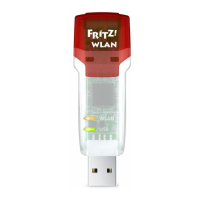
1. Insert the FRITZ!WLANStickN in
your computer.
2. Click “AVM FRITZ!WLANUSB
StickN v2 Installation” and con-
fi rm the subsequent queries. The
FRITZ!WLANStickN is installed.
3. Click the wireless network icon
in the notifi cation area of the
Windows task bar.
A list appears on the screen
showing all wireless networks in
the vicinity.
If the list does not appear, click
“Connect” to a network.
4. Select the wireless network of a
wireless access point and click
“Connect”.
The window for entering the
network key appears.
Establishing a Wireless Connection Using WPS
Quick Connection
The FRITZ!WLANStickN can establish wireless connections to wireless access
points with WPS. If a participating wireless LAN device does not support WPS, the
connection can be established manually.
The network key of a FRITZ!Box is
printed on the base of the device
housing.
If the wireless connection can be
established using WPS, the WPS
symbol appears as well.
If you are using a FRITZ!Box,
press the “WLAN/WPS” button un-
til the “WLAN” LED starts fl ashing.
The wireless LAN connection will
be established.
Wireless networks in
Windows10 and 8
Wireless network
icons in Windows10
and 8
Entering a
network key
Establishing a con-
nection by pressing
the button on the
router
76


 To Next Page
 Loading...