Sigma IHT Version 4 Quickstart Setting Up
QUICKSTART 1 - 2 ©2003 N J Froment & Co Ltd
This Quickstart guide, along with the in-built help, will help
you get the best out of your Sigma IHT.
The Sigma Intelligent Hand-held Terminal (IHT) provides full load control and
three-phase instrumentation on any Froment Sigma-equipped load bank.
1. Connect up the Load Bank
Read the load bank manual before use and take
special note of all the safety warnings.
Keep people well away. Close all doors. Ensure cables and earthing are adequate.
Risks include fire and burns from the hot air outlet and electric shock.
Before you can start using the IHT to test the supply, the
load bank and supply must be cabled up.
• After connecting the power cables between the load
bank and supply, ensure the IHT is plugged into the
Load Bank IN socket.
• Ensure that the supply on test is operational and any
circuit breakers are closed.
• Power-up the Load Bank control circuit.
Both the load bank ‘Stop’ and ‘Start’ lamps will light up. After about 15
seconds the ‘Start’ lamp will go out, you can now press the ‘Start’ button.
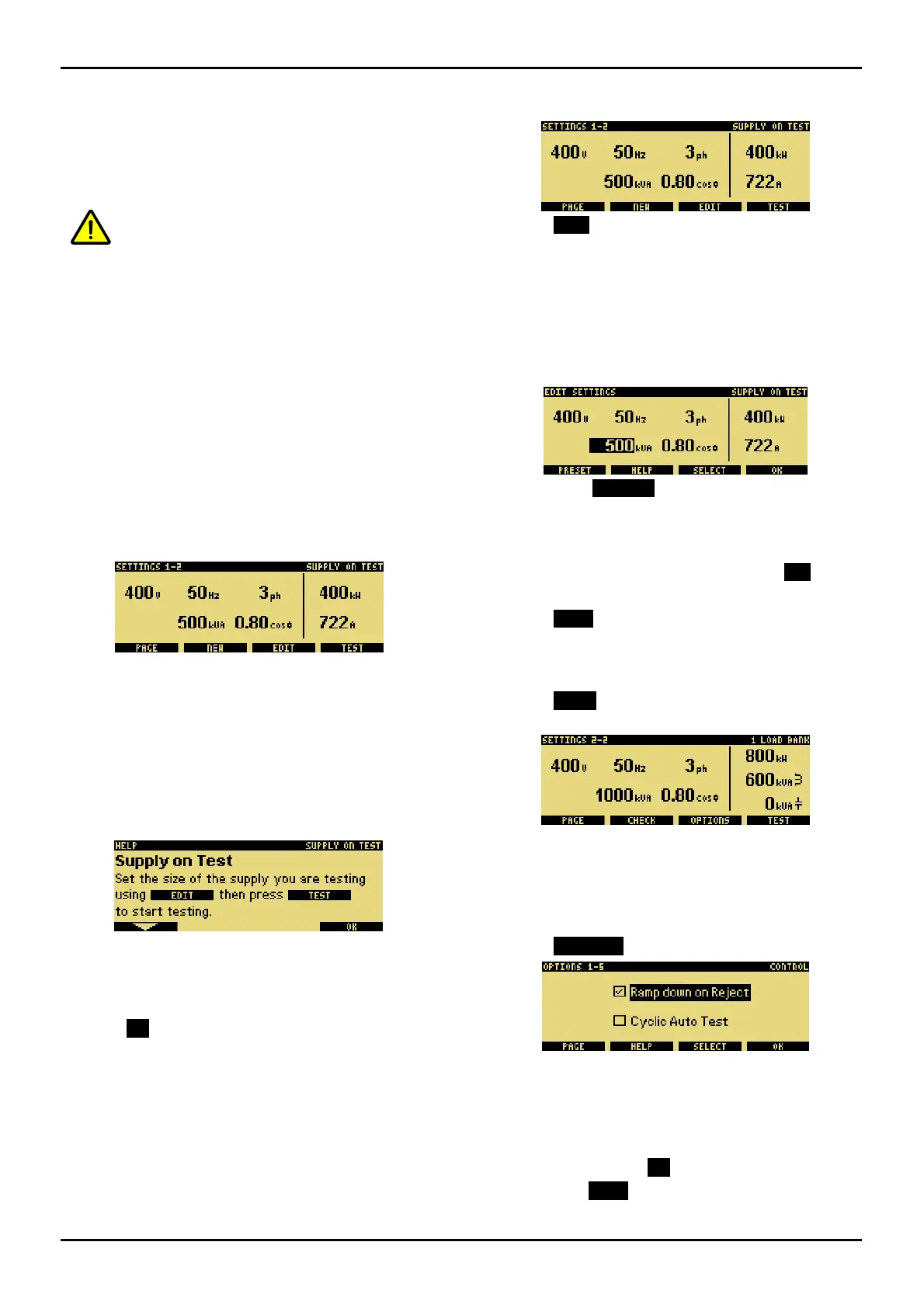
If you look at the IHT you will briefly see the startup logo
and, assuming all is well, the
SETTINGS page with the
SUPPLY ON TEST details will be finally displayed.
The top line of the screen is the status line. This always displays where you are
(such as SETTINGS, TEST or OPTIONS) and what page you are on. So
SETTINGS 1-2, shows that you are in settings on page 1 of 2.
The bottom line displays the function key labels. This indicates the purpose of the
function keys F1 to F4.
2. Help
It is quite possible that when you pick up the IHT for the
first time you will see the
SUPPLY ON TEST help page.
Help is displayed automatically on the settings and test pages after 12 seconds
with no activity. This automatic help will only be displayed once.
• You can press the Up and Down function keys (F1
and F2) to scroll through the help.
• Press OK (the F4 key) when you have finished.
A HELP function key is available which provides context sensitive help for all
messages and options pages.
3. Set the Supply Size
You need to set the details of the supply on test before
applying any load.
The SUPPLY ON TEST details on the first SETTINGS page are used to calculate
percent load and to avoid over-loading the supply. A warning symbol is displayed if
the load bank may not be large enough to test the supply.
When in SETTINGS you can press the + and – keys to quickly change the screen
contrast.
• Press NEW from SETTINGS.
By pressing NEW the voltage, frequency and number of phases will be set
automatically using the measured values. The supply size (kVA) can then be
edited.
The supply must be present on the load bank bus-bars for the automatic
setting to work. Note that the NEW function is not available when load is
applied (the green LED illuminated).
Use EDIT if you want to manually change the supply details.
• Press either PRESET or use the + and – keys to set
the size of the supply in kVA.
HELP provides further information on each selected item. You can press
SELECT to change between kVA, Power Factor, V, Hz or Phase.
• When the supply size is set correctly press OK.
You are now ready to start load testing, so:
• Press TEST (now turn over and look at section 5
Apply Load).
4. Settings and Options
• Press PAGE, when in SETTINGS, to view the second
page.
From the second
SETTINGS page you can look at the load
bank capacity or change
OPTIONS.
CHECK will search for any new load banks and reset any load bank errors.
There are five options pages that control how your IHT
system looks and works.
• Press OPTIONS
• The options are enabled or disabled by pressing the +
and – keys.
You can press HELP for further information on the selected item or press
SELECT to change between items. Press PAGE to change to the next
page.
• When finished press OK to go back to SETTINGS.
• Then press TEST, to start testing
The OPTIONS are automatically saved so you only need to set them once.



 To Next Page
 Loading...