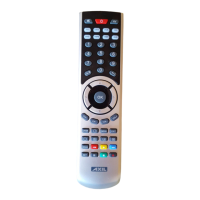
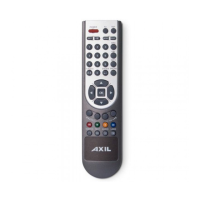
2 SETUP
There are three setup modes, the following explanation will walk you through this setup
process.
Direct code setup
1. There are a comprehensive code list attached, before manual setup,select your device’s 3-digit code from the list.
2. Switch on the device to be controlled.
3. Press the SET button fi rst and hold it down while pressing the respective DEVICE button on your remote control.
For example: To program your TV set, press fi rst SET and then TV1 Simultaneously .
4. When the LED under the corresponding device button lights up, release the buttons.
5. Use numeric keys to enter the 3-digit code applicable for your device.
6. When the LED goes out, setup is completed.
7. Check whether the main applications of your device can be operated with the remote control keys. (see
„Verify setup“), if they do, your setting were successfully; you are ready to set another device, with the same
procedure.
8. If your remote control’s key do not work, try the next codes corresponding to your device’s brand by the step 3~7,
until the main applications of your device can be operated with the remote control keys.
If the LED blinks twice and remains light at setup mode, please repeat the Step 5 by entering other codes till
LED goes out.
Pressing the respective DEVICE button to stop the manual setup.
If no button was pressed for more than 15 seconds, setup stops automatically, the LED goes out.
If the device locked, LED blink twice and then exit the direct code setup.
If your device cannot be controlled upon direct code setup or its code is not in the list, program your remote
control using the quick or auto search function. The search function tests all the codes on after another and fi nds
the right one for you!
Quick search
1. Turn on the device to be controlled and aim the remote control at the device.
- If VCR, insert a cassette
- If SAT, select a program
- If DVD, insert a DVD
- If CD, insert a CD
2. Press the SET button fi rst and hold it down while pressing the respective DEVICE button on your remote
control.
3. When the LED under the corresponding device button lights up, release the buttons.
4. Press the SET button again. The LED starts fl ashing and quick code search starts.
5. Now every 3 seconds press the POWER button on your remote control. Each push on the button transfers
another new fi ve codes. This may take some time (up to 100 times pushing the button, approx. 5 min.).
6. When your device switches off, the correct code range has been found. DO NOT press the POWER button again,
as this would re-start the code search.
7. Press the respective DEVICE button again to exit the current stage, the LED remain light without blinking.
8. Now using the original remote control or device front panel to switch the device ON.
9. Now every 2 seconds press the POWER button on your remote control to see the device’s action. Each push on
the POWR button transfers another new code. This only take around 10 sec. with 5 times pushing the button.
10. When your device switches off, DO NOT press the POWER button again, as this would re-start the code
search, check whether the main applications of your device can be operated with the remote control function
keys., if they do, the correct code has been found.
11. Press the respective DEVICE button one or twice to stop/store. LED is off.
12. During the step 9~10, SET button can be pressed to return the Step 5.
13. During the step6, the quick search can be exited by pressing the respective DEVICE button twice.
Auto search
1. Turn on the device to be controlled and aim the remote control at the device.
- If VCR, insert a cassette
- If SAT, select a program
- If DVD, insert a DVD
- If CD, insert a CD
2. Press the respective DEVICE key on your remote control and release.


 To Next Page