Adding Printers in Windows
AXIS 5900 User’s Manual 31
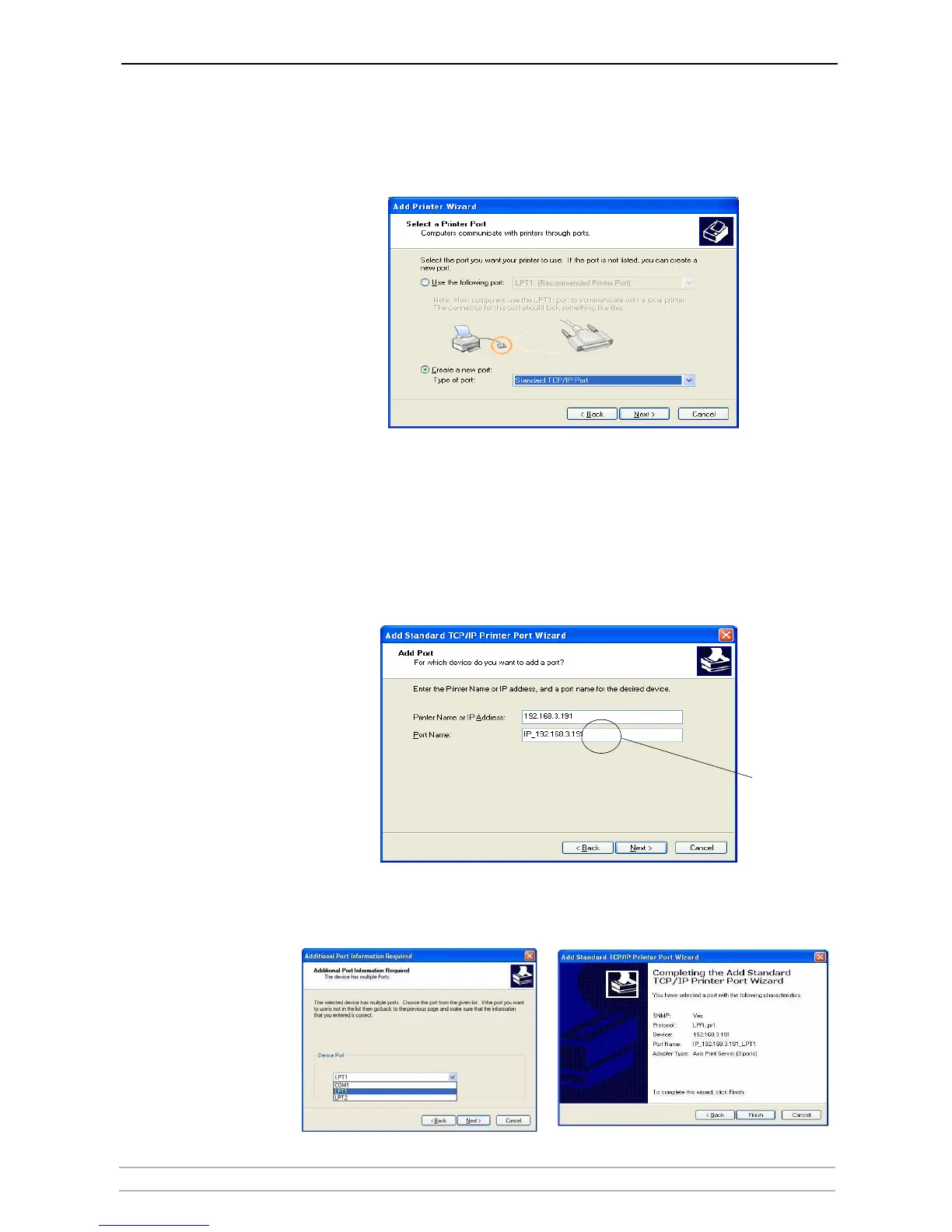
3. Click the Create a new port radio button and select Standard TCP/IP Port
from the list.
Click Next and the Add Standard TCP/IP Printer Port Wizard starts. Click
Next.
4. Enter the IP address of the print server in the Printer Name or IP Address field
(Example: 192.168.3.191)
The Port Name field will be filled in automatically when you enter the IP
address. Optionally, add the port you want to use as a suffix (i.e. LPT1 or LPT2)
(Example: 192.168.3.191_LPT1)
Click Next.
5. In the Additional Port Information Required window, select the Device Port
you want to use, i.e. LPT1 or LPT2.
Click Next then Finish
.
Optional:
Add _Port
as a suffix



 To Next Page