7
USE cont...
2 - Video Download and Recording
IOS
Video Replay: When the device connects to the App, please enter into
“Real-Time“ page and choose “CarCam video“ to play. When you enter into
“CarCam video“, the device will stop recording.
Video Download: Please click “choose“ button via “CarCam video“ and choose
videos which you want to download. Alternatively, you can click “Download“
while playing the video.
NOTE: Video replay is not possible while recording.
Android
Video Replay: When the device connects to the APP, select the icon.
When you enter this page, the device will stop recording.
Video Download: Please click “Select“ and choose the videos which you want
to download. Then press the button.
NOTE: Video replay is not possible while recording.
3 - Angle Adjustment
When the device is working normally, you can view the real-time picture via
the APP. The Device’s angle can be adjusted manually for better picture and
video alignment.
4 - Take Photo
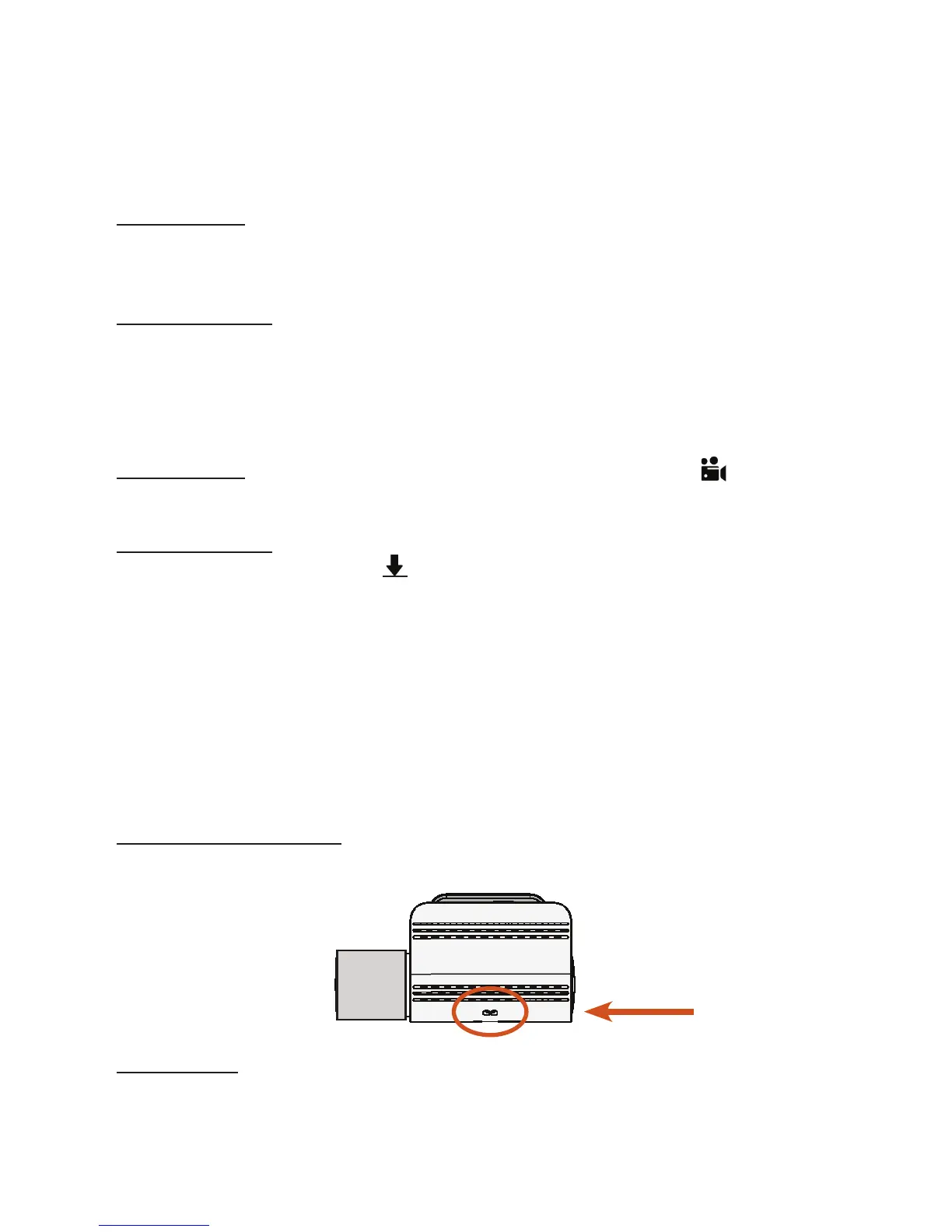
Gesture to take pictures: Swipe your hands under the gesture area of
the device to take pictures when the device is powered on. (This can be
disabled).
App Camera: When the mobile phone connects to the device successfully,
you can screenshot while recording video. Additionally, you can also take a
screenshot during video replay and share your pictures or video footage to
social media.
Gesture Area


 To Next Page