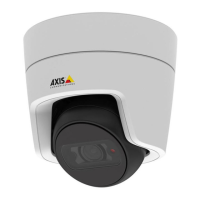
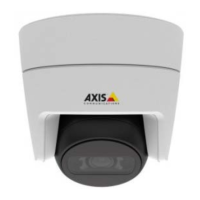
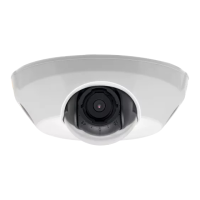
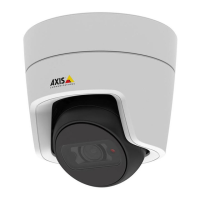
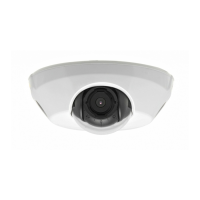
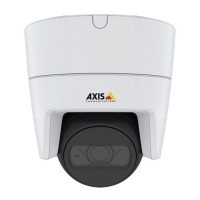
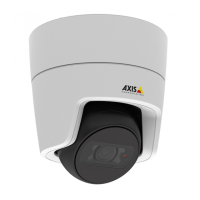
The AXIS M31 Series comprises a range of network cameras including the AXIS M3104-L, AXIS M3104-LVE, AXIS M3105-L, AXIS M3105-LVE, AXIS M3106-L, and AXIS M3106-LVE models. These devices are designed for surveillance and offer various features for image quality, streaming, storage, and event management.
Function Description
The AXIS M31 Series cameras are network-connected devices that capture video streams. They are designed to be integrated into surveillance systems, offering features like live view, recording, and event-triggered actions. The cameras support Power over Ethernet (PoE) for simplified installation, allowing both power and data to be transmitted over a single network cable. They can store recordings locally on an SD card or remotely on network storage. The devices are managed through a web interface, providing access to various settings and configurations.
Important Technical Specifications
The cameras include a Status LED indicator for operational status (Unlit for connection/normal operation, Green for steady normal operation after startup, Amber for steady during startup or flashing during firmware upgrade/reset, Amber/Red for unavailable/lost network connection, Red for firmware upgrade failure). They feature a Network connector (PoE) for connectivity. An SD card slot supports microSD, microSDHC, and microSDXC cards for local storage. The devices also have a Control button, Pan lock screw, and Tilt lock screw for physical adjustments and control.
Usage Features
Access and Setup:
- Device Discovery: AXIS IP Utility or AXIS Device Manager can be used to find devices on the network and assign IP addresses.
- Browser Support: Compatible with Chrome™, Firefox®, Edge®, and Safari® on Windows® and OS X®.
- Login: Access is via a web browser using the device's IP address or hostname. Initial setup requires setting a root password.
- Secure Passwords: Passwords should be at least 8 characters, preferably generated by a password generator, and changed regularly (at least once a year). HTTPS connection is recommended for secure communication after the first login.
- Webpage Overview: The web interface provides a live view, control bars, product information, user settings, and a settings toggle for configuration.
- Built-in Help: Detailed information on features and settings is available through the built-in help function on the device's webpage.
Image Quality:
- Exposure Modes: Options include Automatic exposure for most use cases, Flicker-free for certain artificial lighting (e.g., fluorescent), Flicker-reduced for mixed artificial and bright light (e.g., outdoors day/night), and Hold current to lock settings. Frequency should match the power line frequency.
- Night Mode with IR Light: Cameras can automatically shift to night mode using visible and near-infrared light for black-and-white images in low-light conditions. The IR cut filter should be set to Auto, and a threshold slider adjusts when the shift occurs. IR illumination can be enabled and synchronized.
- Noise Reduction: In low-light, noise can be reduced by setting exposure to automatic, maximizing shutter speed, and reducing sharpness.
- Motion Blur Reduction: To reduce motion blur, increase the light level, mount the camera for objects to move toward/away from it, increase shutter speed, and increase gain (though this may increase image noise).
- Detail Maximization: For maximum detail, select the highest resolution capture mode, set compression as low as possible, use MJPEG streaming, and turn off Zipstream functionality. This may increase bitrate and reduce frame rate.
- Wide Dynamic Range (WDR): Handles scenes with strong backlight by making both dark and bright areas visible. WDR can be enabled and adjusted with a contrast slider. Note that WDR may cause image artifacts.
- Corridor Format: Utilizes the full field of view for long, narrow areas (staircases, hallways) by rotating the camera or 3-axis lens 90° or 270°. The view can be rotated via Settings > System > Orientation.
- Facial Recognition: The pixel counter helps set optimal pixel resolution for recognizing faces.
- License Plate Recognition: The pixel counter can be used to set optimal pixel resolution for license plates. Adjustments to shutter speed, gain, and zoom can further optimize recognition.
- View Areas: Allows cropping a part of the full view to stream and store, minimizing bandwidth and storage. PTZ can be enabled within a view area.
Overlays:
- Text and Image Overlays: Superimpose text or images over the video stream for extra information (e.g., timestamp) or during installation/configuration.
- Event-Triggered Overlays: Example: Display "Motion detected" text when AXIS Video Motion Detection is triggered. This involves setting up the application, adding overlay text (#D in the text field), and creating a rule in System > Events.
Pan, Tilt, and Zoom (PTZ):
- Movement Limits: Pan, tilt, and zoom movements can be limited to protect privacy or focus on specific areas.
- Above Horizon View: The upper tilt limit can be adjusted to look above the default horizon.
- Guard Tours: Displays video from different preset positions in a predetermined or random order for configurable periods. Guard tours continue until stopped.
Streaming and Storage:
- Bitrate Control:
- Variable Bitrate (VBR): Bandwidth varies with scene activity, guaranteeing constant image quality but requiring storage margins.
- Maximum Bitrate (MBR): Sets a target bitrate to handle limitations. Image quality or frame rate may decline if the instantaneous bitrate is kept below the target. A higher target bitrate than expected is recommended.
- Average Bitrate (ABR): Automatically adjusts bitrate over a longer timescale to meet a specified target and provide the best video quality based on available storage. Can be configured by setting target bitrate and retention time to estimate storage, or by using a target bitrate calculator based on available storage and retention time.
- Video Compression Formats:
- Motion JPEG (MJPEG): A series of individual JPEG images, providing excellent image quality and access to every image, but consuming considerable bandwidth. Requires at least 16 frames/second for perceived motion, 25 (PAL) or 30 (NTSC) for full motion.
- H.264 (MPEG-4 Part 10/AVC): Reduces video file size significantly (over 80% compared to MJPEG, 50% compared to MPEG-4) without compromising image quality, thus requiring less bandwidth and storage. Includes one viewing client license.
- Bandwidth and Storage Reduction: Use H.264, enable Zipstream, use dynamic GOP with a high GOP length, increase compression, and turn on dynamic FPS. Reducing bandwidth may result in loss of image details.
- Network Storage Setup: Configure network storage by entering the host server's IP address and shared location name. Login credentials may be required.
- Stream Settings Relationship: Image tab settings affect all video streams and recordings. Stream tab settings affect new video streams. Stream profiles override Stream tab settings for specific streams.
- Recording and Watching Video: Record video to an SD card or network storage from the camera's live view. Recordings can be played back from the Storage section.
Events:
- Rules and Alerts: Create rules to trigger actions based on conditions (e.g., motion detection). Actions include starting recordings, sending emails, or showing overlay text. Active rules must be restarted for changes to take effect.
- Event-Triggered Recording: Example: Set up recording to an SD card five seconds before motion detection and stop one minute after, using AXIS Video Motion Detection (VMD) and configuring prebuffer/postbuffer times.
- Email Notifications: Example: Send an email if the lens is spray-painted or covered by enabling "Trigger on dark images" in System > Detectors and setting a duration for "Trigger after." A rule is then created in Events with Tampering as the condition and Send notification to email as the action.
Applications:
- AXIS Camera Application Platform (ACAP): An open platform for third-party analytics and applications. Multiple applications can run simultaneously, but compatibility and resource usage should be verified.
- AXIS People Counter: An embedded analytic application for counting people in retail or other environments.
Maintenance Features
Troubleshooting:
- Factory Default Reset: Disconnect power, press and hold the control button while reconnecting power for 15-30 seconds until the status LED flashes amber, then release. The LED turns green when complete. Default IP is 192.168.0.90 if no DHCP server is available. Can also be done via the web interface (Settings > System > Maintenance > Default).
- Firmware Options: Axis offers active track (latest features) and long-term support (LTS) tracks (bug fixes, security updates, stable platform for third-party integrations).
- Firmware Check: Check the current firmware version via the help menu on the product's webpage (About section).
- Firmware Upgrade: Download firmware from axis.com/support/firmware. Log in as administrator, go to Settings > System > Maintenance, and follow instructions. Preconfigured settings are generally saved. Ensure the product remains powered during the upgrade. AXIS Device Manager can be used for multiple upgrades.
- Troubleshooting IP Address Issues:
- Different Subnet: Contact network administrator for a correct IP address.
- IP Address in Use: Disconnect the device, run
ping command. If a reply is received, another device is using the IP. Obtain a new IP. If "Request timed out," the IP is available; check cabling.
- Static IP Conflict: If a default static IP conflicts with another device, access problems may occur.
- DHCP Changed IP: Use AXIS IP Utility or AXIS Device Manager to locate the device by model, serial number, or DNS name. A static IP can be assigned manually.
- Login Issues: If HTTPS is enabled, ensure the correct protocol (http or https) is used. If the root password is lost, reset to factory default.
- Certificate Error (IEEE 802.1X): Synchronize date and time settings with an NTP server (Settings > System > Date and time).
- External Access Issues: For external access, AXIS Companion or AXIS Camera Station are recommended.
- Streaming Problems:
- Multicast H.264: Check router support for multicasting, configure router settings, and increase TTL (Time To Live). Verify multicast addresses with network administrator.
- Firewall: Check with network administrator for firewall blocking.
- Poor H.264 Rendering: Ensure graphics card has the latest driver.
- Color Saturation Differences: Modify graphics adapter settings.
- Lower Frame Rate: See performance considerations. Reduce client applications, limit simultaneous viewers, check bandwidth, lower image resolution, set capture mode to prioritize frame rate, and ensure utility frequency matches (60/50 Hz).
- Factors Affecting Performance: High image resolution, low compression, rotating image in GUI, many Motion JPEG or unicast H.264 clients, simultaneous viewing of different streams, heavy event settings usage, HTTPS streaming, poor network infrastructure, and poorly performing client computers all impact bandwidth and frame rate.
- Optimization: Use identical streams where possible (stream profiles help), avoid simultaneous Motion JPEG and H.264 streams if performance is critical, and minimize CPU load from event settings.

 Need help?
 General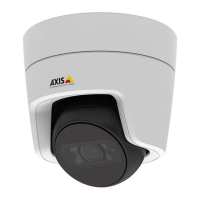

 To Next Page