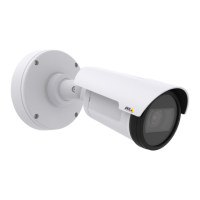
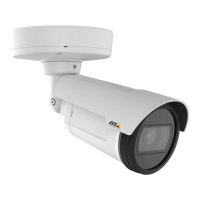
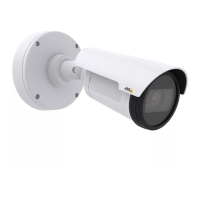
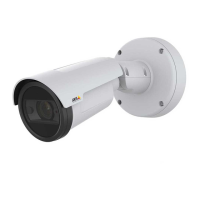
AXISP1425–LENetworkCamera
AccessingtheProduct
PTZControls
TheLiveViewpagealsodisplaysPan/Tilt/Zoom(PTZ)controls.Theadministratorcanenable/disablecontrolsforspeciedusersunder
SystemOptions>Security>Users.
Note
ThesecontrolsareavailableifdigitalPTZisenabledintheselectedviewarea,seeViewAreaonpage20.
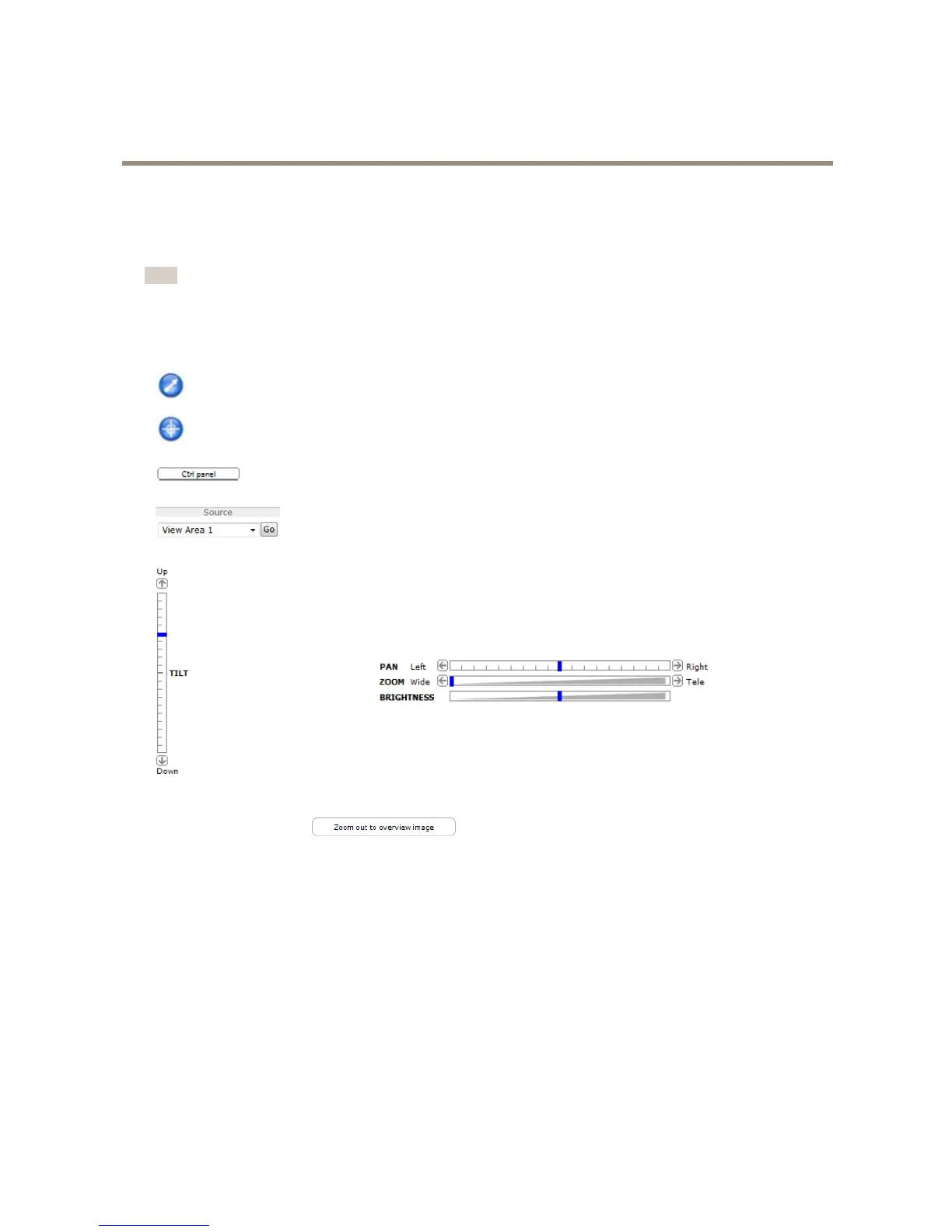
WiththePTZControlQueueenabledthetimeeachuserisincontrolofthePTZsettingsislimited.Clickthebuttonstorequestor
releasecontrolofthePTZcontrols.ThePTZControlQueueissetupunderPTZ>ControlQueue.
ClicktheEmulatejoystickmodebuttonandclickintheimagetomovethecameraviewinthedirectionofthe
mousepointer.
ClicktheCentermodebuttonandclickintheimagetocenterthecameraviewonthatposition.Thecentermode
buttoncouldalsobeusedtozoominonaspecicarea.Clickintheimageanddragtodrawarectanglesurrounding
theareatobemagnied.Tozoomout,rotatethemousewheel.
ClicktheCtrlpanelbuttontoopenthePTZcontrolpanelwhichprovidesadditionalPTZcontrols.
User-denedbuttonscanalsoappearintheControlpanel.SeeControlsonpage27.
Toviewaspecicviewareaorpresetposition,selectitfromtheSourcelist.
PanandTiltbars–Usethearrowstopanandtiltthecameraview,orclickona
positiononthebartosteerthecameraviewtothatposition.
Brightnessbar–Clickonapositiononthebrightnessbartoadjusttheimage
brightness.Thissettingwillnotbesaved.Tomakeasavedchange,gotoSetup>
Video>CameraSettings>Brightnessandadjustthebrightness.
ClickingZoomouttooverviewimagewillsetthecameratotheminimumzoomposition.Inthisposition,thecamera
cannotpanortilt.
ThePTZcontrolscanbedisabledunderPTZ>Advanced>Controls,seeControlsonpage27.
11


 To Next Page