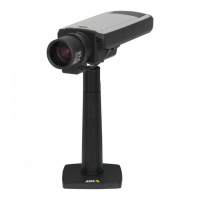
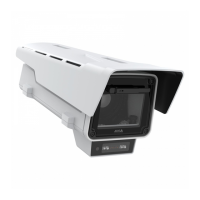
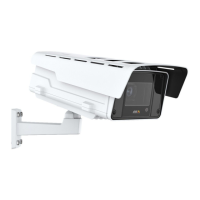
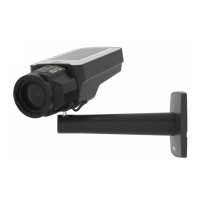
AXISQ16NetworkCameraSeries
Troubleshooting
Troubleshooting
Resettofactorydefaultsettings
Important
Resettofactorydefaultshouldbeusedwithcaution.Aresettofactorydefaultresetsallsettings,includingtheIPaddress,to
thefactorydefaultvalues.
Toresettheproducttothefactorydefaultsettings:
1.Disconnectpowerfromtheproduct.
2.Pressandholdthecontrolbuttonwhilereconnectingpower.SeeProductoverviewonpage56.
3.Keepthecontrolbuttonpressedfor15–30secondsuntilthestatusLEDindicatorashesamber.
4.Releasethecontrolbutton.TheprocessiscompletewhenthestatusLEDindicatorturnsgreen.Theproducthasbeenreset
tothefactorydefaultsettings.IfnoDHCPserverisavailableonthenetwork,thedefaultIPaddressis192.168.0.90.
5.UsetheinstallationandmanagementsoftwaretoolstoassignanIPaddress,setthepassword,andaccessthedevice.
Theinstallationandmanagementsoftwaretoolsareavailablefromthesupportpagesonaxis.com/support.
Youcanalsoresetparameterstofactorydefaultthroughthedevice’swebinterface.GotoMaintenance>Factorydefaultand
clickDefault.
Checkthecurrentrmwareversion
Firmwareisthesoftwarethatdeterminesthefunctionalityofnetworkdevices.Whenyoutroubleshootaproblem,werecommend
youtostartbycheckingthecurrentrmwareversion.Thelatestrmwareversionmightcontainacorrectionthatxesyour
particularproblem.
Tocheckthecurrentrmware:
1.Gotothedevice’swebinterface>Status.
2.SeethermwareversionunderDeviceinfo.
Upgradethermware
Important
•Preconguredandcustomizedsettingsaresavedwhenyouupgradethermware(providedthatthefeaturesareavailablein
thenewrmware)althoughthisisnotguaranteedbyAxisCommunicationsAB.
•Makesurethedeviceremainsconnectedtothepowersourcethroughouttheupgradeprocess.
Note
Whenyouupgradethedevicewiththelatestrmwareintheactivetrack,theproductreceivesthelatestfunctionality
available.Alwaysreadtheupgradeinstructionsandreleasenotesavailablewitheachnewreleasebeforeyouupgradethe
rmware.Tondthelatestrmwareandthereleasenotes,gotoaxis.com/support/rmware.
1.Downloadthermwareletoyourcomputer,availablefreeofchargeataxis.com/support/rmware.
2.Logintothedeviceasanadministrator.
3.GotoMaintenance>FirmwareupgradeandclickUpgrade.
Whentheupgradehasnished,theproductrestartsautomatically.
62



 To Next Page