AXIS Q35 Series
Setup
How to select exposure mode
There are different exposure mode options in the camera that adjusts aperture, shutter speed, and gain to improve image quality for
specic surveillance scenes. Go to Settings > Image > Exposure and select between the following exposure modes:
• For most use cases, select Automatic exposure.
• For environments with certain articial lighting, for example uorescent lighting, select Flicker-free.
Select the same frequency as the power line frequency.
• For environments with certain articial light and bright light, for example outdoors with uorescent lighting at night and
sun during daytime, select Flicker-reduced.
Select the same frequency as the power line frequency.
• To lock the current exposure settings, select Hold current.
How to stabilize a shaky image with Electronic Image Stabilization (EIS)
EIS can be used in environments where the product is mounted in an exposed location and subject to vibrations, for example, wind
or passing trafc. Turn on EIS to get a smoother and steadier image without blur.
EIS also reduces the le size of the compressed image and lowers the bitrate of the video stream.
Note
When EIS is turned on the image is cropped slightly, lowering the maximum resolution.
1. Go to Settings > Image.
2. Turn on EIS.
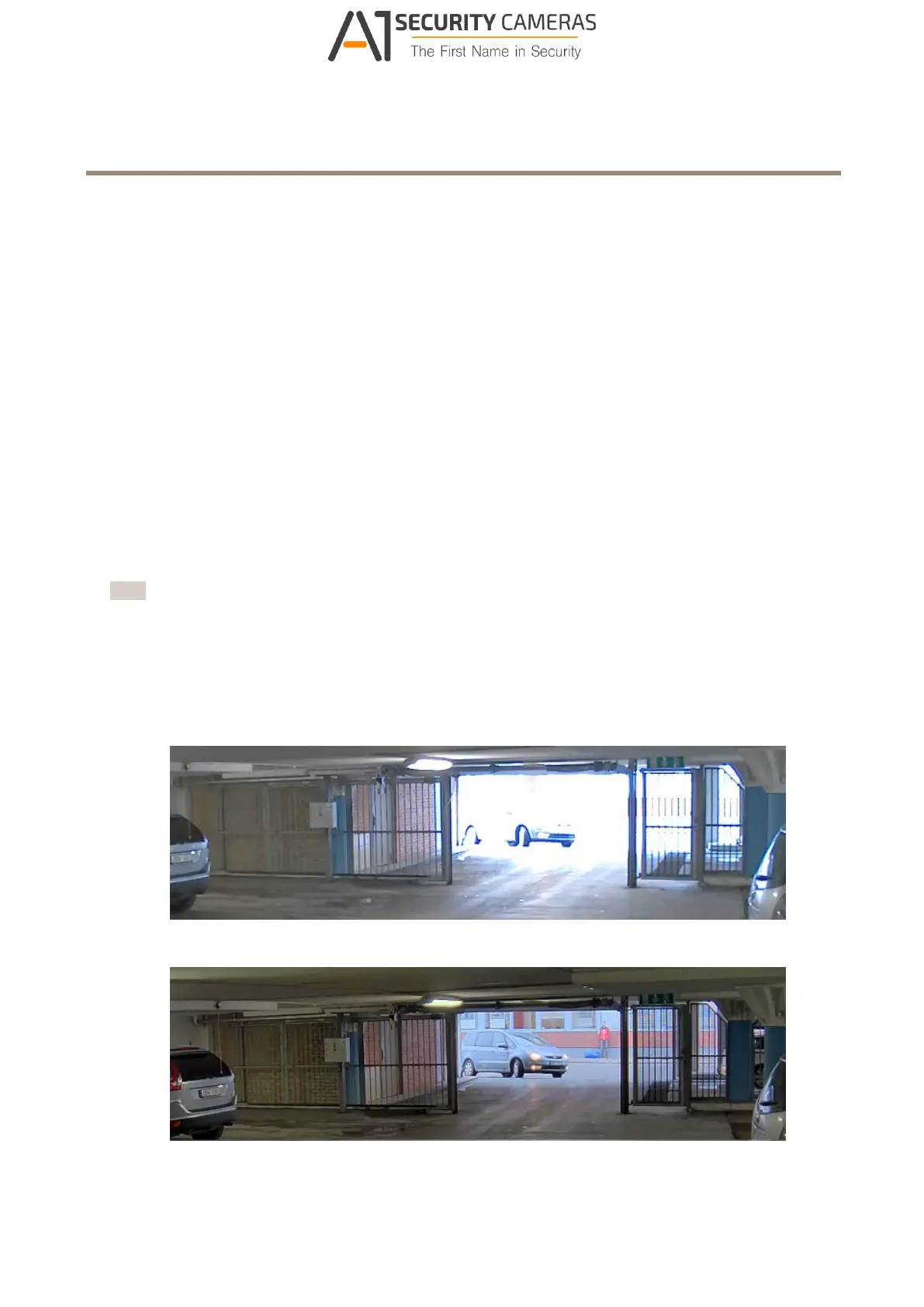
How to handle scenes with strong backlight
Image without WDR.
Image with WDR.
8
Available from A1 Security Cameras
www.a1securitycameras.com email: sales@a1securitycameras.com


 To Next Page