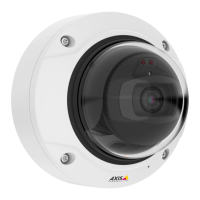
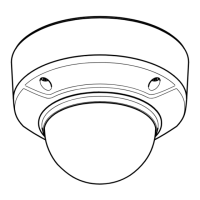
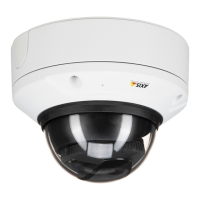
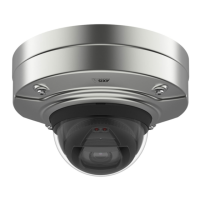
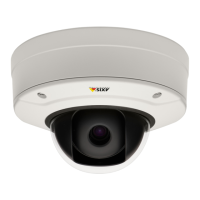
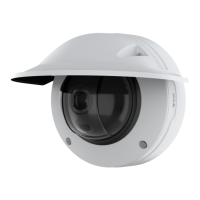
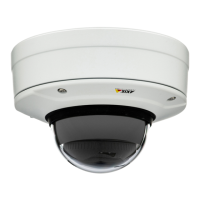
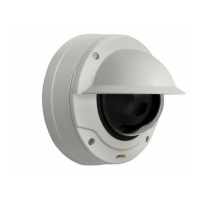
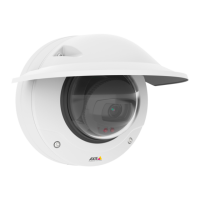
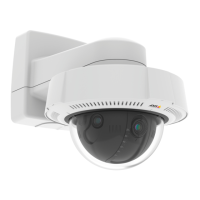
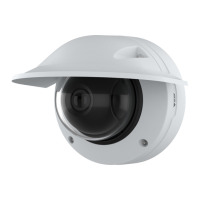
AXIS Q35 Series
Setup
Note
WDR may cause artifacts in the image.
Find out more about WDR and how to use it at axis.com/web-articles/wdr
Overlays
About overlays
Overlays are superimposed over the video stream. They are used to provide extra information during recordings, such as a timestamp,
or during product installation and conguration.
How to show a text overlay when the camera detects motion
This example explains how to display the text “Motion detected” when the camera detects motion:
Make sure the AXIS Video Motion Detection application is running:
1. Go to Settings > Apps > AXIS Video Motion Detection.
2. Start the application if it is not already running.
3. Make sure you have set up the application according to your needs.
Add the overlay text:
4. Go to Settings > Overlay.
5. Select Create overlay and conrm Text overlay.
6. Enter #D in the text eld.
7. Choose alignment, text size and appearance.
Create an action rule:
8. Go to System > Events > Action rules.
9. Create an action rule with AXIS Video Motion Detection as trigger.
10. From the list of actions, select Overlay text.
11. Type “Motion detected”.
12. Set the duration.
Note
If you update the overlay text it will be automatically updated on all video streams dynamically.
Streaming and storage
How to choose video compression format
Decide which compression method to use based on your viewing requirements, and on the properties of your network. The
available options are:
Motion JPEG
9
Available from A1 Security Cameras
www.a1securitycameras.com email: sales@a1securitycameras.com


 To Next Page