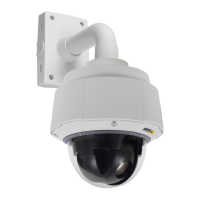
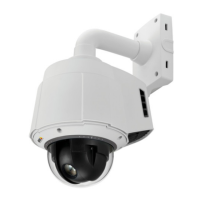
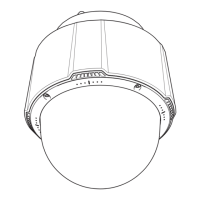
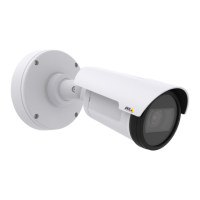
AXISQ6045MkIIPTZDomeNetworkCamera
PTZ(PanTiltZoom)
Theproductcanbemountedinthreedifferenthorizontaldirections.ThismaycausetheviewfromPan0°tobechangedfromthe
originalview.ClickSetnewPan0°tosetthepancoordinatesystemtozerointhecurrentdirection.SetnewPan0°canbeuseful
forinstancewhenre-installingtheproductaftermaintenance.
Gatekeeper
TheActiveGatekeepermonitorsanareasuchasanentrancegate.Whenmotionisdetectedinthemonitoredarea,theGatekeeper
will,dependingonconguration,steerthecameratoaselectedpresetpositionorstartautotrackingfromaselectedpresetposition.
Usingazoomed-inpresetpositioncanmakeitpossibleto,forexample,readalicenseplateoridentifyaperson.Whenmotion
isnolongerdetected,thecamerareturnstoitsHomepositionafteradenedtime.
ToenabletheGatekeeper,gotoPTZ>Gatekeeperandfollowtheonlineinstructions.
Itisalsopossibleto,forexample,recordvideoorsaveimages(takeasnapshot)whiletheGatekeeperisactive.GotoEventsandset
upanactionrulewithPTZPresetReachedorAutotrackingastrigger.
Autotracking
TheAxisproductcandetectmovementintheeldofview,forexampleamovingvehicleorperson.Ifautotrackingisenabled,the
Axisproductwillautomaticallypanandtilttofollowthemovingobject.Incasethereismuchsimultaneousmovement,theareawith
themostmovementwillbefollowed.Autotrackingcontinuesuntilthemovingobjectstopsordisappearsfromthemonitoredarea.
Movementinareasblockedbyprivacymasksandinexcludeareasdoesnottriggerautotracking.
ItisstronglyrecommendedtoenablethePTZControlQueueifautotrackingandguardtourareenabledsimultaneously.InthePTZ
ControlQueue,guardtourhaslowerprioritythanautotracking,soautotrackingwillnotbeabandonedtostartaguardtour.
Conguration
Start/StopAutotracking-ClickStarttoenableautotracking.Todisableautotracking,clickStop.
Settings-TheMovementtriggersensitivitylevelcanbesettoLow,MediumorHigh.Mediumisusuallyagoodchoice,dependingon
thesizeofthemovingobjectsandtheimagecontrast,aloworhighsensitivitymightbemoresuitable.
ExcludeAreas
Excludeareasareareaswheremovementistobeignored.
Note
Movementinanareablockedbyaprivacymaskisalwaysignored.
1.ClickAddareatocreateanexcludearea
2.Resizeandmovethearea(thebluerectangle)tothedesiredposition.
3.EnteradescriptivenameandclickSave.
Toremoveanarea,clickthenameoftheareaandclickRemove.Toenableordisableanarea,clickthenameoftheareaand
clickEnable/Disable.
MaxLimits
Thepanandtiltlimitsrestricttheareawhereautotrackingisallowed.Theareabeyondthesetlimitswillbeignored.Thismayprove
useful,forexample,toavoidtrackingbirdsinthesky.Betweenthepanstartandendlimits,autotrackingisallowedgoingclockwise.
Theillustrationsshowthedifferencebetweensettingarangefrom135°to45°(1)andarangefrom45°to135°(2).
1.SelectEnabletiltlimitandEnablepanlimitrespectivelytoenablethetiltandpanlimits.
2.EntertheTiltangleandPanlimitvalues,orclickthelinksandmovethebluehorizontalandverticalbarsinthepreview
windowuntilsatised.
29



 To Next Page
 Loading...