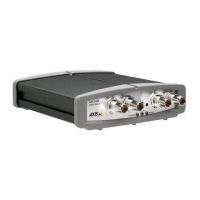
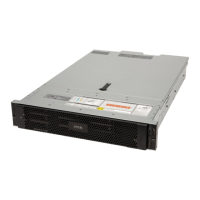
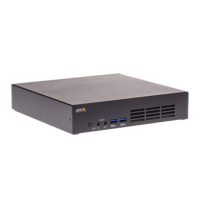
AXISCameraStationS2108Appliance
Configureyourdevice
Loginonaremoteserver
1.SelectRemoteserver.
2.SelectaserverfromtheRemoteserverdrop-downlistorentertheIPorDNSaddressintheeld.Iftheserverisnotlisted,
click
toreloadalltheavailableremoteservers.Iftheserverisconguredtoacceptclientsonadifferentportthan
thedefaultportnumber55752,entertheIPaddressfollowedbytheportnumber,forexample,192.168.0.5:46001
3.Youcan:
-SelectLoginascurrentusertologinasthecurrentWindowsuser.
-ClearLoginascurrentuserandclickLogin.SelectOtheruserandprovideanotherusernameandpassword
tologinwithadifferentusernameandpassword.
-SelectLoginas<username>ifyouhaveyourusernameandpasswordremembered.
SignintoAXISSecureRemoteAccess
Note
WhentryingtoconnecttoaserverusingAxisSecureRemoteAccess,theservercan’tupgradetheclientautomatically.
1.ClicktheSignintoAXISSecureRemoteAccesslink.
2.EnteryourMyAxisaccountcredentials.
3.ClickSigninandGranttograntaccess.
CongureAXISCameraStation
ThisGetstartedtutorialwillwalkyouthroughthebasicstepstomakeyoursystemupandrunning.
Beforeyoustart,youmayneedto:
•Congureyournetworkdependingonyourinstallation.SeeNetworkconguration.
•Congureyourserverportsifneeded.SeeServerportconguration.
•Considersecurityissues.SeeSecurityconsiderations.
Afternecessarycongurations,youcanstarttoworkwithAXISCameraStation:
1.StartAXISCameraStation
2.Adddevices
3.Congurerecordingmethodonpage17
4.Viewlivevideoonpage17
5.Viewrecordingsonpage17
6.Addbookmarksonpage17
7.Exportrecordingsonpage17
8.PlayandverifyrecordingsinAXISFilePlayeronpage18
StartAXISCameraStation
Double-clicktheAXISCameraStationclienticontostarttheclient.Whenyoustarttheclientforthersttime,itattemptstolog
intotheAXISCameraStationserverinstalledonthesamecomputerastheclient.
16



 To Next Page