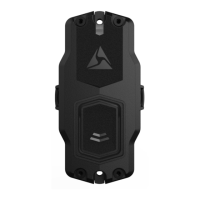
Axon Dock Upload Status LED
When you plug your camera into the Axon Dock, the upload status LED on the bottom of the camera displays the system’s status
System Status LED Indication
Initial connection (momentary) Solid red (for 20 seconds or fewer)
In queue awaiting upload Solid yellow
Device ready (all videos uploaded successfully) and fully charged Solid green
Device not assigned, agency mismatch, camera set in the oine mode, or device error Blinking red
Uploading data Blinking yellow – DO NOT remove the camera from the Axon Dock
Firmware update, internal battery charging, extremely low battery, or memory full Blinking red and yellow – DO NOT remove the camera from the Axon Dock
Transfer error, device re-trying to transfer Blinking green and yellow
Network error Blinking red, yellow, and then green (cycling all colors)
Axon Dock has no communication with the camera LED o
Using Axon View
The Axon View application enables you to replay video and add metadata (GPS, title,
case ID, and category) to your videos using a smart phone or multimedia player.
1 Using your smart device, download the Axon View application
from the Google Play store or the iTunes App Store. Search
Axon View.
2 On your smart device, open the Axon View application and
follow the onscreen instructions.
Note: All data is stored on the Axon camera. No videos are
stored on your smart device.
Notication
The camera emits beeping sounds called audio prompts to notify you of the system
status. These audio prompts usually occur after you perform an action with the camera.
For some actions, the camera also vibrates while making an audio prompt.
Operating Mode Audio Vibration
Powering on or o One beep Once
Recording an event
Two beeps
(every two minutes)
Twice
(every two minutes)
Press the battery button while the
camera is recording
Two beeps Twice
The device is ending an event and
returning to BUFFERING mode
One long beep Once, long duration
The battery is at 20% capacity or
lower
Four quick beeps
(every ve minutes)
Four times, quickly,
every ve minutes
Camera memory is full (camera
will not record).
Three beeps Three times
Bluetooth is a trademark of the Bluetooth SIG, Inc. Google Play is a trademark of Google, Inc. iTunes is a trademark of Apple, Inc. IOS is a trademark of Cisco Systems, Inc. Windows is a
trademark of Microsoft Corporation.
, A XON, Axon, Axon Body 2, Axon Dock, Axon View, Evidence.com, Evidence Sync, and TASER are trademarks of TASER International, Inc., some of which are registered in the US and
other countries. For more information, visit www.taser.com/legal. © 2017 TASER International, Inc.
MPC0205 Rev: D
Recharging the Battery and Uploading Data
If you do not have an Axon Dock, upload video with a Windows compatible computer
using Evidence Sync: TASER.com/syncdownload.
1 Ensure the Axon Body 2 camera is o. Insert the
camera into the Axon Dock as shown. The dock
automatically uploads data to Evidence.com services,
deletes videos from the camera, and charges the
camera. (The camera must be registered to your
Evidence.com account.)
2 At the beginning of the next shift, ensure that your
camera (if one has been assigned to you) displays
with a green upload status LED before removing it
from the dock.
Pairing the Axon Body 2 Camera with a Smart Device
1 Turn on the Axon Body 2 camera.
2 Wait until the Function LED is not lit anymore.
2 Hold down the Function and EVENT buttons for ve seconds.
3 Wait until you hear four beeps. The Function LED will blink green.
4 On your smart device, follow the onscreen instructions.
2. Hold down the Function and EVENT buttons for ve
seconds.
1. Turn on the Axon Body 2 camera.
3. The Function LED will blink green;
you will hear four beeps.



 To Previous Page
 Loading...