Pause (Yellow button) : Pause the slideshow.
Continue (Green button) : Continue with the
slideshow.
Previous/Next (Left/Right buttons) : Jump to previous
or next le of slideshow.
Rotate (Up/Down buttons) : Rotate the picture using
up/down buttons.
EXIT : Back to le list.
Shufe (Red button) : Shows the les randomly and
continuous in current folder and
icon turns the
highlighted icon. If during a slideshow the shufe mode
is enabled, the next pictures will be choosen randomly
(If the loop function is not enabled, the slideshow will
stop at the end. If the loop function is enabled, after
the slideshow ends, it will start again and again).
Loop (Blue button) : Slideshow goes on continuously
and
icon turns the highlighted icon.
Info : Activates the operations bar.
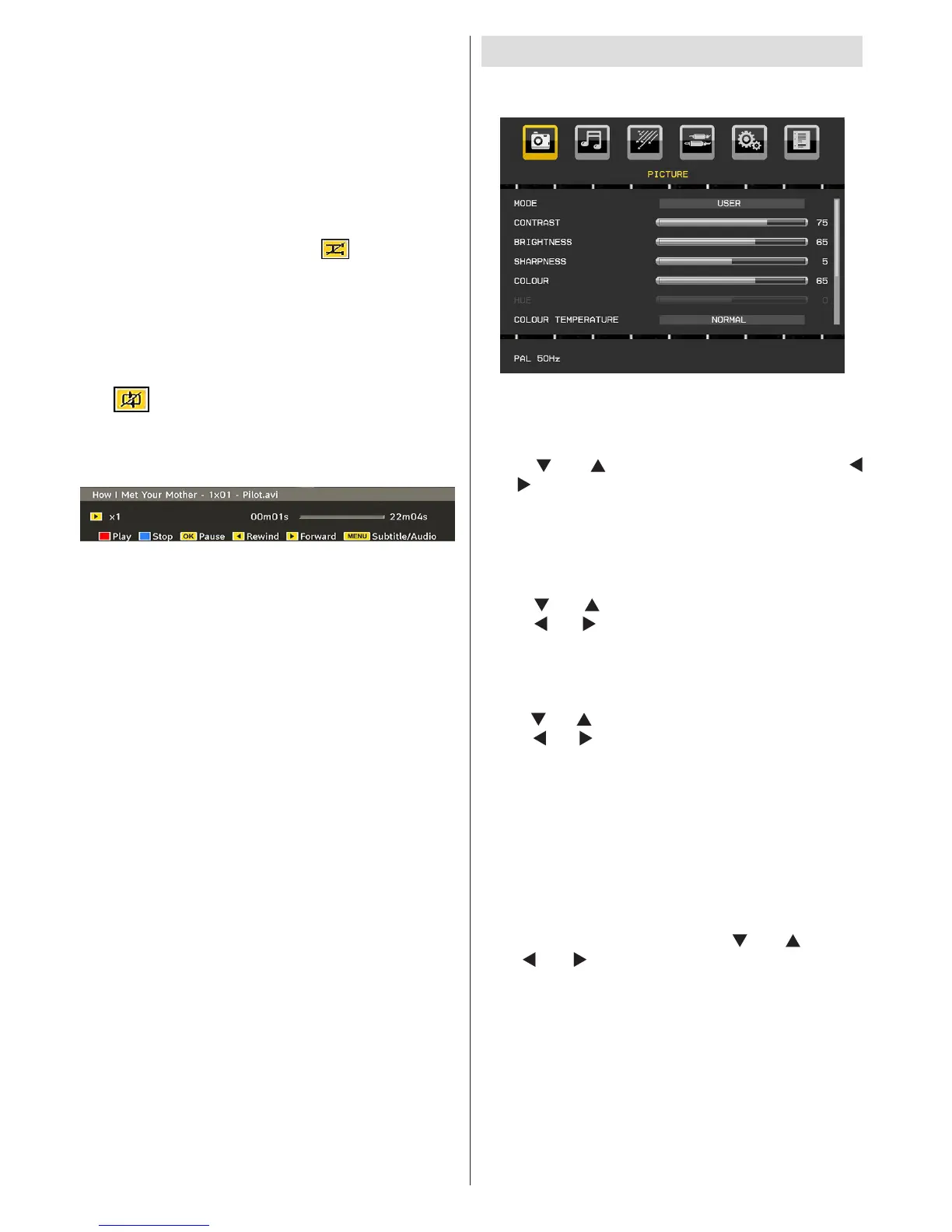
Video Playback
Play (Red button) : Starts the video playback.
Stop (Blue button) : Stops the video playback.
Pause (OK button) : Pause the video playback.
Rewind (Cursor Left) : Goes backward.
Forward (Cursor Right) : Goes forward.
Menu (M button) : Sets subtitle/Audio.
• You can set subtitles by using OK button before
starting the playback or by using MENU button
during the playback.
Note:
-Selected subtitles may not be displayed correctly in some
cases.
-In order to display movie subtitles correctly, you should set a
“Movie Subtitle” language. See the section, “Movie Subtitle” in
“Language Settings” for selecting Movie Subtitle language.
Press “STOP” button to switch back to previous
menu..
Analogue TV Menu System
Picture Menu
Mode
For your viewing requirements, you can set the related
mode option.
Press “
” or “ ” button to select Mode. Press “
” or “ ” button to choose from one of these options:
Natural,Cinema,User and Dynamic .
You can adjust to mode according to your desired
settings if you select user option.
Contrast/Brightness/Sharpness/Colour/Hue
Press “ ” or “ ” button to select the desired option.
Press “ ” or “ ” button to set the level.
Note: Hue option can only be visible when the TV receives
an NTSC signal.
Colour Temperature
Press “ ” or “ ” button to select Colour Temperature.
Press “ ” or “ ” to choose from one of these options:
Normal ,Warm and Cool.
Note:
• For normal colours, select Normal option.
• Setting Warm option gives white colours a slight red
stress.
• Setting Cool option gives white colours a slight blue
stress.
Game Mode
Select Game Mode by pressing “ ” or “ ” button.
Use “ ” or “ ” button to set Game Mode as On or
Off. When Game Mode is set to On, specic game
mode settings, which are optimized for better video
quality, will be loaded.
Also; Picture Mode, Contrast, Brightness, Sharpness,
Colour and Colour Temperature settings will be
invisible and disabled while Game Mode is on.
Note:
Picture mode selection button on the remote control will have
no function while Game Mode is on.


 To Next Page