9424200772 Rev D 7
BE1-11 Quick Start Guide
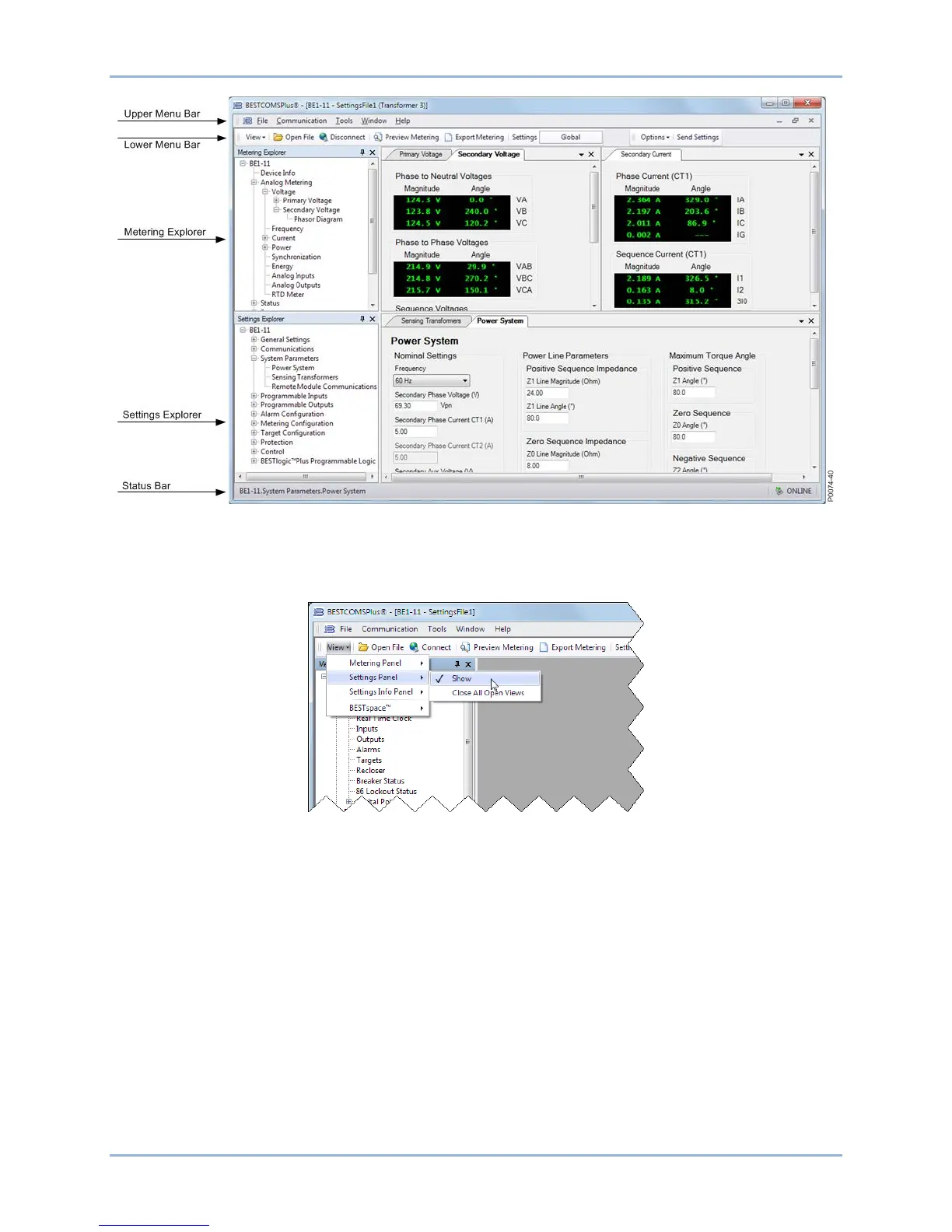
Figure 8. BESTCOMSPlus Typical User Interface Components
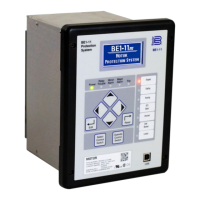
Click the View drop-down button to switch between the Settings Explorer and Metering Explorer or split
the view between both. The Settings Info Panel displays settings ranges. A workspace can be opened,
saved, or set as default. See Figure 9.
Figure 9. View Drop-Down Button
Summary Screens
Summary screens provide an overview of the system setup. The legend, located in the lower right-hand
corner, provides interpretation for the various indicated colors. The current state of a protection and
control function or element is indicated by the color of the adjacent indicator. If the function is enabled, the
color is green. If the function is disabled only by a setting (such as zero), the color is yellow. If the function
is disabled only by a mode, the color is blue. If the function is disabled by both a setting and mode, the
color is gray. The System Summary screen is available by clicking BE1-11 in the Settings Explorer as
shown in Figure 10. Summary screens are also available for General Settings, Alarm Configuration,
Protection, and Control.


 To Next Page