EasyManua.ls Logo

Bauhn ASW-0822 - User Manual

Bauhn ASW-0822
20 pages
Print Icon
To Next Page IconTo Next Page
Loading...
Display 1.7”, 240 x 280 pixels
Ingress protection IP68
Charging time 1.5 hrs (approx.)
Charging base
input
5V 150mA
Bluetooth Range < 10m
Built-In Battery Li-ion 3.7V 220mAh
Weight 47g (approx.)
Dimensions (mm) 39 (W) x 51 (H) x 11.7 (D)
Specications
Smart Watch
with Sleep Tracking
User Guide
1300 002 534
Model: ASW-0822
Product Code: 709685 08/2022
tempo.org/support
Warranty returns
Should you for any reason need to return this
product for a warranty claim, make sure to
include all accessories with the product.
Product does not work?
If you encounter problems with this product, or
if it fails to perform to your expectations, make
sure to contact our After Sales Support Centre
on 1300 002 534.
Warranty Information
Repair and Refurbished Goods or Parts Notice
The product is guaranteed to be free from defects in
workmanship and parts for a period of 12 months from the
date of purchase. Defects that occur within this warranty
period, under normal use and care, will be repaired,
replaced or refunded at our discretion, solely at our
option with no charge for parts and labour. The benefits
conferred by this warranty are in addition to all rights and
remedies in respect of the product that the consumer
has under the Competition and Consumer Act 2010 and
similar state and territory laws.
Our goods come with guarantees that cannot be
excluded under the Australian Consumer Law. You are
entitled to a replacement or refund for a major failure and
to compensation for any other reasonably foreseeable
loss or damage. You are also entitled to have the goods
repaired or replaced if the goods fail to be of acceptable
quality and the failure does not amount to a major failure.
The Bluetooth
®
word mark and logos are registered
trademarks owned by Bluetooth SIG,Inc. and any use
of such marks by Hands (IP) Holdings Pty Ltd is under
license. Other trademarks and trade names are those of
their respective owners.
Unfortunately, sometimes faulty products are manufactured,
which need to be returned to the supplier for repair.
Please be aware that if your product is capable of retaining
user-generated data (such as files stored on a computer
hard drive, telephone numbers stored on a mobile
telephone, songs stored on a portable media player, games
saved on a games console or files stored on a USB memory
stick) during the process of repair, some or all of your
stored data may be lost. We recommend you save this data
elsewhere prior to sending the product for repair.
You should also be aware that rather than repairing goods,
we may replace them with refurbished goods of the same
type or use refurbished parts in the repair process.
Please be assured though, refurbished parts or
replacements are only used where they meet ALDI’s
stringent quality specifications.
If at any time you feel your repair is being handled
unsatisfactorily, you may escalate your complaint.
Please telephone us on 1300 002 534 or write to us at:
Tempo (Aust) Pty Ltd ABN 70 106 100 252
PO Box 132, Frenchs Forest, NSW 1640, Australia
Telephone: 1300 002 534 (Aust) - Fax: (02) 8977 3765
Tempo Help Desk: 1300 002 534 (Aust)
(Operating Hours: Mon-Fri 8:30am-6pm; Sat 9am-6pm EST)
Email: tempo.org/support
1300 002 534
Model: ASW-0822
Product Code: 709685 08/2022
tempo.org/support
Shortcut menu
Settings
On the main menu, tap on the icon to enter
the settings menu to change the below:
: Change watch face screen.
: Adjust touch screen brightness.
: Display Bluetooth, Mac address and
software version.
: Turn off the watch.
: Reset to factory settings.
Function
On the main menu, tap on the icon to enter
the function menu to access the below:
Stopwatch
Timer
Flashlight
Tap the icon and your smart phone will
ring or vibrate.
Swipe down to access the shortcut
menu where you can adjust
brightness, enter settings, turn on/
off do not disturb mode and ‘nd
phone.’
On the main menu, tap the icon to enter
the Bluetooth music playback menu.
Open the music app on your smart phone.
Tap play/pause icon to play/pause music.
Tap previous/next icon to play the previous/
next song.
Call Operation
After your smart phone is connected to the
watch, you can directly answer/reject incoming
calls through the watch.
To answer an incoming call, tap the icon.
To reject the call, tap the icon. During the
call, tap the icon to mute/unmute. Tap the
icon and swipe up/down to adjust the volume.
Bluetooth Music Playback
Your smart phones Bluetooth must be connected
to “ASW-0822” to use the function.
Sports (Training)
On the main menu, tap on the icon to enter
the multi-sport screen. There are 24 sport modes
for you to choose from.
When you want to pause/stop the activity, swipe
right and the screen will pause and display the
play/stop icon. Tap the icon to resume/stop play.
You can also start the activity on the GloryFit app
on your smart phone and it will sync data to the
watch.
Virtual GPS connection: select the icon on the
GloryFit app to enter the Sports menu. Select the
sport mode or you can tap “+” to add desired
sport mode.
Tap “GO” on the screen and select OK to conrm
GPS access. The sport mode will start on the app
and watch and synchronise.
Tap the icon to display the GPS map. Tap
the icon to return to the sport menu. Tap the
pause icon to pause the sport and tap and hold
the stop icon to stop the sport. The GPS exercise
data will be saved.
NOTE: The smart watch will only save data if
the distance is more than 200 steps/5 minutes in
duration. GPS function must be turned on mobile
and be connected to the mobile network.
Bluetooth Calls
On the main menu, tap on the icon to enter
the Bluetooth call menu where you can view call
history, contact list and dialer.
Tap the “Switch” to turn the Bluetooth call function
on. The function will automatically turn off after 15
minutes if not connected with your smart phone.
NOTE: Your smart phones Bluetooth must be
paired to “ASW-0822” to use the function.
To enable the watch for your smart phone’s
Bluetooth calls, music playback and remote
capture, please refer to the below:
For Android devices: Go to your mobile settings
> Bluetooth. Select “Pair new device” and select
“ASW-0822” from the list.
For iOS devices: Go to your mobile settings >
Bluetooth. Select “ASW-0822” from the
“Other Devices” list.
Please ensure the shortcut menu shows .
NOTE: For iOS devices, music playback and
remote capture will not work if you do not pair
“ASW-0822(ID-XXXX)” on the pop up screen.
NOTE: before using the Find Phone function,
Bluetooth Call function must be turned off on
the watch.
The ringing and vibration duration will differ
between iOS and Android phones.
Find Phone
After your smart phone is connected to the
watch, tap the nd phone icon and your
smart phone will ring or vibrate.
Weather
On the main menu, tap on the icon to view
live weather (you can see up to a 3 day forecast).
You must be connected to the GloryFit app.
NOTE: You must have Internet/mobile
connection for this function to work. Your phone
location/GPS must also be turned on. The
weather displayed may not be the same as your
phone’s default weather app.
Please read the User Guide
1300 002 534
tempo.org/support
13
14
15 16 17
18 19 20
Question and Answer IconNeed help?

Do you have a question about the Bauhn ASW-0822 and is the answer not in the manual?

Summary

Parts of the Watch

First Time Use

Charging Steps

Detailed instructions on how to properly charge the smartwatch for the first time.

GloryFit App Installation

Watch Power and Connectivity

Screen Interaction and Navigation

App Notification Settings

Sleep Monitoring

Pedometer and Activity Tracking

Alarms and Message Notifications

Health and Wellness Features

Blood Oxygen and Watch Face Customization

Sports Modes and GPS

Bluetooth Calls and Pairing

Call Management and Music Control

Weather Forecast and Find Phone

Watch Settings and Utility Functions

Technical Specifications

Warranty Information

Repair and Support Information

Overview

This document is a user guide for the BAUHN Smart Watch with Sleep Tracking, Model ASW-0822, Product Code: 709685 08/2022.

Function Description:

The BAUHN Smart Watch is a wearable device designed to track various health and activity metrics, including sleep, steps, heart rate, blood pressure, and blood oxygen. It also offers smart features like message notifications, alarms, remote camera control, Bluetooth calls, and music playback. The watch is designed to be used in conjunction with the GloryFit app, which provides detailed records and additional settings.

Important Technical Specifications:

  • Display: 1.7", 240 x 280 pixels
  • Ingress Protection: IP68 (dust tight and protected against continuous immersion in water up to 1.5m for 30 minutes)
  • Charging Time: 1.5 hours (approx.)
  • Charging Base Input: 5V⎓150mA
  • Bluetooth Range: < 10m
  • Built-In Battery: Li-ion 3.7V 220mAh
  • Weight: 47g (approx.)
  • Dimensions (mm): 39 (W) x 51 (H) x 11.7 (D)

Usage Features:

First Time Use & Charging:

Before first use, the watch needs to be charged for about 3 hours. Charging involves aligning the charging pins on the back of the watch with those on the charging cable, which then connects to a USB charging adaptor (not included) or a USB port on a computer.

Turning On/Off:

To turn on or off, press and hold the side button for 3 seconds.

Connecting to the App (GloryFit):

  1. Download the GloryFit app from the app store (available for Android and iOS). QR codes are provided in the manual for easy access.
  2. Open the app, tap "Profile," and set up an account.
  3. Go to "Device" > "Add a new device" > "Select device." The app will search for nearby devices.
  4. Select "ASW-0822(ID-XXXX)" from the list to connect. iOS users may need to tap "Pair" on a pop-up window.

Disconnecting from the App:

  1. Open the GloryFit app.
  2. Tap "Device" and select "Unbind (Android)/Unpair (iOS)."
  3. On your smartphone, go to Bluetooth settings, tap the "i" (iOS) or "setting" (Android) icon next to "ASW-0822," and then tap "Forget This Device."

Screen Operation:

  • Turn On Screen: Tap the touch screen, raise your arm (if wearing), or press the side button. Press the button again to turn off the screen.
  • Home Screen Functions:
    • Swipe right: Access main menu.
    • Swipe up/down (from main menu): Navigate menu screens.
    • Swipe left: Quick access to pedometer, heart rate, sleep monitor, and weather.
    • Swipe up: Notifications screen.
    • Swipe down: Shortcut menu.
  • Functions in Any Screen:
    • Swipe right or press side button: Return to previous or main screen.
    • Tap an icon: Enter sub-screen.

Applications (Notifications):

Allow permissions and enable notification settings in the respective smartphone application for notifications to appear on the watch. The watch displays the latest 10 notifications. "SMS reminder" on the smartphone must be set to on. Ensure "permission settings" in GloryFit app allow messages to run in the background.

Sleep Monitor:

The watch has a built-in sleep monitor that automatically activates when you fall asleep (must be worn). It records total sleep, deep sleep, and light sleep. Data is synchronized to the GloryFit app for detailed records and reports (daily, weekly, monthly).

  • Note: Sleep duration less than 3 hours will not be recorded.

Pedometer (Status):

Tracks steps taken, calories burnt, and distance travelled. Data synchronizes with the GloryFit app for detailed records.

Alarm:

Set up to 3 alarms via the GloryFit app.

  • iOS: "Device" > "Alarm," set time/period, turn on/off, tap "<" to go back, "Yes" to confirm.
  • Android: "Device" > "Smart Alarm Clock" > "+Add to," tap "Time" and "Period," tap tick icon to save.

Sedentary Reminder:

Set reminders in the GloryFit app to notify you to be active.

Remote Camera:

In GloryFit app: "Device" > "More Setting (iOS)/Universal Setting (Android)" > "Shake to take picture." Shake your wrist to take a photo remotely.

Heart Rate:

Tap the heart icon on the main menu to measure heart rate. Set measurement intervals and view detailed data in the GloryFit app.

Blood Pressure:

Tap the blood pressure icon on the main menu. Tap the touch screen to start measurement. Synchronize data to the GloryFit app.

Blood Oxygen:

Tap the blood oxygen icon on the main menu. Measurement starts automatically. Swipe right to exit. Set auto measurement intervals and view data in the GloryFit app.

  • Important Note for Heart Rate, Blood Pressure, Blood Oxygen:
    • Ensure good contact with your wrist.
    • Sensor must be clean, free of dirt/debris.
    • May take over 30 seconds for the first result.
    • Results are for guide only and cannot be used for medical reference.

Watch Face Screen:

Change watch face style by pressing and holding the touch screen on the main screen, or by tapping the settings icon in the settings menu. Swipe left/right for options, then tap the screen to confirm.

Sports (Training):

Tap the running icon on the main menu to access 24 multi-sport modes.

  • Pause/Stop: Swipe right to pause, tap icon to resume/stop. Can also start activity on GloryFit app to sync data.
  • Virtual GPS Connection: In GloryFit app, "Sports" menu, select mode or tap "+" to add. Tap "GO" on watch, OK to confirm GPS access.
  • GPS Map: Tap the map icon to display. Tap the "X" icon to return to sport menu. Tap pause icon to pause, hold stop icon to stop. GPS exercise data will be saved.
  • Note: Data only saves if distance > 200 steps/5 minutes. GPS requires mobile network connection.

Bluetooth Calls:

Tap the phone icon on the main menu to access call history, contact list, and dialer. Tap "Switch" to turn on Bluetooth call function (turns off after 15 minutes if not connected).

  • Note: Smartphone Bluetooth must be paired to "ASW-0822."
  • Enabling for Calls/Music/Remote Capture:
    • Android: Mobile settings > Bluetooth > "Pair new device" > "ASW-0822."
    • iOS: Mobile settings > Bluetooth > "ASW-0822" from "Other Devices" list.
    • Ensure shortcut menu shows the Bluetooth call icon.
  • Call Operation:
    • Answer: Tap green phone icon.
    • Reject: Tap red phone icon.
    • Mute/Unmute: Tap microphone icon during call.
    • Adjust Volume: Tap speaker icon and swipe up/down.

Bluetooth Music Playback:

Tap the music icon on the main menu. Open music app on smartphone.

  • Play/Pause: Tap play/pause icon.
  • Previous/Next Song: Tap previous/next icon.
  • Note: Smartphone Bluetooth must be connected to "ASW-0822." For iOS, music playback and remote capture won't work if "ASW-0822(ID-XXXX)" is not paired on the pop-up screen.

Weather:

Tap the cloud icon on the main menu for live weather (up to 3-day forecast). Requires connection to GloryFit app, internet/mobile connection, and phone location/GPS turned on. Weather displayed may differ from phone's default app.

Shortcut Menu:

Swipe down from the home screen to access: brightness adjustment, settings, do not disturb mode on/off, and 'find phone.'

Find Phone:

After connecting to smartphone, tap the find phone icon. Your smartphone will ring or vibrate.

  • Note: Bluetooth Call function must be turned off on the watch before using Find Phone. Ringing/vibration duration differs between iOS and Android.

Settings Menu:

Tap the gear icon on the main menu to access:

  • Change watch face screen.
  • Adjust touch screen brightness.
  • Display Bluetooth, Mac address, and software version.
  • Turn off the watch.
  • Reset to factory settings.

Function Menu:

Tap the three-dot icon on the main menu to access:

  • Stopwatch
  • Timer
  • Flashlight
  • Find Phone (represented by an icon, tapping it will make your smartphone ring or vibrate).

Maintenance Features:

  • Charging Pins: To keep charging pins clean, use a damp cloth and gently clean them weekly.

Warranty and Support:

The product comes with a 12-month warranty against defects in workmanship and parts. After-sales support is available via phone (1300 002 534) or email (tempo.org/support). The manual also includes information on repair and refurbished goods, advising users to save data elsewhere before sending the product for repair, as data may be lost.
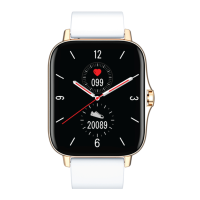
Bauhn ASW-0822 Specifications

General IconGeneral
BrandBauhn
ModelASW-0822
CategoryWatch
LanguageEnglish

Related product manuals