EN
7
7 APP
Please check the following items before connecting:
7.1 Instructions for Using the APP
You can either scan the QR code below or search for "Beatbot" in the App Store or
Google Play to download the latest App.
APP Download
Robot Connection
Make sure the robot is turned on;
Bring the phone close to the robot (the distance between your phone and the robot should
be within 1m).
Ensure your phone is connected to Wi-Fi;
Confirm that both your mobile phone and the robot are within the same Wi-Fi coverage range
with a strong signal;
Press the "Power" and "Floor Mode" buttons simultaneously for about 3s, and when you
see the indicator flashing blue, the robot is ready for network setup. Then, you can choose
either of the following methods to complete the connection:
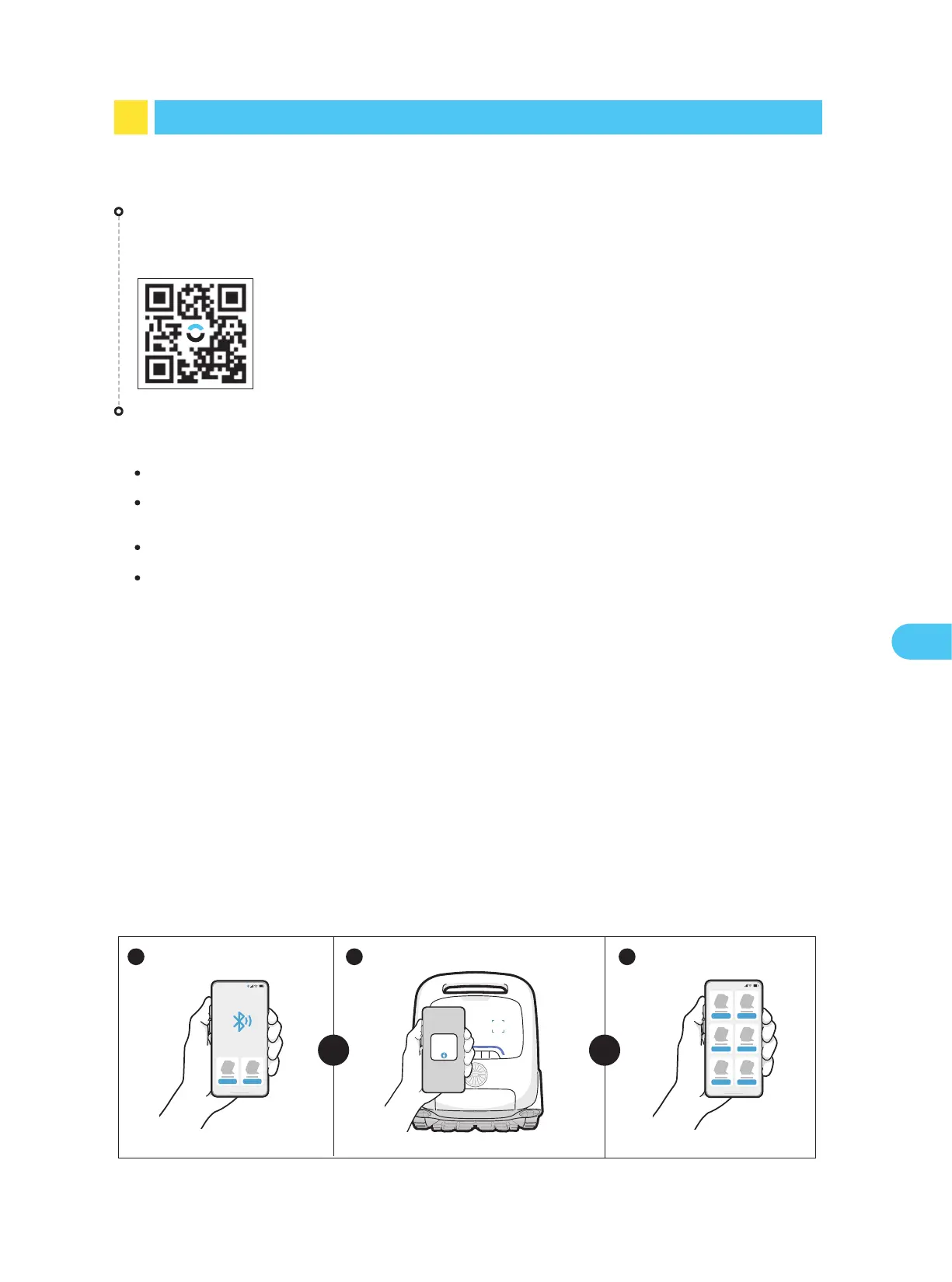
B. Scan to Add: Tap the "Scan to Add" on the home page of the APP, aim the camera at
the QR code on the robot, and follow the APP instructions to complete the connection.
A. Add via Bluetooth: Make sure that the bluetooth of your mobile phone is turned on before
connection. Tap "Add Device" on the home page of the APP, and it will automatically search for
your robot model. Follow the APP instructions to complete the connection.
C. Add Manually: Tap the "Add Device" on the home page of the APP, choose your robot
model, and follow the APP instructions to complete the connection.
A B C
OR OR


 To Next Page