EN
EN
6
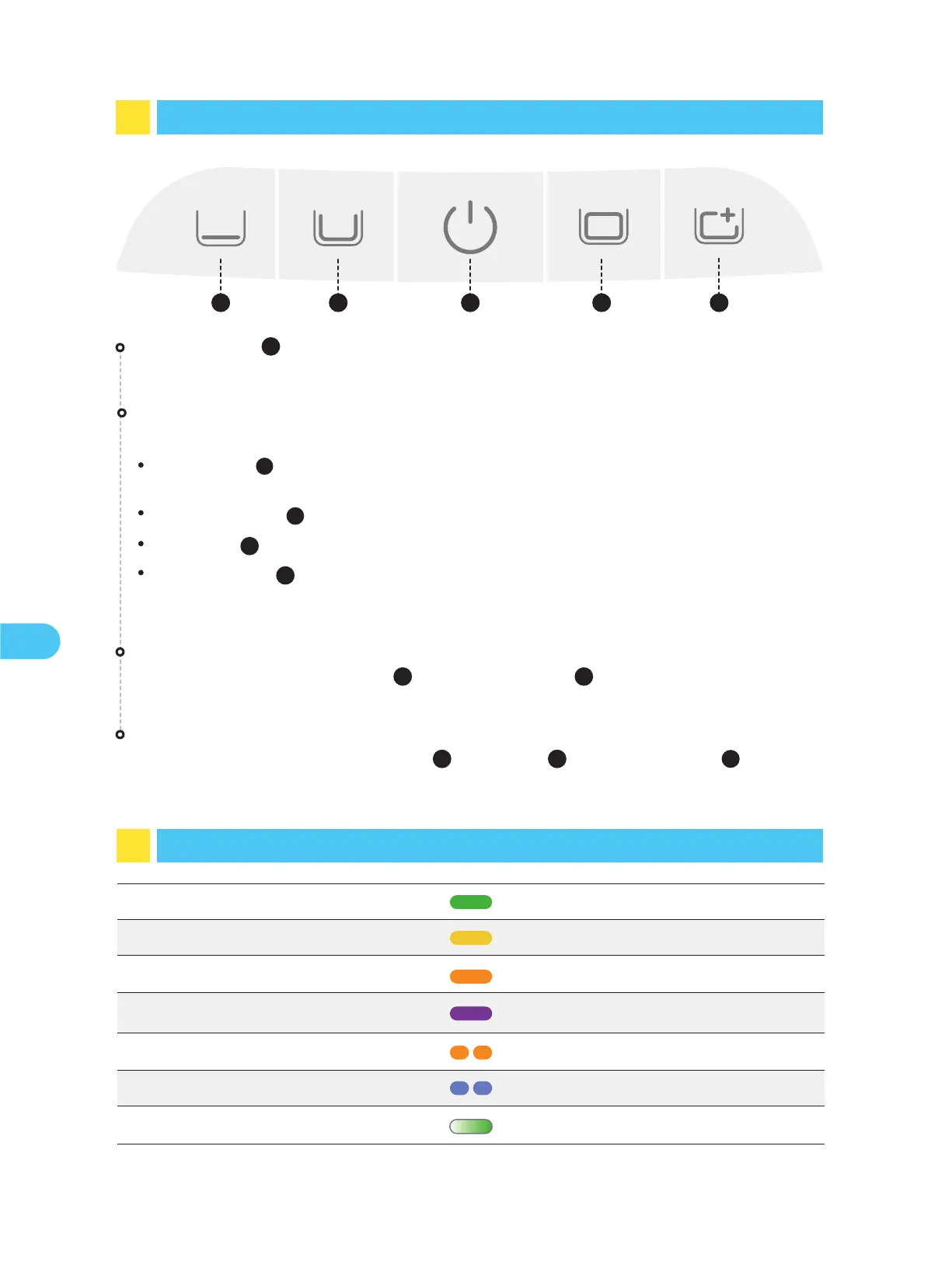
5 Robot Buttons
1 2 43 5
5
6 Lighting Effects
Battery sufficiently chargedSolid green light
Network configuring/OTA upgradingFlashing blue light
Solid yellow light
Battery nearing depletion
Solid orange light
Robot malfunctionFlashing orange light
ChargingBreathing light
* During the charging process, the light color reflects the current battery level.
Solid purple light
Clarifier dispensing
Factory Reset
Press and hold the "Standard Mode ( )", "Power ( )" and "Pro Mode ( )" buttons
simultaneously for about 10s to restore the factory settings.
Hotspot Configuration
Press and hold both the "Power ( )" and "Floor Mode ( )" buttons simultaneously for
about 3s to trigger the hotspot configuration.
Power Button
Short press to turn the robot on, and press and hold for about 3s to turn it off.
Short press the corresponding mode button to switch.
Floor Mode ( ): Clean the floor;
(Press and hold for about 3s to enable the dispensing of clarifier.)
Standard Mode ( ): Clean in the order of floor, walls and waterline;
Pro Mode ( ): Clean in the order of floor, walls, waterline and surface;
Custom Mode ( ): You can set the cleaning area and duration according to your needs via
the App. Once your settings are successfully configured in the App, they will sync with this
mode button.
Mode Button
1
2
5
4
4
1
3
3
2
Battery low
3



 To Next Page