EasyManua.ls Logo

Beats Studio Buds - User Manual

Beats Studio Buds
2 pages
Print Icon
To Next Page IconTo Next Page
Loading...
18-08-2021 13:05Set up and use your Beats Studio Buds - Apple Support
Pagina 1 van 4https://support.apple.com/en-us/HT212254
!
Set up and use your Beats Studio Buds
You can listen t o music, ma ke ph on e ca ll s, us e Si ri , an d mo re wi th your Bea ts S t ud io
Buds.
Pair your Beats Studio Buds
"#$%&!'()!*(!+$,%!-(.%!/#$*0!1*.2,(!/.20!),*'!-(.%!2#3,4#5
Pair with your iPhone, iPad, or iPod touch
65! 7.%&!(&!/8.#*((*'!(&!-(.%!,9'(&#:!,9$2:!(%!,9(2!*(.4'5
;5! <,*'!*'#!4$0#!8,2!(+#&:!'(82!-(.%!/#$*0!1*.2,(!/.20!&#=*!*(
-(.%!.&8(4>#2!,9'(&#:!,9$2:!(%!,9(2!*(.4'5
?5! @(88()!*'#!(&04%##&!,&0*%.4*,(&05!AB!-(.!2(&C*!0##!$&-
,&0*%.4*,(&0:!B(88()!*'#!0*#+0!*(!+$,%!-(.%!/#$*0!1*.2,(
/.20!),*'!$&(*'#%!2#3,4#5
Pair with an Android device
9$,%!-(.%!/#$*0!1*.2,(!/.20!.0,&D!*'#!/#$*0!$++!B(%!E&2%(,25
F(.!4$&!$80(!.0#!@$0*!9$,%!*(!+$,%!-(.%!/#$*0!1*.2,(!/.20!),*'!$&!E&2%(,2!2#3,4#G
65! H$>#!0.%#!*'$*!-(.%!+'(&#!,0!.0,&D!E&2%(,2!I5J!(%!',D'#%:!$&2!*'$*!,*!'$0!/8.#*((*'!$&2!"(4$*,(&!*.%&#2
(&5
;5! <,*'!*'#!4$0#!8,2!(+#&:!'(82!-(.%!/#$*0!1*.2,(!/.20!&#$%!-(.%!+'(&#!(%!*$K8#*5
?5! <'#&!-(.!D#*!$!&(*,B,4$*,(&:!*$+!L7$+!*(!+$,%5L!F(.C88!D#*!$!LM#3,4#!4(&&#4*#2L!(%!L9$,%,&D!4(N+8#*#L
&(*,B,4$*,(&5
O5! AB!-(.!&##2!*(!0#*!.+!-(.%!/#$*0!1*.2,(!/.20:!*$+!L1#*!.+!&()5L!AB!-(.!2(&C*!D#*!$!&(*,B,4$*,(&:!(+#&!*'#
/8.#*((*'!0#**,&D0!(&!-(.%!+'(&#!(%!*$K8#*:!$&2!*$+!*'#!2#3,4#!*'$*!-(.!)$&*!*(!+$,%5
@$0*!9$,%!%#P.,%#0!-(.%!8(4$*,(&!*(!K#!#&$K8#25!@.88!$44#00!*(!B#$*.%#0!%#P.,%#0!$&!E&2%(,2!I5J!(%!&#)#%!2#3,4#!),*'!Q((D8#
98$-!1#%3,4#0!#&$K8#2!$&2!Q((D8#!E44(.&*5
Pair with your Mac or with another device that uses Bluetooth
65! 7.%&!(&!/8.#*((*'!(&!-(.%!H$4!(%!(*'#%!2#3,4#5
;5! <,*'!*'#!4$0#!8,2!(+#&:!'(82!-(.%!/#$*0!1*.2,(!/.20!&#=*!*(!-(.%!H$4!(%!(*'#%!2#3,4#5
?5! 9%#00!$&2!'(82!*'#!0-0*#N!K.**(&!(&!*'#!4'$%D,&D!4$0#!.&*,8!*'#!"RM!K8,&>05
O5! S+#&!*'#!/8.#*((*'!N#&.!(&!-(.%!H$4!(%!(*'#%!2#3,4#5!@(%!#=$N+8#:!(&!-(.%!H$4:!4'((0#!E++8#!N#&.
T!U!1-0*#N!9%#B#%#&4#0:!*'#&!48,4>!/8.#*((*'5
V5! A&!*'#!8,0*!(B!2,04(3#%#2!/8.#*((*'!2#3,4#0:!*$+!(%!48,4>!-(.%!/#$*0!1*.2,(!/.205
Question and Answer IconNeed help?

Do you have a question about the Beats Studio Buds and is the answer not in the manual?

Summary

Pair Your Beats Studio Buds

Pair with iPhone, iPad, or iPod touch

Instructions for pairing Beats Studio Buds with Apple iOS devices via Bluetooth.

Pair with an Android Device

Steps for pairing Beats Studio Buds with Android devices using Fast Pair and the Beats app.

Pair with Mac or Other Bluetooth Devices

Guide to connecting Beats Studio Buds to Mac and other Bluetooth-enabled devices.

Use Your Beats Studio Buds

Control Music Playback

Learn to play, pause, skip tracks, and control audio with the Beats logo button on either earbud.

Adjust Volume

How to change the volume using voice commands like Siri or on-screen controls.

Manage Phone Calls

Instructions on answering, ending, and managing calls with the Beats logo button.

Noise Cancellation and Transparency Modes

How to switch between Active Noise Cancellation, Transparency, and Off modes for ambient sound control.

Overview

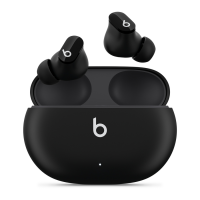
The Beats Studio Buds are a versatile audio device designed for listening to music, making phone calls, and interacting with voice assistants like Siri. They offer a seamless user experience across various platforms, including Apple and Android devices, as well as Macs and other Bluetooth-enabled systems.

Function Description

The primary function of the Beats Studio Buds is to provide high-quality audio for music playback and clear communication during phone calls. They integrate with voice assistants, allowing for hands-free control and access to various device functions. The earbuds also feature Active Noise Cancellation (ANC) and Transparency mode, enabling users to control their auditory environment by either blocking out external noise or allowing it in, respectively.

Usage Features

Pairing:

The Beats Studio Buds offer multiple pairing methods to ensure compatibility and ease of connection with different devices:

  • iPhone, iPad, or iPod touch: To pair with an Apple device, users simply need to enable Bluetooth, open the charging case lid, and hold the Beats Studio Buds near their unlocked device. On-screen instructions will guide the pairing process. If no instructions appear, users can follow the general steps for pairing with another device.

  • Android Device: For Android users, pairing can be done through the Beats app for Android. Alternatively, Fast Pair can be used:

    1. Ensure the Android phone is running Android 6.0 or higher, with Bluetooth and Location turned on.
    2. With the case lid open, hold the Beats Studio Buds near the phone or tablet.
    3. A "Tap to pair" notification will appear; tapping it will result in a "Device connected" or "Pairing complete" notification.
    4. If further setup is needed, users can tap "Set up now." If no notification appears, users can open Bluetooth settings and select the Beats Studio Buds from the list of available devices. Fast Pair requires location services to be enabled and full access to features requires Android 6.0 or newer with Google Play Services and a Google Account.
  • Mac or other Bluetooth Device: To pair with a Mac or another Bluetooth-enabled device:

    1. Turn on Bluetooth on the device.
    2. With the case lid open, hold the Beats Studio Buds near the device.
    3. Press and hold the system button on the charging case until the LED blinks.
    4. Open the Bluetooth menu on the device (e.g., Apple menu > System Preferences > Bluetooth on a Mac).
    5. Select the Beats Studio Buds from the list of discovered Bluetooth devices.

Music Playback Control:

Music playback is controlled using the Beats logo button on either earbud:

  • Pause/Play: Press the Beats logo button once.
  • Skip to Next Track: Press the Beats logo button twice.
  • Listen to Previous Track: Press the Beats logo button three times.

Volume Control:

Volume can be adjusted in several ways:

  • Voice Command: Say "Hey Siri" (or the equivalent for other voice assistants) and then a command like "Turn down the volume."
  • Device Interface: Drag the volume slider in the app, on the Lock screen, or in Control Center of the connected device.
  • Apple Watch: Open Now Playing on an Apple Watch and turn the Digital Crown. Siri availability and features may vary by language and region.

Phone Call Management:

Phone calls are managed using the Beats logo button on either earbud:

  • Answer/End Call: Press once.
  • Answer Second Incoming Call/Switch Between Calls: Press once to answer a second incoming call and put the first call on hold. This action also switches between active calls when two are present.
  • Reject Incoming Call: Press and hold.
  • Stop Listening Through Earphones/Send Call to Phone: Press twice.

Active Noise Cancellation and Transparency Mode:

The Beats Studio Buds allow users to control how much ambient sound they hear:

  • Switch Modes: Press and hold the Beats logo button on either earbud to cycle between Active Noise Cancellation, Transparency mode, and Off. "Off" mode maximizes battery life.
  • Customization: Users can customize which modes the press-and-hold action switches between. This setting is found in Settings > Bluetooth > Beats Studio Buds > Press and Hold Beats Studio Buds on the connected device. This customization feature requires an iPhone, iPad, or iPod touch with iOS or iPadOS 14.6 or later, or an Android device with the latest version of the Beats app installed.

Maintenance Features

The manual primarily focuses on the operational aspects of the Beats Studio Buds, with maintenance implicitly tied to proper usage and handling. While explicit maintenance instructions are not detailed, the emphasis on keeping the charging case lid open during pairing and the mention of the charging case's system button suggest that the case plays a crucial role in the device's functionality and likely its charging and firmware updates. The fact that the earbuds are "on and ready to use" when taken out of the charging case implies that the case also serves as their primary storage and charging unit, keeping them powered and prepared for use. Regular cleaning of the earbuds and charging case, as with any personal audio device, would be a standard practice to ensure hygiene and optimal performance, though not explicitly stated in this excerpt. The requirement for updated operating systems (iOS/iPadOS 14.6+ or latest Beats app on Android) for full feature customization also indicates that software maintenance is important for unlocking the device's full potential.

Beats Studio Buds Specifications

General IconGeneral
TypeIn-ear
Active Noise CancellationYes
Transparency ModeYes
Battery Life (Earbuds, ANC off)Up to 8 hours
Battery Life (Earbuds, ANC on)Up to 5 hours
Battery Life (with Charging Case, ANC off)Up to 24 hours
Battery Life (with Charging Case, ANC on)Up to 15 hours
Charging ConnectorUSB-C
Fast Charging5-minute charge provides up to 1 hour of playback
Water ResistanceIPX4
Bluetooth VersionBluetooth 5.2
BluetoothYes
Driver Size8.2 mm
Weight (each earbud)5 g
Weight (charging case)48 g
CompatibilityAndroid
Voice AssistantSiri (iOS), Google Assistant (Android)
ColorsBlack, White, Red
MicrophonesDual beam-forming microphones

Related product manuals