18
WING-DANTE Quick Start Guide
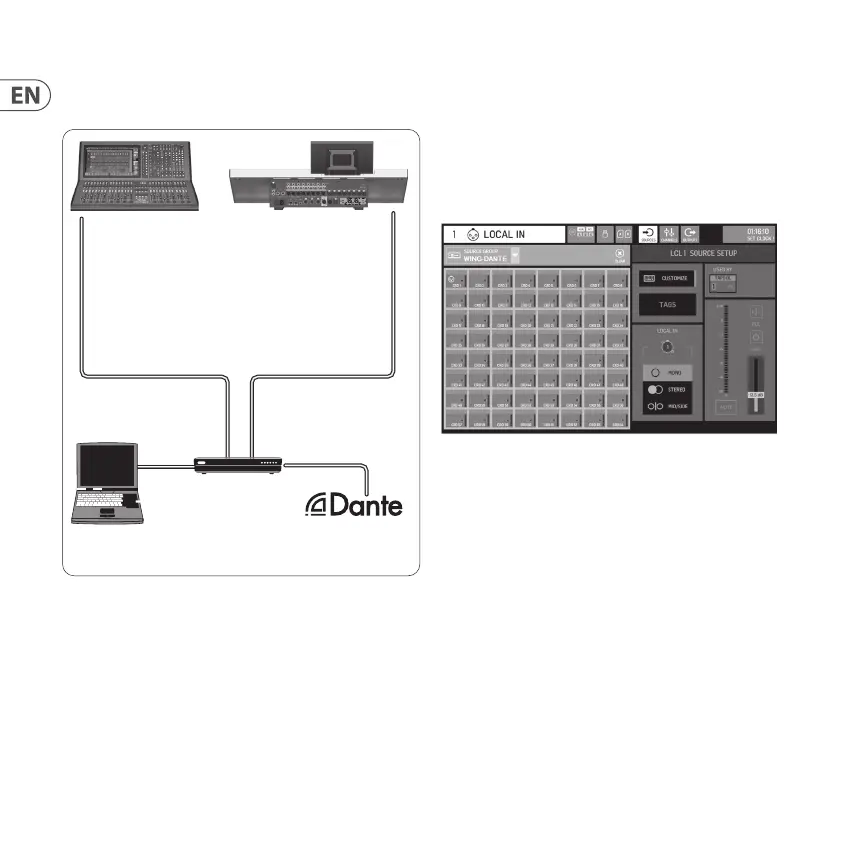
5.4 WING-DANTE connection to Midas
HD96-24 with Dante option
6. WING Setup
6.1 Routing
Press the ROUTING button next to the WING main display screen to
access the general Routing screen. Press the Input Group menu and
select WING-DANTE from the list. All 64 channels can be congured
here, including name, scribble strip details and tags.
Icons at the top of the Routing screen select either Inputs or Outputs.
The routing within these screens is done from a console perspective,
so selecting Outputs routes signals to the Dante network. Be sure to
press the unlock icon to edit the output routing. Changing the screen
to Inputs allows returning signals from the Dante network to be routed
to input channels or directly to physical outputs.
Please refer to audinate.com for a comprehensive set of
documentation, FAQ and forum advices on conguring the Dante
Controller and Dante Virtual Soundcard applications.
6.2 Synchronization
All of the card settings can be adjusted from the Dante Controller
application, including clock synchronization. A master word clock
source must be selected for the network, and users can choose
between the WING’s internal clock or the WING-DANTE clock.
Cat 5/6 AES50
@ 48 kHz
64 x 64 channels
Cat 5/6 Ethernet
@ 48 kHz Dante
64 x 64 channels
Midas Console
Router/Switch
Laptop for conguration
or audio I/O via DVS
Network of
Dante-enabled
equipment
Behringer WING with
WING-DANTE Card





 To Next Page