EasyManua.ls Logo

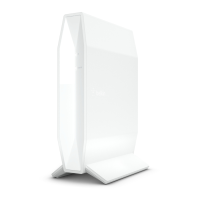
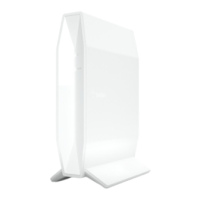
Belkin AX3200 - User Manual

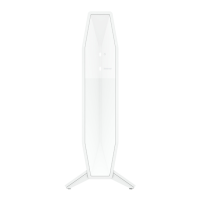
Belkin AX3200
428 pages
Print Icon
To Next Page IconTo Next Page
Loading...
USER GUIDE
AX3200
DUAL-BAND GIGABIT
WiFi 6 ROUTER
Model RT3200

Table of Contents

Questions and Answers

  • K
    kirk61Jul 29, 2025
    How to fix Belkin Network Router when it was not successfully set up?
    • S
      Sylvia WilsonJul 29, 2025
      If your Belkin Network Router was not successfully set up, try the following: Press and hold the Reset button on your router with a paperclip or pin until the power light on the front of the router turns off and starts blinking (about 10 seconds). Type 192.168.1.1 in a browser to try setup again. You can also temporarily disable your computer’s firewall (see the security software’s instructions for help) and install the router again. If you have another computer, use that computer to install the router.
  • L
    Linda WardAug 17, 2025
    What to do if my Belkin AX3200 shows 'Your Internet cable is not plugged in' message?
    • D
      Daniel RobinsonAug 17, 2025
      If you receive a 'Your Internet cable is not plugged in' message, ensure that an ethernet or internet cable (or a cable like the one supplied with your router) is securely connected to the yellow Internet port on the back of the router and to the appropriate port on your modem. This port on the modem is usually labeled Ethernet. Also, make sure that your modem is connected to power and is turned on. If your internet service is cable, verify that the cable modem’s CABLE port is connected to the coaxial cable provided by your ISP. If your internet service is DSL, make sure that the DSL phone line is connected to the modem’s DSL port. If your computer was previously connected to your modem with a USB cable, disconnect the USB cable. If the issue persists, try installing the router again.
  • T
    Traci HammondNov 6, 2025
    Why does the internet appear to be unavailable on my Belkin AX3200 Network Router?
    • D
      Dale KingNov 6, 2025
      If the internet appears to be unavailable, ensure that the network and power cables are securely connected. Also, check that the power outlet your router is connected to has power. Rebooting your router can also resolve this issue. If problems persist, contact your ISP to ask about outages in your area. The most common method of troubleshooting your router is to turn it off, then back on again. Your router can then reload its custom settings, and other devices (such as the modem) will be able to rediscover the router and communicate with it. To restart your router using the power cord, do the following: 1. Disconnect the power cord from the router and the modem. 2. Wait 10 seconds and reconnect the power cord to the modem. Make sure it has power. 3. Wait until the modem’s online indicator ...

Summary

Setting Up: Basics

How to Install Your Router

Step-by-step guide for connecting the router to power, modem, and initial setup.

Internet Setup

Basic Wireless Settings

Wireless Security

Troubleshooting

Router Setup Failure

Steps to resolve issues if the router setup process fails, including resetting.

Internet Cable Connection Error

Troubleshooting the "Your Internet cable is not plugged in" error during setup.

Cannot Access Router Message (Windows)

Resolving the "Cannot access your router" error on Windows by connecting to the correct network.

Cannot Access Router Message (Mac)

Resolving the "Cannot access your router" error on Mac by connecting to the correct network.

Internet Unavailable After Setup

Steps to take if the internet connection is not available after the router is set up.

Belkin AX3200 Specifications

General IconGeneral
Wi-Fi StandardWi-Fi 6 (802.11ax)
Maximum Wi-Fi Speed3.2 Gbps
Speed on 2.4 GHz800 Mbps
Number of Antennas4
USB Ports1 x USB 3.0
MU-MIMOYes
OFDMAYes
BeamformingYes
Parental ControlsYes
Guest NetworkYes
Frequency BandsDual-band (2.4 GHz & 5 GHz)
Speed on 5 GHz2400 Mbps
Ethernet Ports4
Security ProtocolsWPA3
ModelBelkin AX3200

Related product manuals