23527_8820-00376_F7D3302 v1_Share Router(WG7016F22 1-LF-AK) updated
Getting to Know Your Router
Front Panel
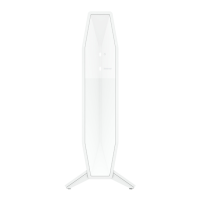
[DIAGRAMfront.ai]
A)RouterStatusLight
YourRouter’sstatusisshownbythelightonthefront.
Off:TheRouterisnotpluggedintoapowersource.
BlinkingGreen:TheRouterisstartingup.
SolidGreen:TheRouterisconnectedtotheInternet.
BlinkingAmber:TheRoutercan’tdetectthemodem.Eitherthemodemis
off,isnotpluggedintotheRouter,orisunresponsive.
B)Wi‐Fi
ProtectedSetup(WPS)LightandButton
TheWPSbuttononthefrontofyourRoutercanbeusedtohelp
establishasecureconnectionbetweenyourRouterandotherWPS
enabledWiFidevicessuchascomputers.TousetheWPSfeature
onyourRouter,see“GettingStarted>AddingComputerstoYour
Network>Usingthe
WPSButton”.
ThesmalllightneartheWPSbuttonshowswhatishappening
whileyouareusingWPStoestablishaconnection.
Off:Idle
BlinkingGreen:TheRouterislisteningforaWPSenabledcomputeror
otherdevice.
SolidGreen:TheRouterhasmadeasecureconnectionwiththecomputer
orotherdevice.
Amber:Aconnectionwasnotcreated.


 To Next Page