Step 2 Set up your Computer’s Network Settings to Work
with a DHCP Server
See the section in this User Manual called “Manually Configuring
Network Settings” for directions.
Step 3 Configure the Router Using the Web-Based
Advanced User Interface
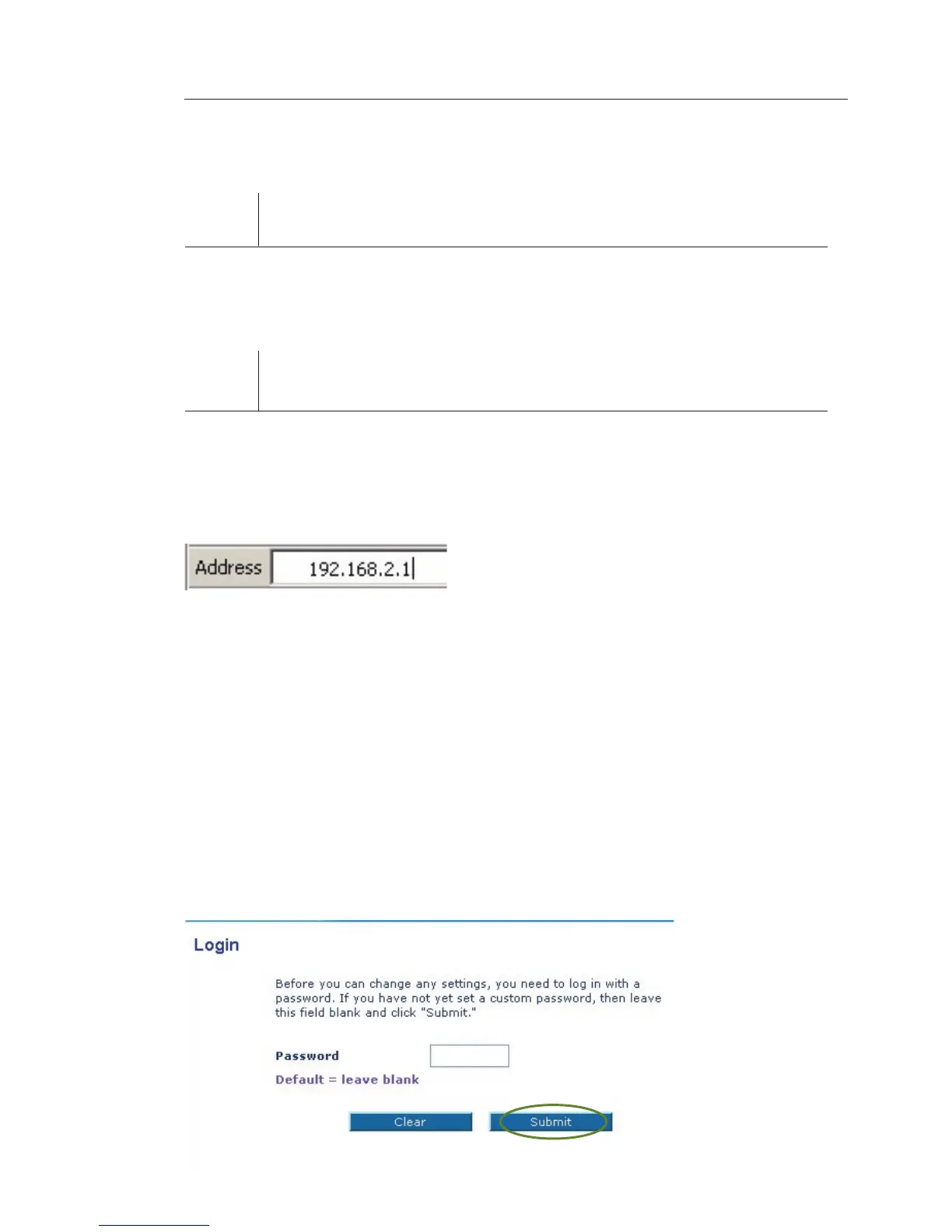
Using your Internet browser, you can access the Router’s Web-Based
Advanced User Interface. In your browser, type “192.168.2.1” (you do
not need to type in anything else such as “http://” or “www”). Then
press the “Enter” key.
PLEASE NOTE: If you have difficulty accessing the Router’s Web-
Based Advanced User Interface, go to the section entitled “Manually
Configuring Network Settings”.
Logging into the Router
You will see the Router’s home page in your browser window. The
home page is visible to any user who wants to see it. To make any
changes to the Router’s settings, you have to log in. Clicking the
“Login” button or clicking on any one of the links on the home page
will take you to the login screen. The Router ships with no password
entered. In the login screen, leave the password blank and click the
“Submit” button to log in.






 To Next Page