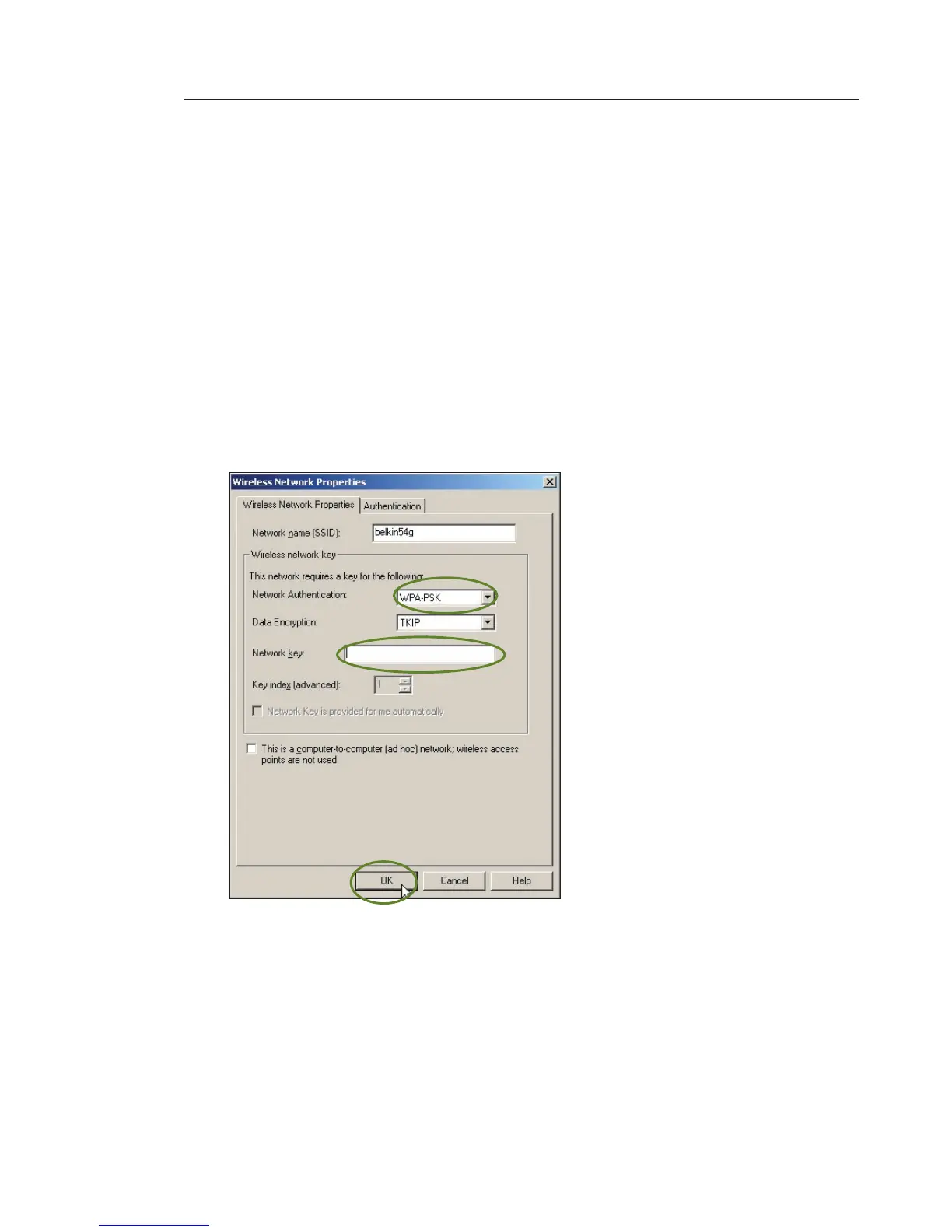
Connecting your computer to a wireless network that requires
WPA-PSK (no server):
1.
Double-click the “Signal Indicator” icon to bring up the “Wireless
Network” screen. The “Advanced” button will allow you to view
and configure more of your Router’s options.
2. Under the “Wireless Network Properties” tab, select a network
name from the “Available Networks” list and click “Configure”.
3. Under “Network Authentication”, select “WPA-PSK”.
4. Type your WPA key in the “Network key” box.
Important: WPA-PSK is a combination of numbers and letters
from A–Z and 0–9. For WPA-PSK, you can enter eight to 63 keys.
This network key needs to match the key you assign to your
Wireless G Plus Router.
5. Click “OK” to save the settings.








 To Next Page