Using the Web-Based Advanced User Interface
79
section
2
1
3
4
5
6
7
8
9
10
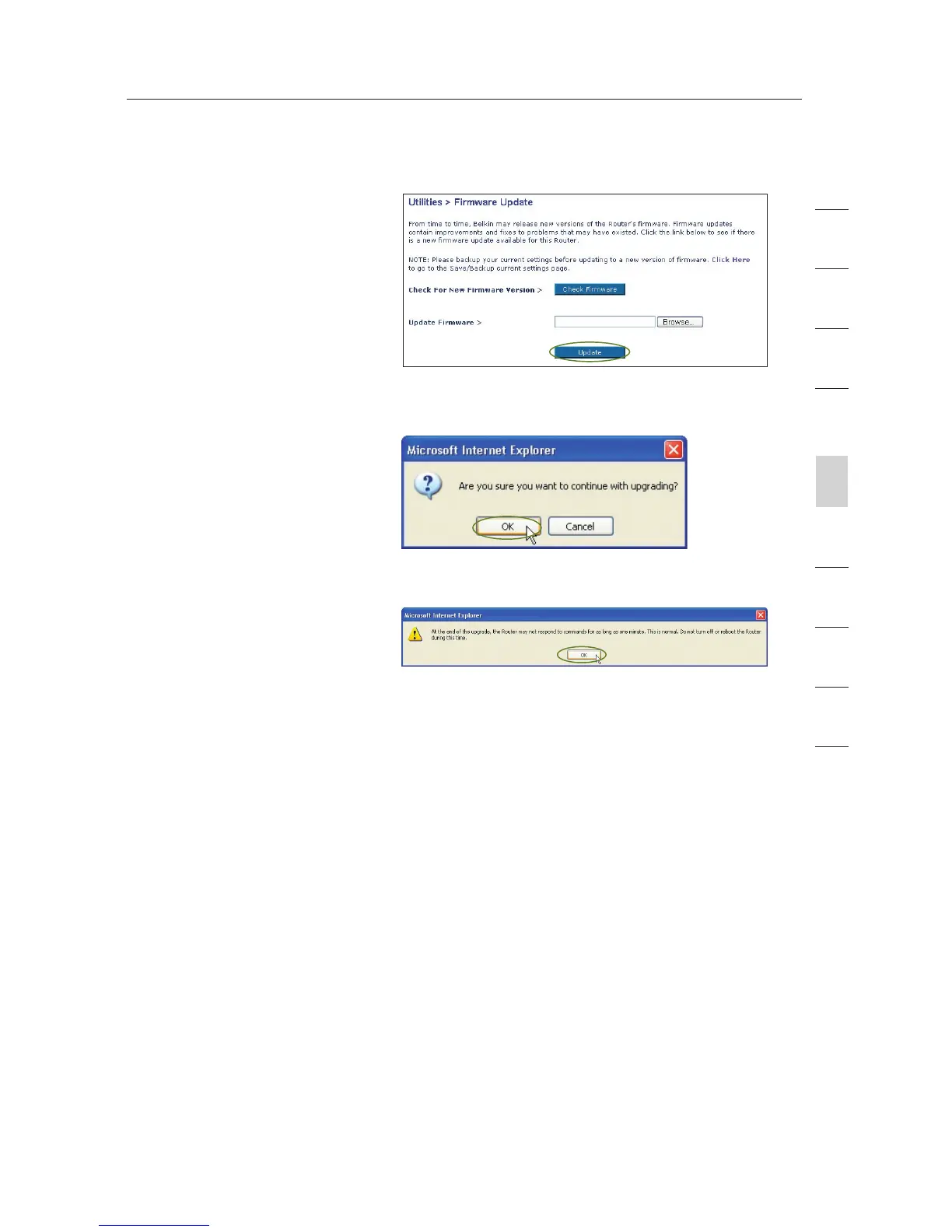
3. The “Update Firmware”
box will now display
the location and name
of the firmware file you
just selected.
Click “Update”.
4. You will be asked if you
are sure you want to
continue. Click “OK”.
5. You will see one more
message. This message
tells you that the Router
may not respond for as
long as one minute as
the firmware is loaded
into the Router and
the Router is rebooted.
Click “OK”.
6. A 60-second countdown will appear on the screen. When the
countdown reaches zero, the Router’s firmware update will be
complete. The Router’s home page should appear automatically.
If not, type in the Router’s address (default = 192.168.2.1) into
the navigation bar of your browser.
The firmware update is complete.








 To Next Page