87
section
2
1
3
4
5
6
7
8
9
10
Manually Configuring Network Settings
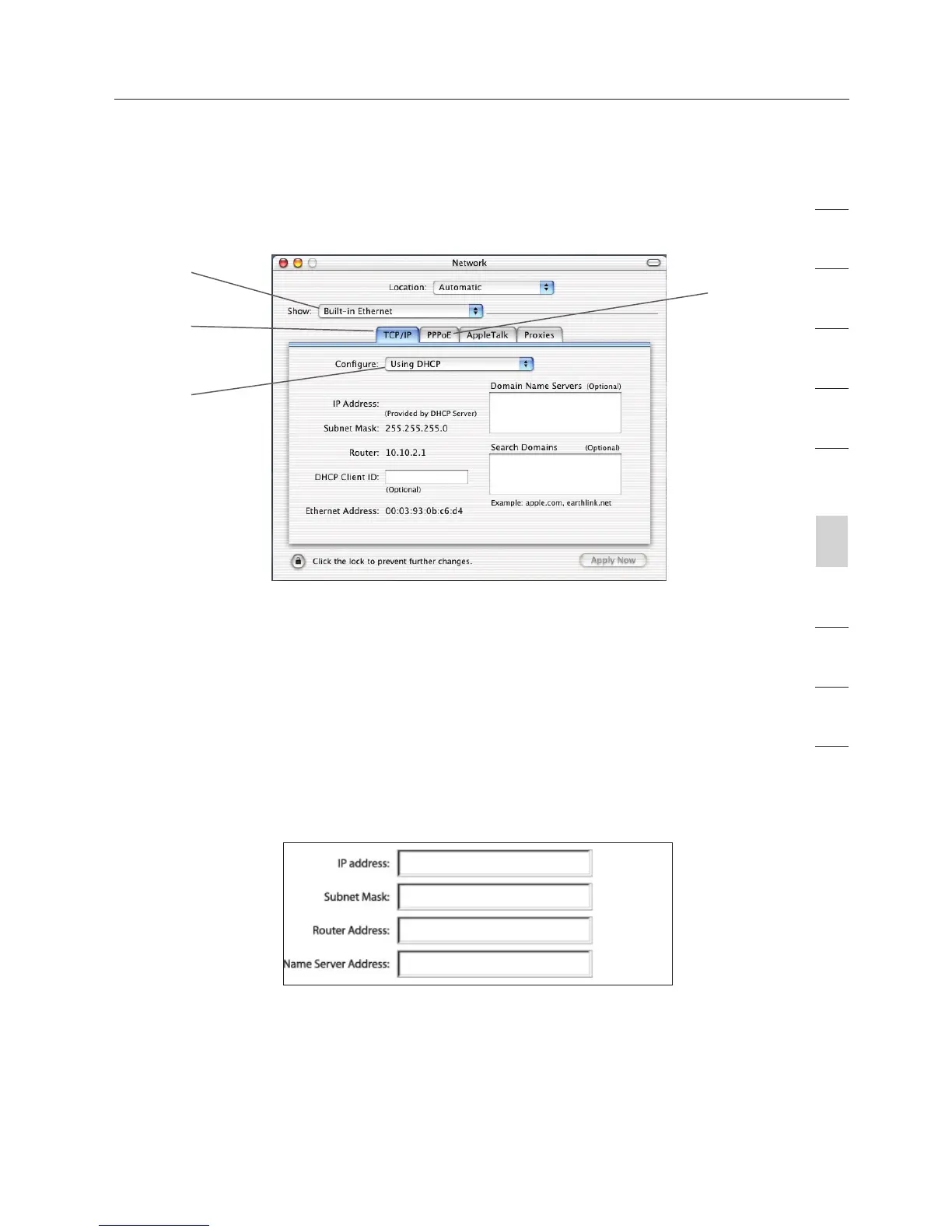
3. Select “Built-in Ethernet” (2) next to “Show” in the Network
menu.
4. Select the “TCP/IP” tab (3). Next to “Configure:” (4), you should
see “Manually” or “Using DHCP”. If you do not, check the
PPPoE tab (5) to make sure that “Connect using PPPoE” is NOT
selected. If it is, you will need to configure your Router for a
PPPoE connection type using your user name and password.
5. If “Manually” is selected, your Router will need to be set up for
a static IP connection type. Write the address information in
the table below. You will need to enter this information into the
Router.
6. If not already selected, select “Using DHCP” next to “Configure:”
(4), then click “Apply Now”.
Your network adapter(s) are now configured for use with the Router.
(2)
(3)
(4)
(5)








 To Next Page