Configuring the 7" USB Monitor Display Information
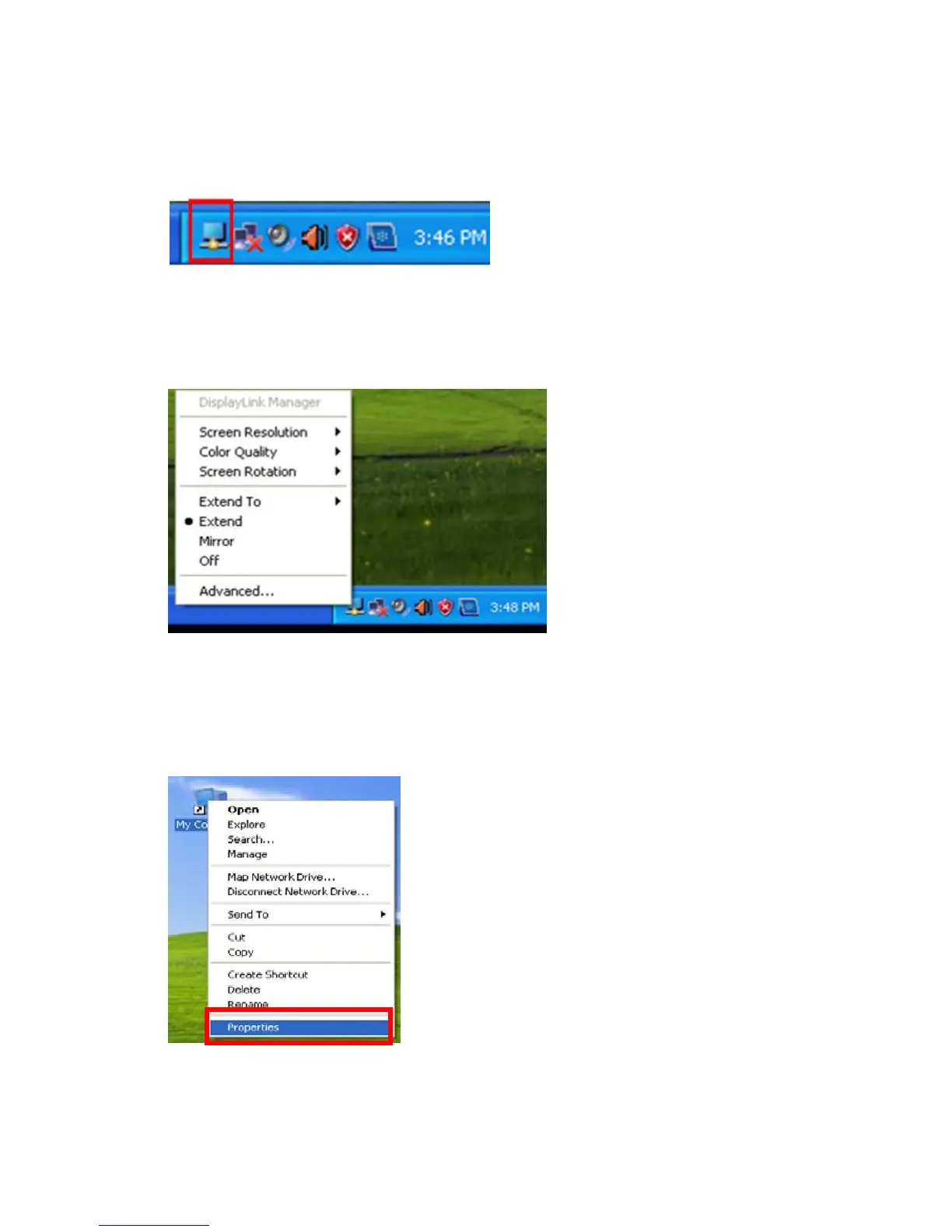
1. When the driver setup for the USB monitor is finished, a monitor icon is created in
the system tray at the bottom of the monitor screen.
2. Click the monitor icon to display a list of connected USB monitors. Select the
monitor for which you want to configure the display settings. You can configure the
"Screen Resolution", "Color Quality" and "Screen Rotation" settings for your
monitor.
Checking the configuration
After the installation, you can check the configuration by following these steps.
1. Right-click “My Computer”, and select “Properties” - “System Properties” - the
“Hardware tab”.
2. Click “Device Manager”.



 To Next Page