Installing the USB Monitor Software
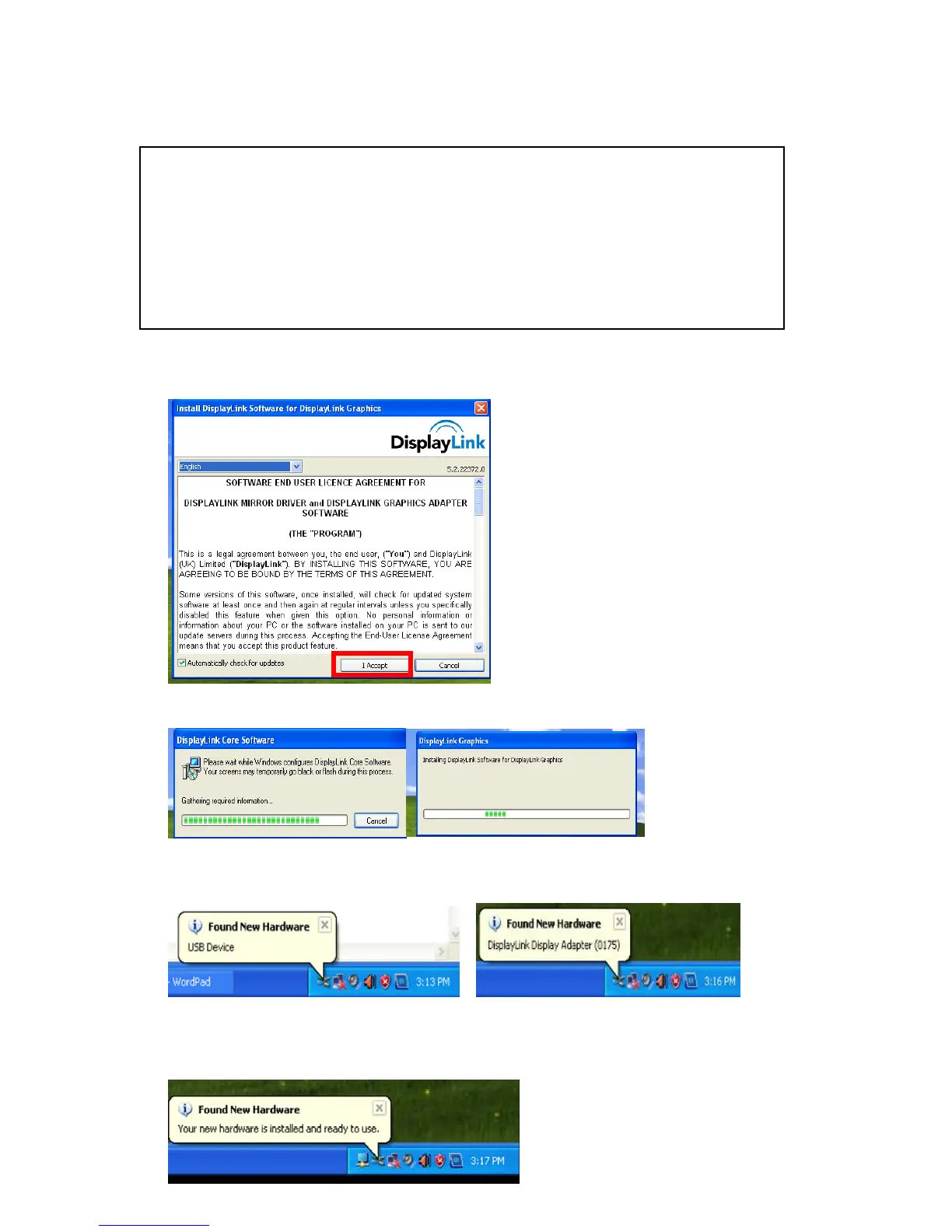
1. Insert CD into the CD-ROM drive. Click "USB Monitor Driver"
2. Click "I Accept".
3. The progress window appears, as shown in the figure below.
4. If you connect your USB monitor to your PC, it recognizes the monitor and the
"Found New Hardware" wizard is displayed, as shown in the figure below.
When setup is finished, a monitor icon is created in the system tray at the bottom
of the monitor screen, and the information for the installed USB monitor is
displayed.
» Make sure to connect the USB cable and begin the installation after your
PC has booted.
» The Setup program requires about one minute for the installation. If you
turn the power off or remove the USB cable while the Setup program is
running, it may cause an error with the PC or the Windows operating
system.
» The optimal resolution for this USB monitor is 800 x 600.



 To Next Page