16
BeUP APPLICATION
Diagnostics programming
The «Programming and Diagnostics» section was added to the BeUP
app for installers.
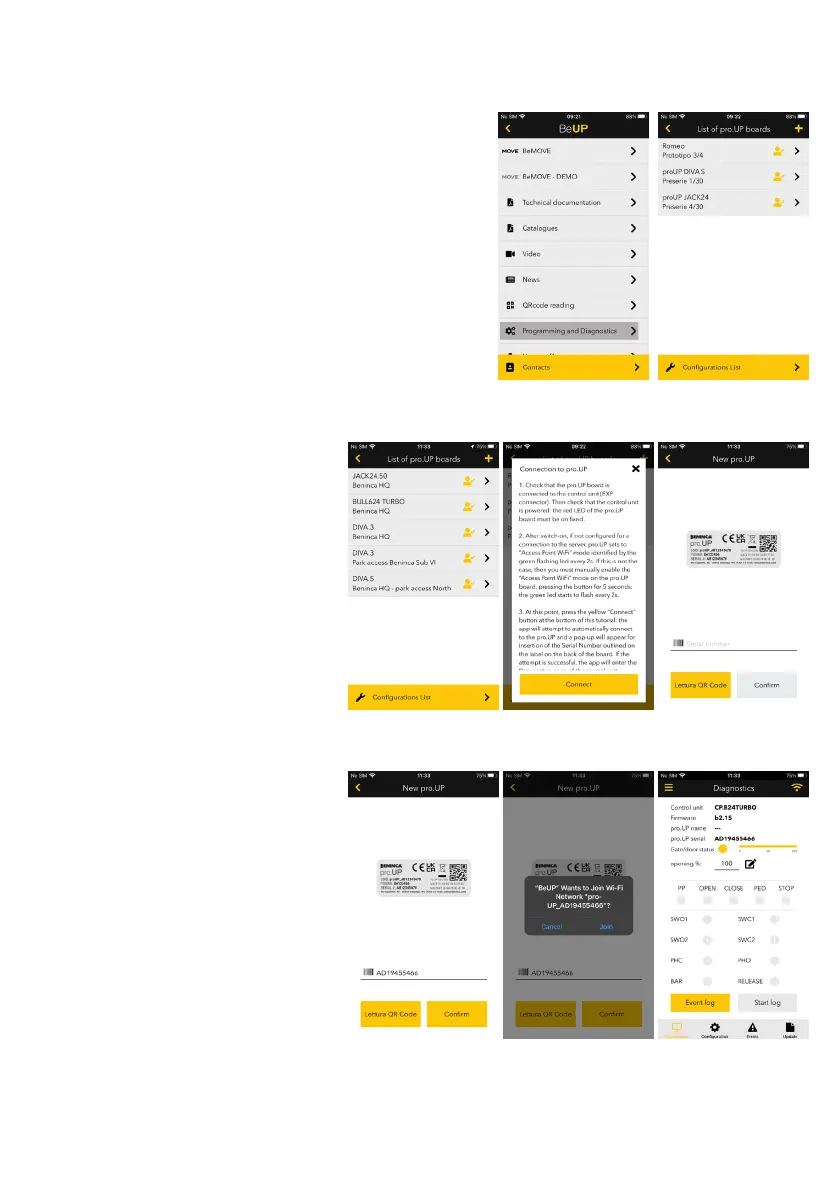
Accessing, the page appears with the list of pro.UP boards added to
the cloud server by the installers.
Each installer only sees the pro.UP added by him (reference is made
to the account used).
At this point, the installer can access one of the boards listed (remote
connection via server) or decide to connect to the pro.UP from local
(point-point WiFi connection).
To access from remote, simply click on the pro.UP on the list.
To access from local, instead press the + button on the top right and
follow the popup tutorial instructions.
NOTE: to connect a new pro.UP to the cloud server, you must firstly
connect locally (point-point).
Point-Point Connection
To add a new pro.UP, you must firstly pro-
ceed with the point-point connection of the
smartphone to the WiFi access generated
by pro.UP.
From the page with the list of pro.Up boards
already connected, press the + button on
the top right. The tutorial pop-up appears
explaining the passages to execute.
Having pressed the yellow «Connect» button,
you will be directed to the screen to enter the
serial number of the pro.UP to connect to.
Having entered the serial number or read it
using the QR code on the back of the board,
pressing «Confirm» a pop-up will request
testing of the network to connect to.
Confirming, the automatic connection pro-
cedure will be started.
If the procedure is successful, you will be
directed to the Diagnostics page of the
control unit to which pro.UP is connected.
If the automatic procedure is unsuccessful,
you must execute the manual connection
following the tutorial pop-up.


 To Next Page
 Loading...