17
Diagnostics and Command Board
Both if you access a pro.UP locally (therefore connect to the WiFi
network issued by pro.UP) or remotely (via internet), the first access
screen is that of Diagnostics and Control.
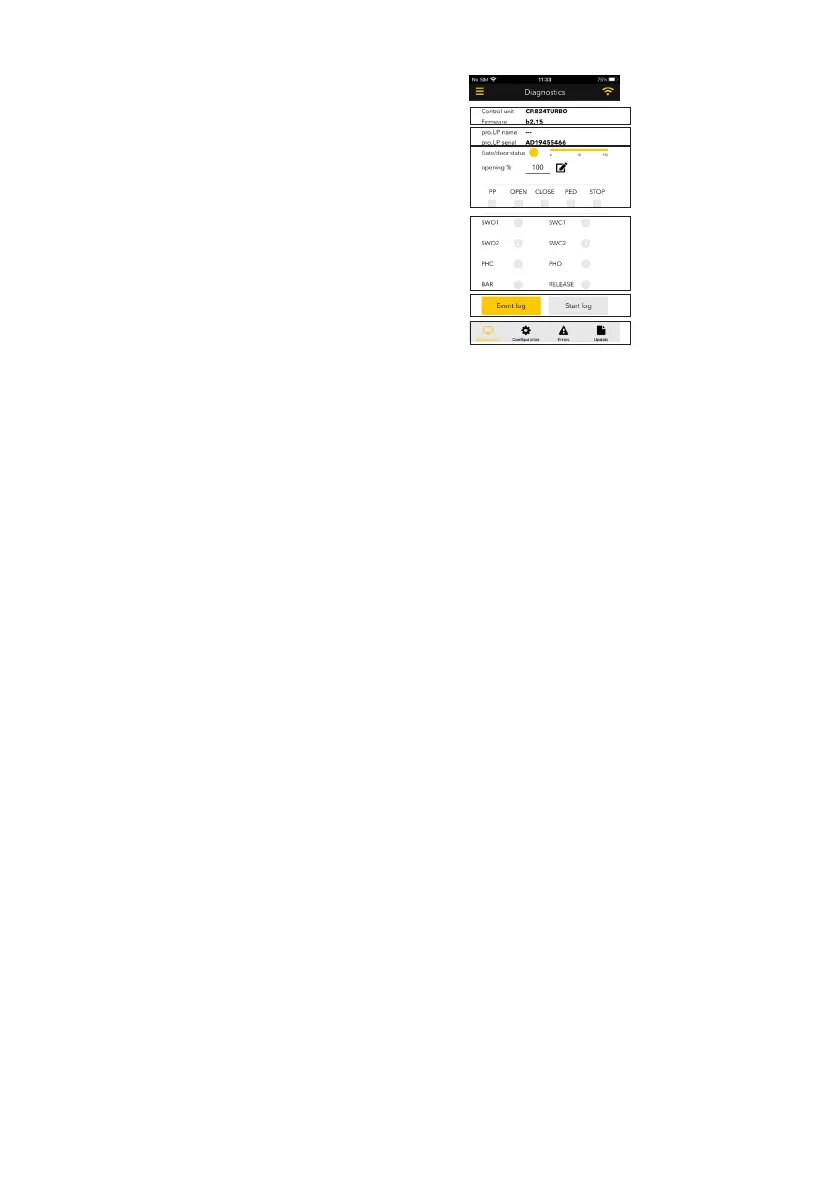
The first part of the screen has the references (model and firmware
version) of the control unit to which pro.UP is connected.
The references follow of the pro.UP board: the name you can assign
only when pro.UP is configured for connection to the server (remote
access via internet). Instead, the serial port is unambiguous and
non-editable, assigned by default.
----Ref. control unit
----Ref. pro.UP
----Gate status and open %
----Entries status
----Events log management
----Tab
The indicator is found of the gate status:
>grey dot identifies the gate is closed;
>yellow dot instead identifies the gate is open;
>flashing yellow/grey dot to identify movement of automation.
In particular opening movement is indicated by a double arrow to the right inside the flashing dot, while closure is indicated by
a double arrow to the left;
>yellow/grey flashing dot identifies movement of automation;
>grey dot with exclamation mark identifies the device automation status is not known.
The loading bar to the side of the dot indicates the opening % of the gate.
Then, we have the opening % indicator of the gate which can also act as an opening or closure command for a given % settable
typing the desired value in the box and pressing the button on the side.
Under, we have the automation control.
PP = step-by-step
OPEN = opening
CLOSE = closure
PED = pedestrian opening
STOP = stop
also here, the button has the indicator function:
> grey square identifies the command is not enabled;
> yellow square identifies the enabled command;
> the grey square with a white cross identifies the fact that command is not managed by the control unit connected to pro.UP.
Then, we have the input and safety device statuses with the dots using the same logic as above:
> yellow dot = input enabled
> grey dot = input not enabled
> grey dot with exclamation mark = input not managed by the connected control unit.
The lower part contains the two buttons for management of log registration of events and lastly the browsing TABS for the various
screens of the app.


 To Next Page
 Loading...